Chapter 0
Start here
Accompanies Module 0 · Setup and Foundations
Why this matters
This course is taught inside ArcGIS Pro by Waldo, a chat pane that can read your project. Before the first lesson you need three things on your computer: ArcGIS Pro, the Waldo add-in, and a model provider that supplies the language model Waldo uses. This chapter covers the setup up to the start of Module 0's first lesson, and then explains what Module 0 teaches: what a project is and how to keep it safe.
You should be able to explain
- why a project is a folder, and why deleting the .aprx keeps your data while moving the data breaks a map
- how Waldo checks your progress by reading your saved project, so you can stop at any step and come back
- what Ask mode lets Waldo do and not do, and why every lesson runs in it
What you need
A Windows PC. ArcGIS Pro runs on 64-bit Windows 11 (and Windows Server). Esri lists 8 GB of memory as the minimum and 32 GB as recommended, with at least 32 GB of free disk space, ideally on a solid-state drive. On a Mac, Pro runs only inside a Windows virtual machine such as Parallels Desktop. Waldo needs ArcGIS Pro 3.7 or later; earlier releases cannot load it. Check Esri's system requirements page before you install (see Further reading).
An ArcGIS Pro licence. Pro will not start without one. There are four common ways to get one:
| Route | Who it suits | Where to look |
|---|---|---|
| Your school or employer | Anyone whose university or organisation already licenses ArcGIS | Ask the GIS or IT office for an ArcGIS account; you sign in with it when Pro starts |
| ArcGIS Pro free trial | A work or government email address | Esri's trial page (21 days at the time of writing) |
| ArcGIS for Student Use | Students building skills while in school | Esri's Student Use page |
| ArcGIS for Personal Use | Personal, non-commercial learning | Esri's Personal Use page |
The trial requires a business or government email address, and Esri directs students and hobbyists without one to the two non-commercial licences. Esri sets the prices and terms and changes them, so check them on Esri's pages rather than in this book.
A model provider. Waldo does not include its own artificial intelligence. You connect it to a model provider, and the provider's model reads your project and writes the explanations. Most providers identify you with an API key, a long secret string that you create on their website and paste into Waldo once. The free options are listed first in the table below.
| Provider (as named in Waldo's Settings) | Cost | What you need |
|---|---|---|
| Google Gemini (free or paid tier) | Free tier available | A Google account; create a key in Google AI Studio |
| OpenAI-compatible → OpenRouter | Free models (ids ending in :free) or pay as you go |
An OpenRouter account and key |
| GitHub Copilot (installed CLI) | Free for verified students (Copilot Student); paid plans | A GitHub account and the Copilot command-line tool |
| OpenAI-compatible → Ollama or LM Studio | Free, runs on your own computer | A powerful computer; slower and less capable than hosted models |
| Anthropic (Claude, API key) | Pay as you go | An Anthropic console account and key |
| OpenAI-compatible → OpenAI, DeepSeek, Groq, Mistral, xAI | Pay as you go | An account and key with that company |
| ChatGPT (sign in) | Your ChatGPT plan | A paid ChatGPT plan; no key, you sign in instead |
The free tiers have usage limits, and Google's allows only a few requests a minute. Because a single Waldo reply can use several requests, expect pauses. Google also states that content sent on the free tier may be used to improve its products. OpenRouter's free models are capped at a small number of requests per day unless you have bought credits. Any provider is enough for the lessons, but a more capable model gives better explanations.
Note
Treat an API key like a password. Paste it into Waldo's Settings and nowhere else; Waldo stores it encrypted on your computer. If a key leaks, delete it on the provider's website and make a new one.
Installing ArcGIS Pro
Esri documents the installation of Pro, and you should follow its instructions (see Further reading). In outline, you sign in to your ArcGIS account, download the installer from the Licenses page, run the setup wizard, and then start Pro and sign in with the same account. On a school or company licence, an administrator often controls the download. If you see no Download ArcGIS Pro link, ask the person who gave you the account.
Starting Pro the first time
When Pro starts, it opens the start page, which lists your recent projects and the default project templates (Map, Catalog, Global Scene, Local Scene), with Start without a template beside them. Click Start without a template. Pro opens an empty, Untitled project with no map in it yet. The course begins from this empty project. Module 0 gives the project a name, and Module 1 adds the first map.
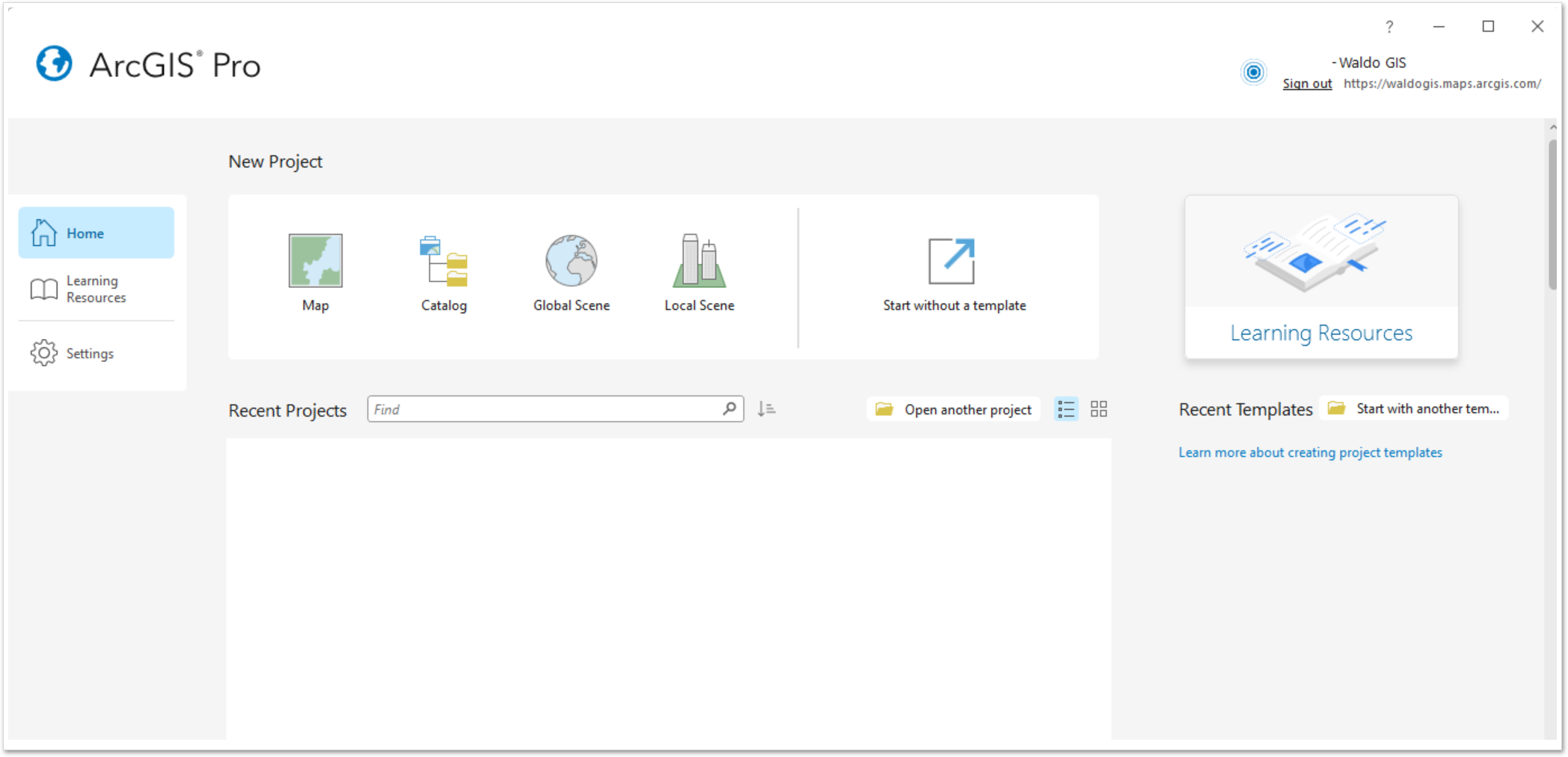
An Untitled project is temporary. Esri's documentation notes that it is deleted when you end the session unless you save it, so the first lesson of Module 0 is a Save As.
Installing Waldo
Waldo is an ArcGIS Pro add-in, distributed as a single file ending in .esriAddinX that you download from waldogis.com. The course lessons are included in that file, so there is no separate course download.
- Close ArcGIS Pro. The add-in installs while Pro is closed.
- Double-click the
.esriAddinXfile. - In the prompt that appears, click Install Add-In. No administrator rights are needed. The prompt also shows a notice in red that the file is not digitally signed. This notice is expected for this release, because Waldo is distributed directly from its own site rather than through a store.
- Start Pro again.
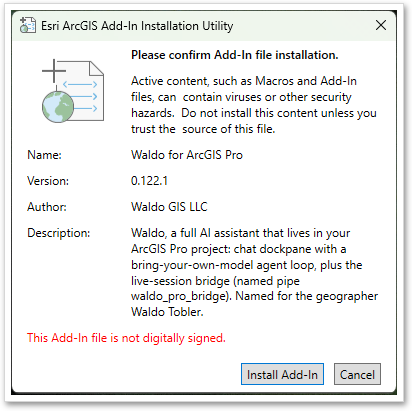
To update Waldo later, repeat these steps with the newer file. The new version replaces the old one, and your settings and key are kept.
Finding Waldo
With a project open, look at the ribbon, the row of tabs across the top of Pro. The Waldo button is on the Add-In tab, in a group called Waldo. Clicking the Waldo button opens the pane, docked beside the map.
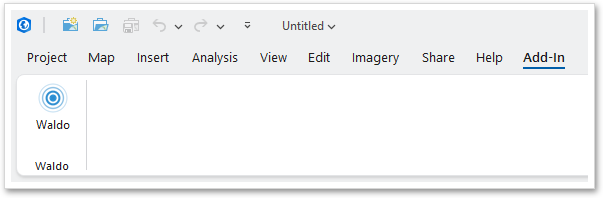
If you close the pane, it stays closed until you reopen it, and Pro gives no indication of where it went. You always reopen it the same way, with the Waldo button on the Add-In tab. On a narrow window the ribbon may hide some tabs behind a » at its right end.
Settings
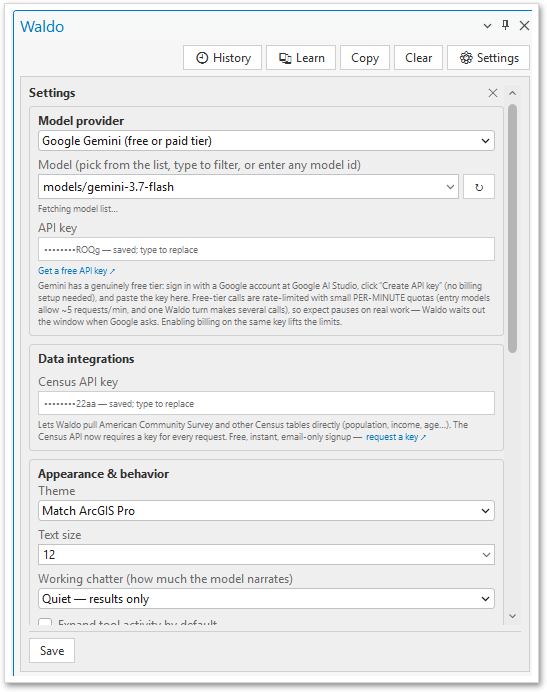
The first time the pane opens, click ⚙ Settings at the top of it. Under Model provider, choose your provider from the list, paste your API key into the key box (or, for the ChatGPT and GitHub Copilot entries, sign in as the panel explains), pick a model, and click Save. A link under the key box opens the provider's page for creating keys.
A new installation of Waldo starts a free seven-day trial in which Waldo can both explain and act. After the trial it continues in Ask mode, in which it can read your project and teach but cannot change anything. Every lesson in the course runs in Ask mode, so you can complete the course with or without a Waldo licence (licences are sold at waldogis.com).
The first thing to click
At the top of the Waldo pane, in the row of buttons beside History and Settings, is the Learn button (its icon is two small books). Click it, click the row Module 0: Setup and Foundations, and click Start beside its first lesson.
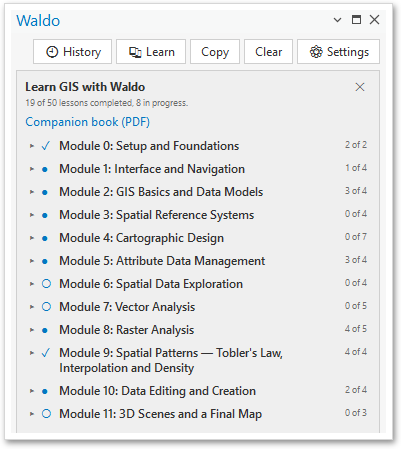
The Learn panel lists the whole course. Each module row has a mark (○ not started, ● in progress, ✓ completed) and a count of the lessons you have done, and clicking a row shows its lessons. Each lesson has a Start button, which becomes Resume once you have begun. A started lesson also has a Check my work button. Clicking it runs the lesson's checks against your project and reports which of them pass. To come back another day, click Learn, then the module, then Resume. The Companion book link under the progress line opens this book at waldogis.com/learn, where it is free as a web edition and a PDF.
Module 0 has two short lessons. In the first you name and save your project, and the second explains how the lessons work. A lesson is a short series of steps that you carry out in Pro while Waldo explains them. Each of Waldo's replies ends with a few buttons that you can click instead of typing. You can also do everything the panel does by typing into the box at the bottom of the pane:
| Type | What happens |
|---|---|
start module 0 |
Begins a module at its first lesson |
start lesson m01-l03 |
Begins one particular lesson |
list lessons |
Shows every module and lesson |
resume module 1 |
Picks up where you left off, even weeks later |
explain more |
Goes deeper on the current step |
skip ahead |
Moves past the current step |
| (close the pane or Pro) | Stops; your progress is kept, because Waldo reads it from the project (save the project first) |
A checkpoint is the point at the end of a step where Waldo checks your work. Waldo does not rely on what you tell it. It reads your actual project, including the maps, layers and files in it, and reports what it found. Nothing is graded. A step is either done or not yet done, and because your progress is recorded in the state of your project, you can stop at any point and come back.
In a lesson Waldo acts as a teaching assistant and does not do the work for you. It explains, answers questions and checks your work, and you carry out the steps in Pro. When you carry out each operation yourself, you learn what it is for, how to predict its result and what the result does and does not show. A checkpoint checks your project, and the questions in this book test your reasoning.
Try it
Open the Learn panel after Module 0 and compare its list with the course map below. Then ask Waldo about any button you do not recognise. You can ask questions in the middle of any step.
The course map
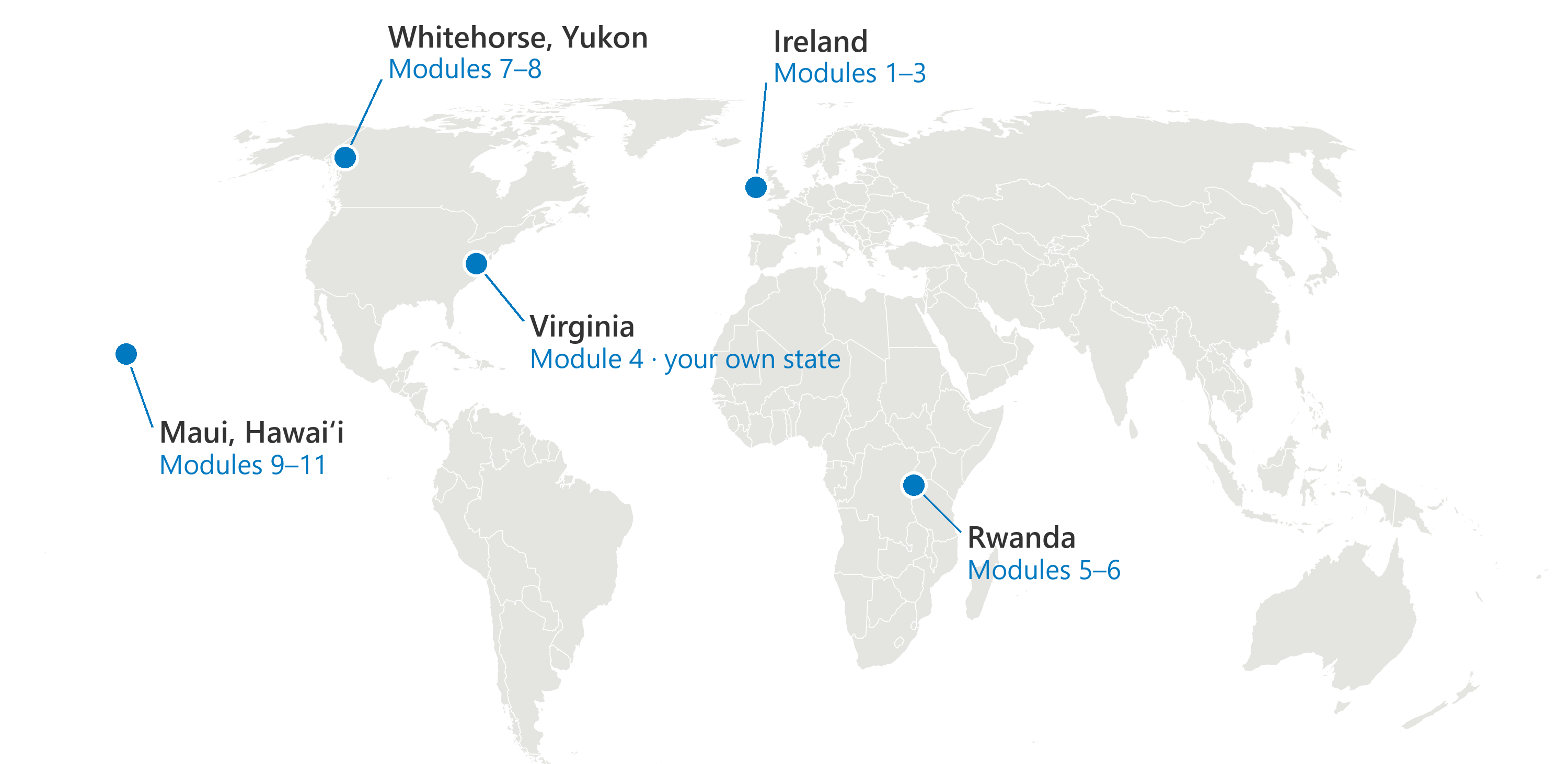
The course has twelve modules and fifty lessons, which take roughly fourteen hours in all. Each module uses data from one place, and the course moves to a new place as the topics change. It uses Irish river basins for the basics, a US state for cartography, Rwanda's census for tables and queries, Whitehorse in the Yukon for vector and raster analysis, and Maui for spatial patterns, editing and 3D. The map on this chapter's opening page shows them. Module 4 uses your own US state, with Virginia as the worked example, and Module 11's final map can be of any place in the course.
| Module | Title | Lessons | Minutes | Place |
|---|---|---|---|---|
| 0 | Setup and Foundations | 2 | 16 | Your own project |
| 1 | Interface and Navigation | 4 | 52 | Ireland |
| 2 | GIS Basics and Data Models | 4 | 38 | Ireland |
| 3 | Spatial Reference Systems | 4 | 51 | Ireland and the world |
| 4 | Cartographic Design | 7 | 96 | A US state (Virginia) |
| 5 | Attribute Data Management | 4 | 63 | Rwanda |
| 6 | Spatial Data Exploration | 4 | 69 | Rwanda |
| 7 | Vector Analysis | 5 | 122 | Whitehorse, Yukon |
| 8 | Raster Analysis | 5 | 112 | Whitehorse, Yukon |
| 9 | Spatial Patterns | 4 | 70 | Maui, Hawaiʻi |
| 10 | Data Editing and Creation | 4 | 57 | Haleakalā, Maui |
| 11 | 3D Scenes and a Final Map | 3 | 75 | Haleakalā, then your choice |
The minutes are estimates for a first pass. Most lessons add their own data, so you can start almost anywhere. Later modules build on earlier ones, however (Module 8 continues Module 7's project, and Module 11 continues Module 10's), so it is easiest to take the modules in order.
A project is a folder
This idea will be important for the rest of the modules. An ArcGIS Pro project is a folder on your computer, and the file you open, the .aprx, is only one thing in it.
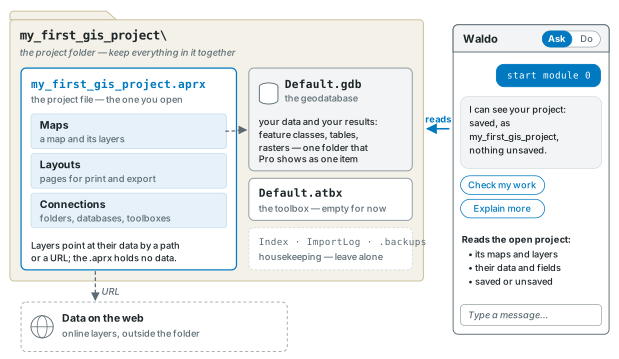
- The
.aprxfile is the project itself: its maps, layouts and connections. A map's layers do not contain data; each one holds a path to data on your computer or a web address for data online. - The geodatabase (
Default.gdb) is where your own data and results are stored. In Windows Explorer it appears as a folder of files with unfamiliar names, but Pro shows it as a single item. Never edit its contents from Explorer. - The toolbox (
Default.atbx) holds any tools you build. It stays empty in this course. - Folders such as
Index,ImportLogand.backupshold Pro's own housekeeping files.
This arrangement has three consequences. First, deleting the .aprx does not delete your data. Second, moving or renaming data breaks the path that the project stores, and the layer shows as broken until it is repaired. Third, your own work belongs in the geodatabase inside the project folder, so that the whole folder can be moved or copied as one unit.
Rule of thumb
Name projects, folders and data in lowercase, with words joined by underscores and no spaces: my_first_gis_project. Spaces and capital letters can cause problems in paths, scripts and some tools, and names written this way avoid those problems.
Save and Save As. Save As (on the Project tab) gives the project a name and a folder, and you use it once, at the start. Save writes your changes to that same project. You use it often, from Project > Save or from the small disk button on the Quick Access Toolbar at the top-left of the window. The button is greyed out when there is nothing new to save and becomes active when you change something. Data that you draw or edit is saved separately, as Chapter 10 explains.
Rule of thumb
Save often, and always save before closing Pro. A saved project reopens as you left it, although layers from the web still depend on their services. An Untitled project that was not saved is deleted.
Ask and Do. At the top of the Waldo pane is a two-way switch. In Ask mode Waldo can read your project and explain anything, but it cannot change anything. In Do mode it can make changes, such as running tools, styling layers and building layouts. The lessons run in Ask mode because you learn by doing the steps yourself. Outside a lesson, you can also learn by switching to Do, watching Waldo perform a task once and then doing it yourself.
In the pane
In Module 0 lesson 1 you save the project with Save As, open the project folder in Explorer to see the .aprx, the geodatabase and the toolbox, and find both Save buttons. Waldo then checks that the project has a real name and nothing unsaved. Lesson 2 shows the course map, the Ask/Do switch (on some installs it is fixed on Ask, and the lessons never need Do), the Learn panel and its Companion book link, the words that move you between lessons and the Add-In tab, and Waldo demonstrates a checkpoint by reading your project live.
Key terms
- project
- an ArcGIS Pro workspace: a folder holding the
.aprxfile, a default geodatabase, a toolbox and housekeeping folders. - .aprx
- the project file you open; it stores maps, layouts and connections, and points at data rather than containing it.
- geodatabase
- a container for GIS data (feature classes, tables, rasters); a file geodatabase is a
.gdbfolder that Pro shows as one item. - add-in
- a package that extends ArcGIS Pro with new buttons and panes, installed from an
.esriAddinXfile. - pane
- a dockable window inside ArcGIS Pro, such as Contents, Catalog or Waldo.
- provider
- the company or program that runs the language model Waldo uses.
- API key
- a secret string that identifies you to a provider; treat it like a password.
- Ask mode
- Waldo reads and explains your project but cannot change it; every lesson runs in Ask.
- Do mode
- Waldo can act on your project: run tools, change symbology, build layouts.
- checkpoint
- the check at the end of a lesson step, made by reading your actual project.
- Learn panel
- the list of every module and lesson in the Waldo pane, with your progress marked and Start, Resume and Check my work buttons.
- lesson
- a short sequence of steps, done in Pro, that teaches one idea.
- module
- a group of lessons on one topic; the course has twelve, numbered 0 to 11.
Further reading
- Esri. ArcGIS Pro 3.7 system requirements. ArcGIS Pro documentation. https://doc.esri.com/en/arcgis-pro/latest/get-started/arcgis-pro-system-requirements.html (src:esri-pro-docs)
- Esri. Download ArcGIS Pro and Install ArcGIS Pro. ArcGIS Pro documentation. https://doc.esri.com/en/arcgis-pro/latest/get-started/download-arcgis-pro.html and https://doc.esri.com/en/arcgis-pro/latest/get-started/install-and-sign-in-to-arcgis-pro.html (src:esri-pro-docs)
- Esri. Create a project. ArcGIS Pro documentation (the start page, templates and Start without a template). https://doc.esri.com/en/arcgis-pro/latest/help/projects/create-a-new-project.html (src:esri-pro-docs)
- Esri. Run ArcGIS Pro on a Mac. ArcGIS Pro documentation. https://doc.esri.com/en/arcgis-pro/latest/get-started/run-pro-on-a-mac.html (src:esri-pro-docs)
- Esri. ArcGIS Pro free trial, ArcGIS for Student Use and ArcGIS for Personal Use. https://www.esri.com/en-us/arcgis/products/arcgis-pro/trial, https://www.esri.com/en-us/arcgis/products/arcgis-for-student-use/overview and https://www.esri.com/en-us/arcgis/products/arcgis-for-personal-use/overview (src:esri-pro-docs)
- The course's data sources: every layer the lessons use, who publishes it and its licence. (src:course-data-sources)