Chapter 2
Data models and where data lives
Accompanies Module 2 · GIS Basics and Data Models
Why this matters
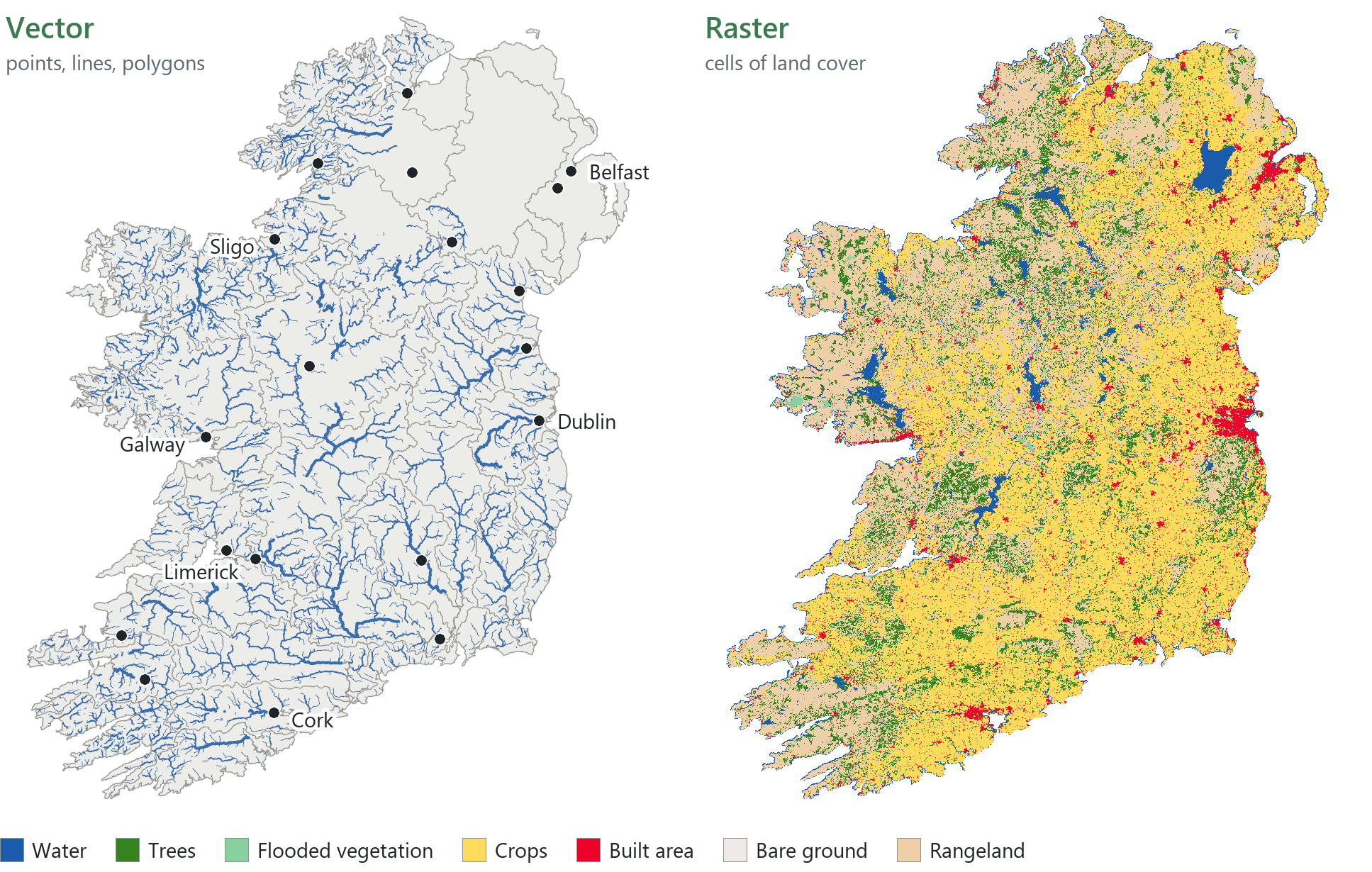
A map looks like one picture, but it is assembled from separate datasets. Each dataset is stored in a particular place and describes the world in one of two ways. The figure on the opening page shows Ireland twice, once as points, lines and polygons and once as a grid of land-cover cells. This chapter explains the two models, the formats in which data is stored, how a project locates its data and where to find more data.
You should be able to explain
- why a project stores pointers rather than data, and why a relative path lets the whole folder be moved
- when a theme suits the vector model and when the raster model, and what sets the detail in each
- why more detail is not more accuracy, and how metadata shows whether a dataset fits your purpose
The project and its data
A Pro project is a folder (Chapter 0). The file you open, the .aprx, holds maps, layouts and connections. Because every layer draws when you open it, the file appears to hold the data as well, but it does not. For each layer the project stores only a pointer, the path or web address where the data is actually stored, together with instructions for drawing it. The data itself stays outside the file.
A pointer can refer to three kinds of location. It can be a path to a geodatabase or a shapefile on your own computer, a path to a folder on a shared network drive, or the web address (URL) of a service on a server. A layer that points to the web draws only while the server responds, and it goes blank if the internet connection is lost. A copy on your own disk still draws when you are offline.
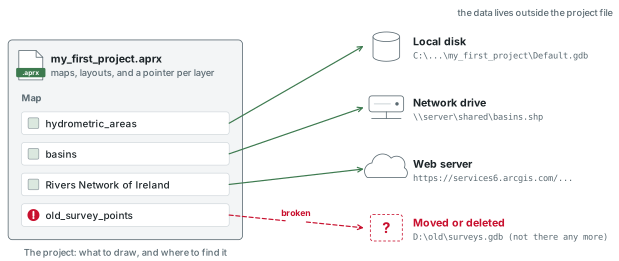
The layer's Source tab shows its pointer. For a web layer it is a URL beginning https://. For a local copy it is a Database path ending in a geodatabase name, with the dataset's name beside it. Because the project contains only the pointers, an .aprx sent on its own to someone else contains none of your local data. The layers that point to web services still draw, but the layers that point to files on your disk do not.
In the pane
In Module 2 lesson 1 you read the pointer of the web basins layer on its Source tab. You then copy the basins and the river surveys into the project's own geodatabase with the Export Features tool and read the new, local pointer. Waldo checks that the copies are in the geodatabase and that the path you read ends in the right place.
Paths, and how links break
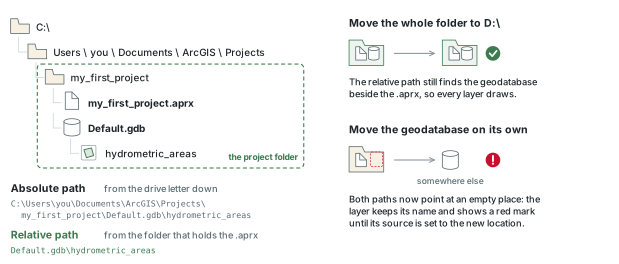
A path can be written in two ways. An absolute path starts at the top of the file tree, the drive letter, and names every folder on the way down to the data. A relative path starts from the folder that holds the project file and gives only the route from there to the data, for example to a geodatabase in the same folder as the project file. Pro stores paths relative to the project whenever the data is on the same drive as the project.
As a result, a project folder can be copied to another disk, zipped and emailed, or opened on a different computer and still work, as long as the whole folder is moved together. Links break when the parts are separated, for example when the .aprx is sent without its folder, a geodatabase is renamed or data is moved to another drive. The layer keeps its name in the Contents pane but shows a red exclamation mark, which means that Pro still has the layer but cannot find its data. You repair the link on the same Source tab, where Set Data Source points the layer to the data's new location.
Rule of thumb
Keep the project folder together, with its data inside it, and share the whole folder rather than the .aprx file alone.
The vector model
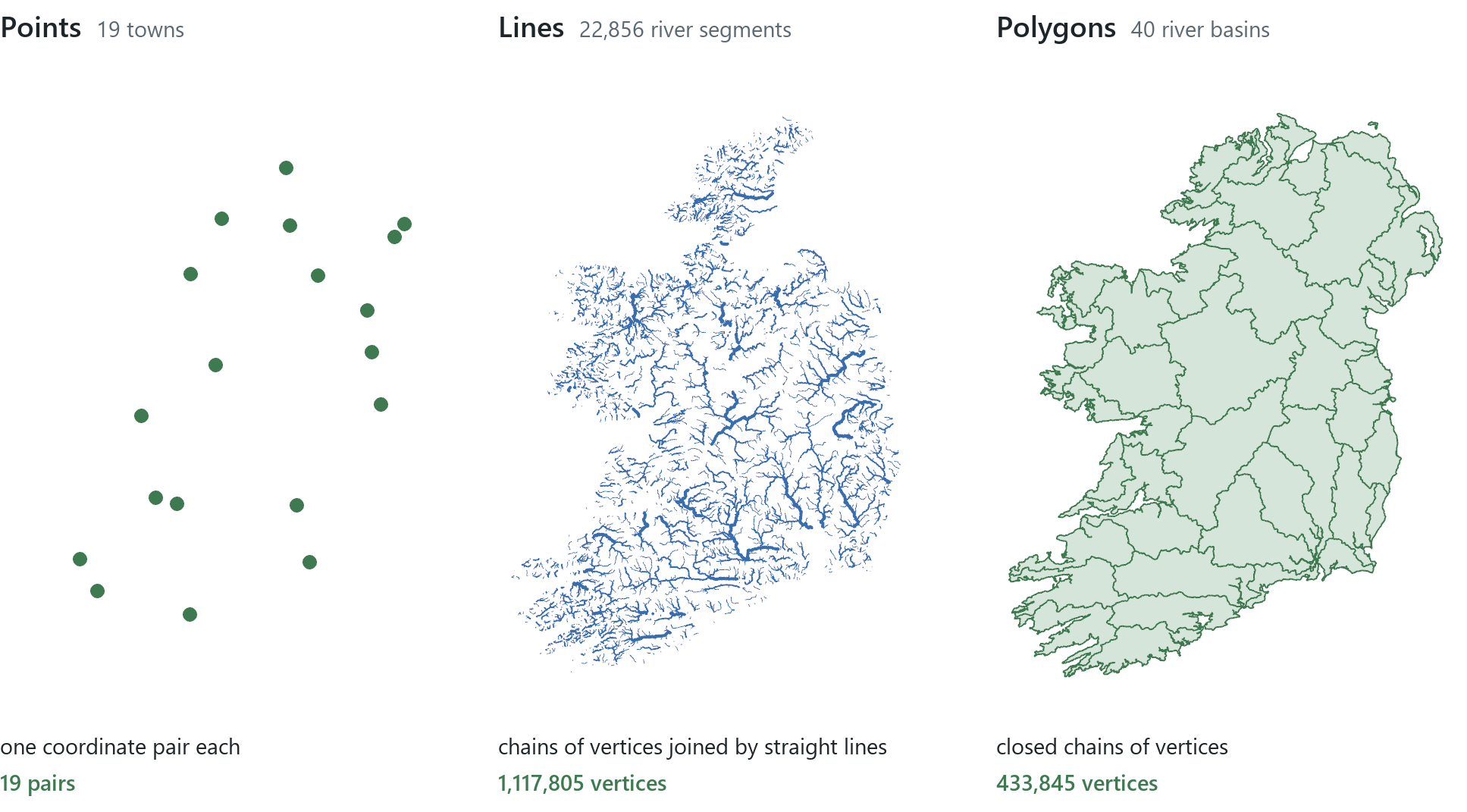
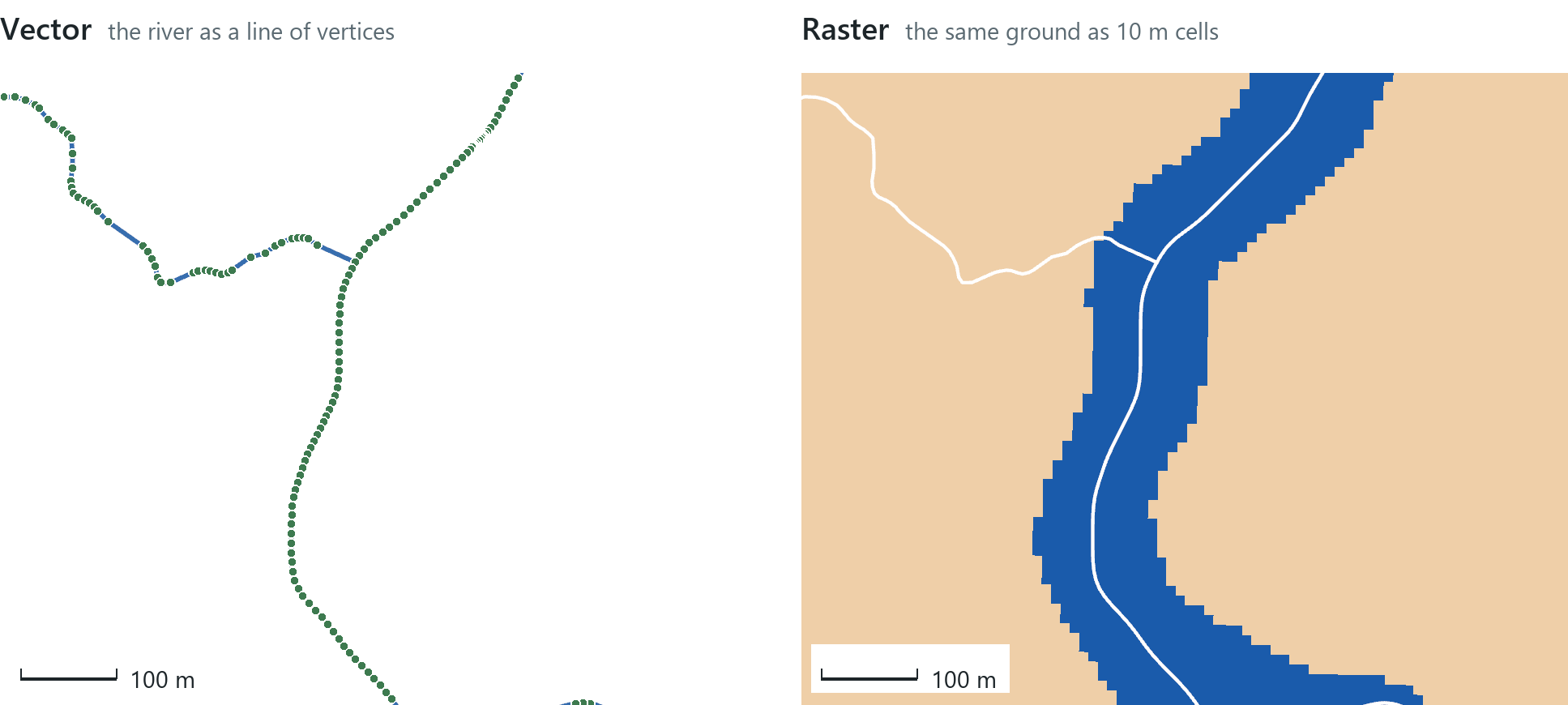
A GIS represents the world in two ways. The vector model represents discrete objects, called features, as shapes built from coordinates, and stores one row of attributes for each feature. There are three shapes. A point is a single coordinate pair, such as a town, a gauging station or a survey site. A line is a list of coordinate pairs, the vertices, joined by straight segments, such as a river or a road. A polygon is a line that closes on itself and encloses an area, such as a river basin, a county or a lake.
In this data, as in most vector data, a line that looks curved is made of straight pieces. The Environmental Protection Agency's river network of Ireland is made of 102,108 line segments built from 4,730,464 vertices. Each segment is straight between its vertices, and the rivers look smooth only because the vertices are close together. If you zoom in to about 1:5,000, the corners become visible. The course's own copy of the network, made so that it draws quickly, keeps the 22,856 segments of the larger rivers and simplifies them to a tolerance of 10 m, which reduces them from 1,117,805 vertices to 257,044. On that copy the corners become visible at a smaller scale. The 40 river basins, which look like simple shapes on a national map, have 433,845 vertices in total. A geodatabase can also store true curves (circular arcs and similar shapes), which are sometimes used in surveyed and engineered data. The course's data has none.
The raster model
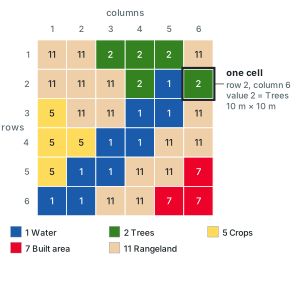
The raster model covers the ground with a grid of equal squares, the cells (or pixels), arranged in rows and columns. Each cell holds one value, such as a class code, an elevation or a temperature. A raster has no features or shapes, only a value at every position. A raster can hold several layers of values over the same grid, called bands. A colour photograph has red, green and blue bands, and a land-cover map has one.
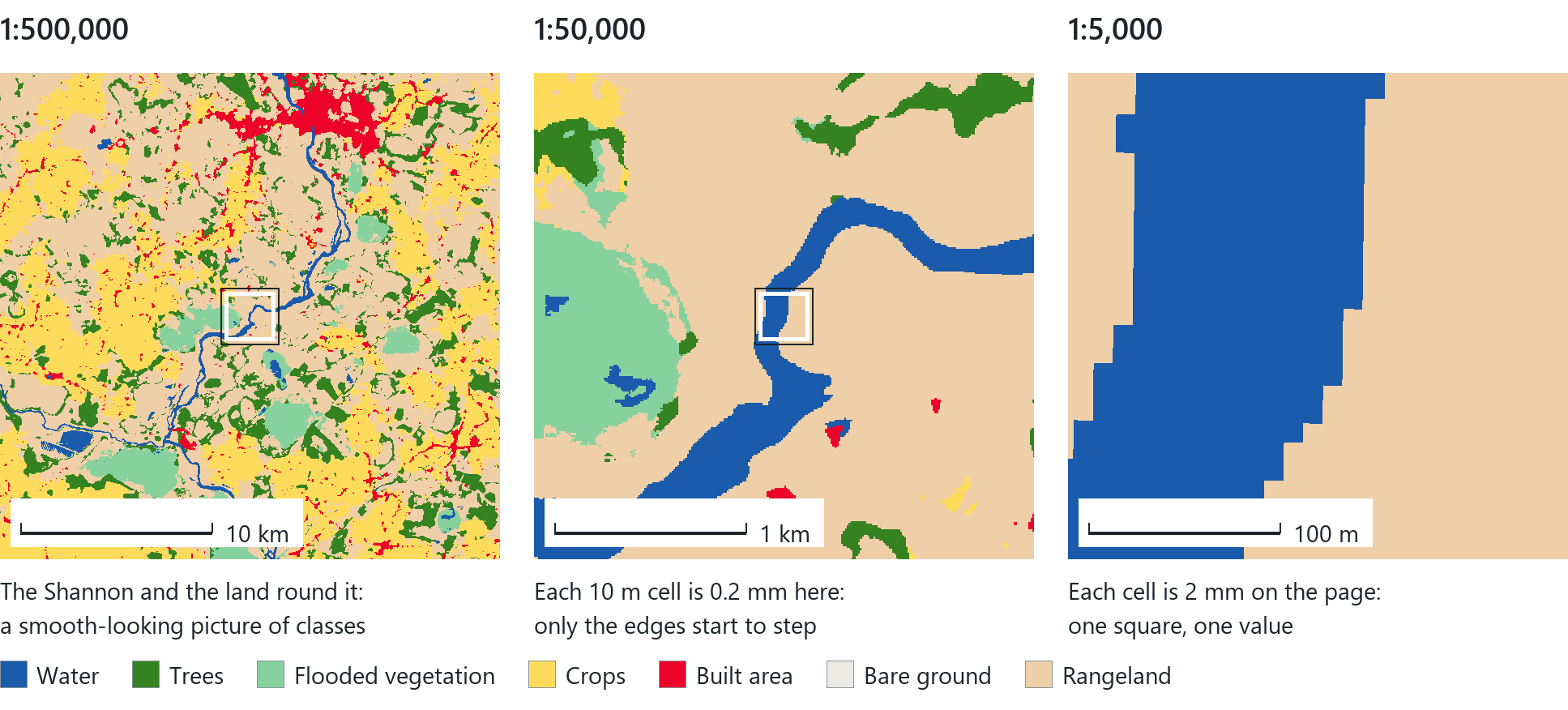
The raster in this module is a global land-cover map made from Sentinel-2 satellite images. It has 10 m cells, one band, one map for each year from 2017 to 2025, and nine classes such as Water, Trees, Crops, Built area and Rangeland. Ireland's grass pasture is split between two of these classes. In the 2025 map most of the improved pasture is classed as Crops, and the rougher grazing of the west and the uplands as Rangeland. This is why the map on the opening page is mostly yellow, with tan along the Atlantic coast. It also shows that a class name is chosen by the mapmaker and may not describe the ground accurately. At a small scale the individual cells are too small to see, and the map looks continuous. When you zoom in, the separate square cells become visible.
The cell size determines how much detail a raster can show. A raster with 10 m cells cannot show a path 2 m wide or the exact curve of a riverbank, and a single square kilometre contains 10,000 cells of that size. Halving the cell size quadruples the number of cells, so choosing a cell size means balancing detail against the amount of data. Chapter 8 returns to this subject.
A finer grid or denser vertices can hold more detail without being more accurate, because how well a dataset matches the world depends on how it was captured. Resampling a raster to smaller cells does not create new observations, and each 10 m land-cover cell has a single class even where the ground has several types of cover.
In the pane
In Module 2 lesson 2 you identify the point, line and polygon layers by their symbols in the Contents pane and zoom to a river bend at about 1:5,000 to see its vertices. You then add the Sentinel-2 land cover by its link (Add Data, Data From Path) and zoom in again until the cells are visible. Waldo checks the line layer's geometry and checks that the land cover is a layer you added rather than part of the basemap.
Vector or raster?
The two models are two ways of representing the world, and most themes can be represented in either. The vector model suits objects with boundaries and individual identities, such as a survey site, a river, a basin or a building, each of which you can select, name and count. The raster model suits quantities that vary continuously, such as elevation and rainfall, and categories mapped on a grid, such as the module's land cover. In a raster there is no single feature to select, only a value at every position. A river can be represented as a line for questions about the network or as a band of water cells for questions about area, so the choice of model depends on the question as well as on the theme. Most maps contain both, as the figure on the opening page shows.
| Vector | Raster | |
|---|---|---|
| Represents | features built from coordinates: discrete things with boundaries and identities | a value at every grid position: categories (land cover) or continuous quantities (elevation) |
| Building block | points, lines, polygons from vertices | cells in rows and columns |
| Attributes | a row per feature, many fields | one value per cell in each band |
| Detail set by | the spacing of the vertices | the cell size |
| Curves and edges | followed closely | become steps |
| Examples in the course | basins, rivers, survey points | land cover, elevation |
Containers: the geodatabase and the shapefile
Data is stored in files, and two formats are used most often. The file geodatabase is Pro's own format and the format the course uses to store its data. It holds several kinds of item: feature classes, each a table whose shape field stores point, line or polygon geometry; feature datasets, groups of feature classes that share one coordinate system; raster datasets; and plain tables, rows and columns with no shape at all.
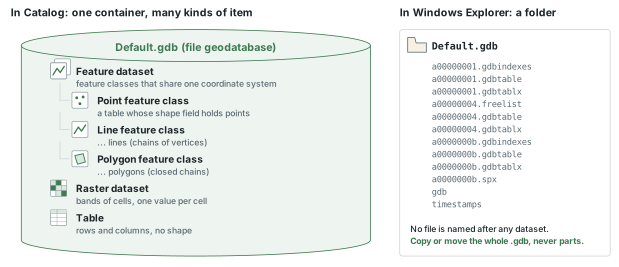
The internal files of a geodatabase are managed by the software and are not designed to be read directly. Inside Pro the geodatabase always appears as one item, and you should rename, copy or delete its contents there. From Windows Explorer the only safe operation is to move or copy the whole .gdb folder.
The shapefile is an older vector format from the 1990s. Nearly every GIS can read it, so data is still often exchanged in this format. A shapefile is made up of several files with the same name and different extensions. Three are required: the .shp holds the shapes, the .shx an index of them and the .dbf the attribute table. Other files are common: the .prj records the coordinate system, the .cpg the text encoding, the .sbn and .sbx hold a spatial index and the .shp.xml the metadata. A shapefile exported from Pro in the course has eight files.
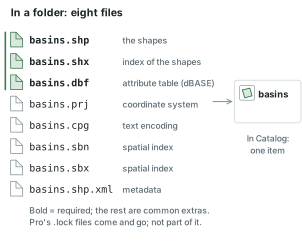
The files of a shapefile must be kept together. If you send only the .shp, the attributes are lost, and without the .prj the coordinate system of the shapes is unknown. Shapefiles also shorten field names to ten characters, which can rename an attribute without warning when data is saved to a shapefile. The geodatabase was designed to avoid both problems.
Two other exchange formats are also common. KML, first made for Google Earth, is an XML format for geographic display that is now a standard of the Open Geospatial Consortium. GeoJSON is a plain-text format for features built on JSON, a standard of the Internet Engineering Task Force since 2016, with coordinates always in WGS 84 longitude and latitude. Pro reads both. Chapter 5 covers tables in CSV files and spreadsheets.
Rule of thumb
Keep your own data in a file geodatabase. When a shapefile arrives, move or copy every file that shares its name, never the .shp alone.
Layers, datasets and other names
The terms for the parts of a GIS project are easily confused, and the most important distinction is between a layer and its data. A dataset (a feature class, a shapefile, a raster, a table) is the stored data. A layer is a map's reference to a dataset together with its name in the Contents pane, its colours and its other drawing settings. Two maps can contain layers of the same dataset with different names and colours. Renaming a layer or changing its symbology does not change the data.
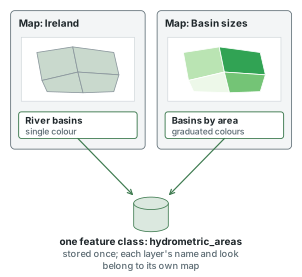
| Name | What it is | Where it is stored |
|---|---|---|
| Project | the .aprx and its folder | a folder on disk |
| Map | layers drawn and symbolised together | inside the project |
| Layout | a page for a finished map, with title, legend and scale bar | inside the project |
| Layer | a map's pointer to a dataset, plus how to draw it | inside a map |
| Feature class, shapefile, raster dataset, table | the data | a geodatabase, a folder, or a server |
| Web layer | a layer whose data is a service on a server | on the server |
In the pane
In Module 2 lesson 3 you open the project geodatabase in Catalog and read its icons, export a standalone table and a shapefile, and look at the geodatabase and the shapefile in Windows Explorer. Waldo checks that the table and the shapefile exist, and then checks your count of the shapefile's files against the folder, leaving out the temporary lock files that Pro adds while the layer is open.
Where data comes from
The person making a map rarely collects the data on it, and most GIS work uses data made by someone else. The skill required is finding that data and judging it. In Pro you start the search on the Portal tab of the Catalog pane, which offers two similar-looking places to search. ArcGIS Online is Esri's cloud platform, where organisations and individuals share maps, apps and data. A search of ArcGIS Online covers everything shared publicly, from the data of national agencies to class exercises. The Living Atlas is the part of it that Esri curates and checks. Its content comes in three tiers: public, open to anyone without signing in; subscriber, which needs an organisational account; and premium, which also uses credits.
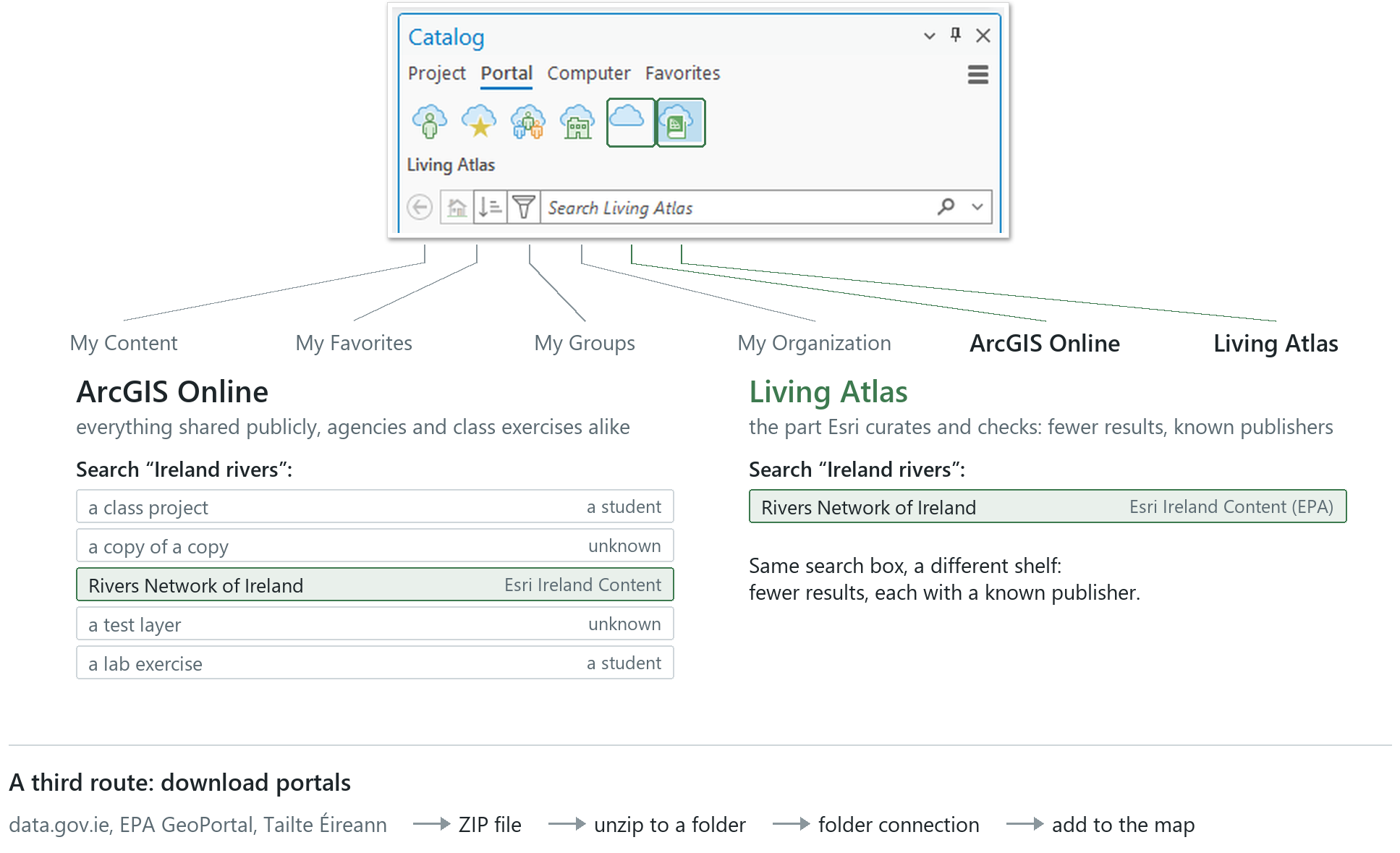
What you can do with an online item depends on its type.
| Layer type | What it is | What you can do in Pro |
|---|---|---|
| Feature layer | features and attributes served live | display, select, query; copy to your own disk when the publisher allows it |
| Tile layer | a pre-drawn picture of a map | display as a backdrop (basemaps are tile layers) |
| Map image layer | a picture drawn by the server on request | display; its sublayers can sometimes be queried like features |
| Imagery layer | a raster served live | display and query cell values |
| Web map | a whole map someone built | opens as a new map, not as a layer |
| App | a web application | cannot be added to Pro |
The publisher decides whether a layer can be copied. The course's basins service allows queries but not extraction, so Pro's right-click export option is unavailable. The Export Features tool needs only queries, however, so it can still copy the layer.
A great deal of authoritative data is not published on ArcGIS Online. Government portals provide it as downloads, usually a ZIP file containing a shapefile or a geodatabase. For Ireland these include data.gov.ie, Tailte Éireann's open data, the EPA's GeoPortal (the source of the course's basins and rivers) and OpenDataNI. Geofabrik offers OpenStreetMap extracts, and Natural Earth offers free world-scale data. In the United States, the main sources include data.gov, the Census Bureau's TIGER files, the USGS National Map and the state clearinghouses. To add a download to a map, you unzip it into a folder that Pro can access through a folder connection.
In the pane
In Module 2 lesson 4 you run the same search in ArcGIS Online and in the Living Atlas, and read the owner of the Rivers Network of Ireland item from the card that appears over a search result. The lesson then explains the kinds of web layer and the Irish download portals, and you compare the land cover's full Metadata tab with that of the course's own copy of the river surveys. Waldo checks the owner you read against the item itself.
Metadata
Before trusting a dataset, ask who made it, what it represents, when it was made or last updated, where it covers, how it was made and why. The answers are metadata, data about the data, and they help you decide whether a dataset is fit for your purpose. They are recorded on an item's page online and on the Metadata tab of a layer's properties in Pro.
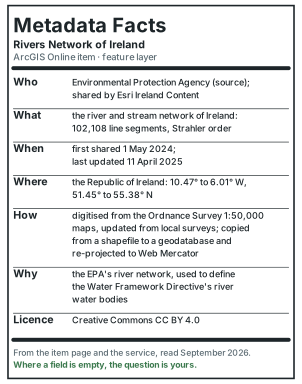
Some publishers document their data fully. The land-cover layer's metadata names its makers, classes and method, and the river network's item page, shown above, records where its lines were first digitised. Other publishers provide no documentation, and the Metadata tab is blank. A blank tab does not mean that the data is poor, but you have to answer the questions yourself from the source. Read the dates carefully. The date that the data describes, when the ground was observed, surveyed or digitised, is different from the date on which an item was published or last updated. The river network's item gives its sharing and update dates and states that its lines were digitised from source maps, but it does not say when those maps were surveyed. That date is therefore unknown and should not be assumed to be recent, because an item updated last month can describe old conditions. The metadata of a copy may only refer to its source. The course's copy of the river surveys describes the copy but says little about the surveys themselves, and its description refers you to The Rivers Trust's live dataset for the rest. Metadata is also carried over to copies, so data exported from a service keeps the service's title and summary.
Rule of thumb
Ask who, what, when, where, how and why of every dataset before you use it, and prefer data whose publisher answers them.
Try it
With a course project open, ask Waldo in Ask mode: for each layer on my map, where does its data live, and is it a feature layer, an imagery layer or a local copy? Waldo reads every layer's data source and type. Compare its answer with the Source tab of one layer.
Key terms
- project (.aprx)
- the Pro file that holds maps, layouts and connections and a pointer to each layer's data, but not the data itself.
- data source
- the path or web address a layer uses to find its data, shown on the layer's Source tab.
- absolute path
- a path that starts at the drive letter and names every folder down to the data.
- relative path
- a path written from the folder that holds the project file, so the project folder can move as a whole.
- broken link
- a layer whose data can no longer be found at its stored path, marked with a red exclamation mark and repaired from the Source tab.
- vector
- a data model that represents features as points, lines and polygons built from coordinates, with one row of attributes per feature.
- vertex
- one stored coordinate pair along a line or a polygon's boundary; straight segments join the vertices.
- raster
- a data model that covers the ground with a grid of equal cells in rows and columns, each holding one value.
- cell (pixel)
- one square of a raster grid; its size sets the smallest thing the raster can show.
- band
- one layer of values in a raster; a land-cover map has one, a colour image has several.
- layer
- a map's reference to a dataset together with its name, symbology and other drawing settings.
- file geodatabase
- Pro's container for data, stored as a folder ending in .gdb and managed through Pro.
- feature class
- a table in a geodatabase whose shape field holds point, line or polygon geometry.
- feature dataset
- a group of feature classes in a geodatabase that share one coordinate system.
- table (standalone table)
- rows and columns with no geometry.
- shapefile
- an older vector format stored as a family of same-named files (.shp, .shx, .dbf and optional others) that must be kept together.
- KML
- an XML format for geographic display that began with Google Earth and is now an OGC standard.
- GeoJSON
- a plain-text format for features built on JSON, an IETF standard since 2016.
- ArcGIS Online
- Esri's cloud platform where maps, apps and data are shared, reached in Pro through the Portal tab.
- Living Atlas
- Esri's curated collection of maps and data, in public, subscriber and premium tiers.
- feature layer
- a web layer that serves features and attributes that can be queried and, when the publisher allows it, copied.
- tile layer / map image layer
- a web layer served as a picture of a map, pre-drawn in tiles or drawn by the server on request.
- imagery layer
- a raster served live from a server.
- folder connection
- a shortcut in the Catalog pane to a folder on disk, the way downloaded data reaches a map.
- metadata
- data about data: who made it, what it is, when, where, how and why.
Further reading
- Olaya, V. Introduction to GIS, the chapters on data and on data sources. https://volaya.github.io/gis-book/en/ (src:olaya-gis-book)
- Butler, H., et al. (2016). The GeoJSON Format. RFC 7946, Internet Engineering Task Force. https://www.rfc-editor.org/rfc/rfc7946 (src:ietf-rfc7946)
- Open Geospatial Consortium. KML standard. https://www.ogc.org/standards/kml/ (src:ogc-kml)
- Harder, C., & Brown, C. (eds.) (2017). The ArcGIS Book (2nd ed.), on the Living Atlas and web layers. Esri Press. https://learn.arcgis.com/en/arcgis-book/ (src:esri-arcgis-book)
- Esri. ArcGIS Pro documentation, on geodatabases, shapefiles and data sources. https://pro.arcgis.com/ (src:esri-pro-docs)
- The course's data sources: every layer the lessons and this chapter's maps use, with its publisher and licence. (src:course-data-sources)