Chapter 5
Attribute data
Accompanies Module 5 · Attribute Data Management
Why this matters
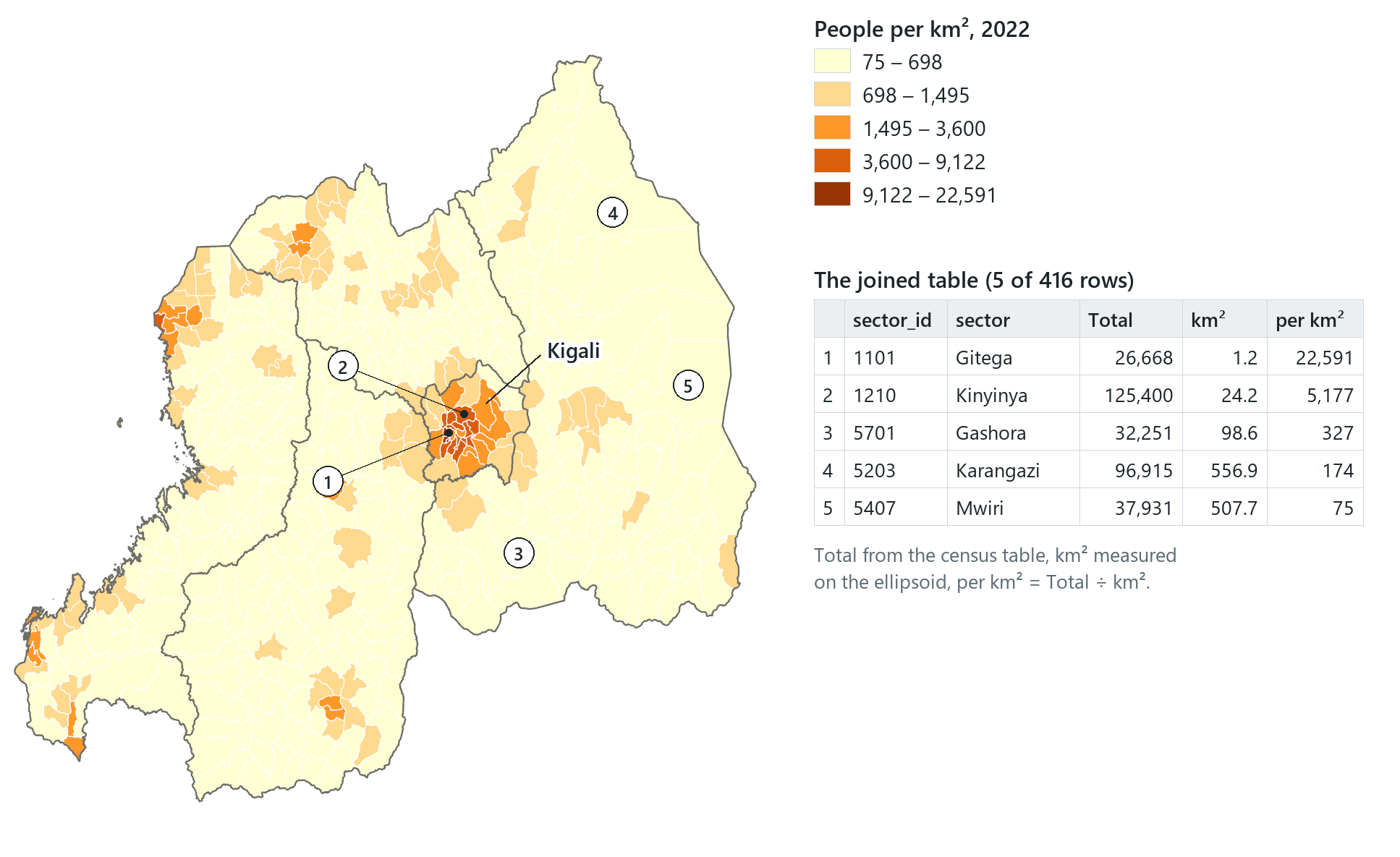
Every feature on a map is also a row in a table, and most of the information a GIS holds about a place is stored in that row. The map above could not be drawn from the boundaries alone: the population figures came from a census table with no geometry, joined to the sectors through a shared code and divided by an area measured on the Earth. This chapter covers the table behind every layer: the values a field can hold, how to fill a field, and how to join two tables safely.
You should be able to explain
- why a code that looks like a number is stored as text, and why a population needs a Long
- why a one-to-many join repeats or drops rows, and what a good key must satisfy
- why a null is not a zero, and why an area in square degrees is no use as a measurement
Tables: records and fields
A table consists of rows and columns. In a GIS attribute table each row is a record, and each record is one feature: a single point, line or polygon. Each column is a field, and each field holds one attribute, one thing known about every feature: a name, a code, an area, a population. The terms come in two sets: row, record and feature refer to one direction of the table, and column, field and attribute to the other. All six are in common use.
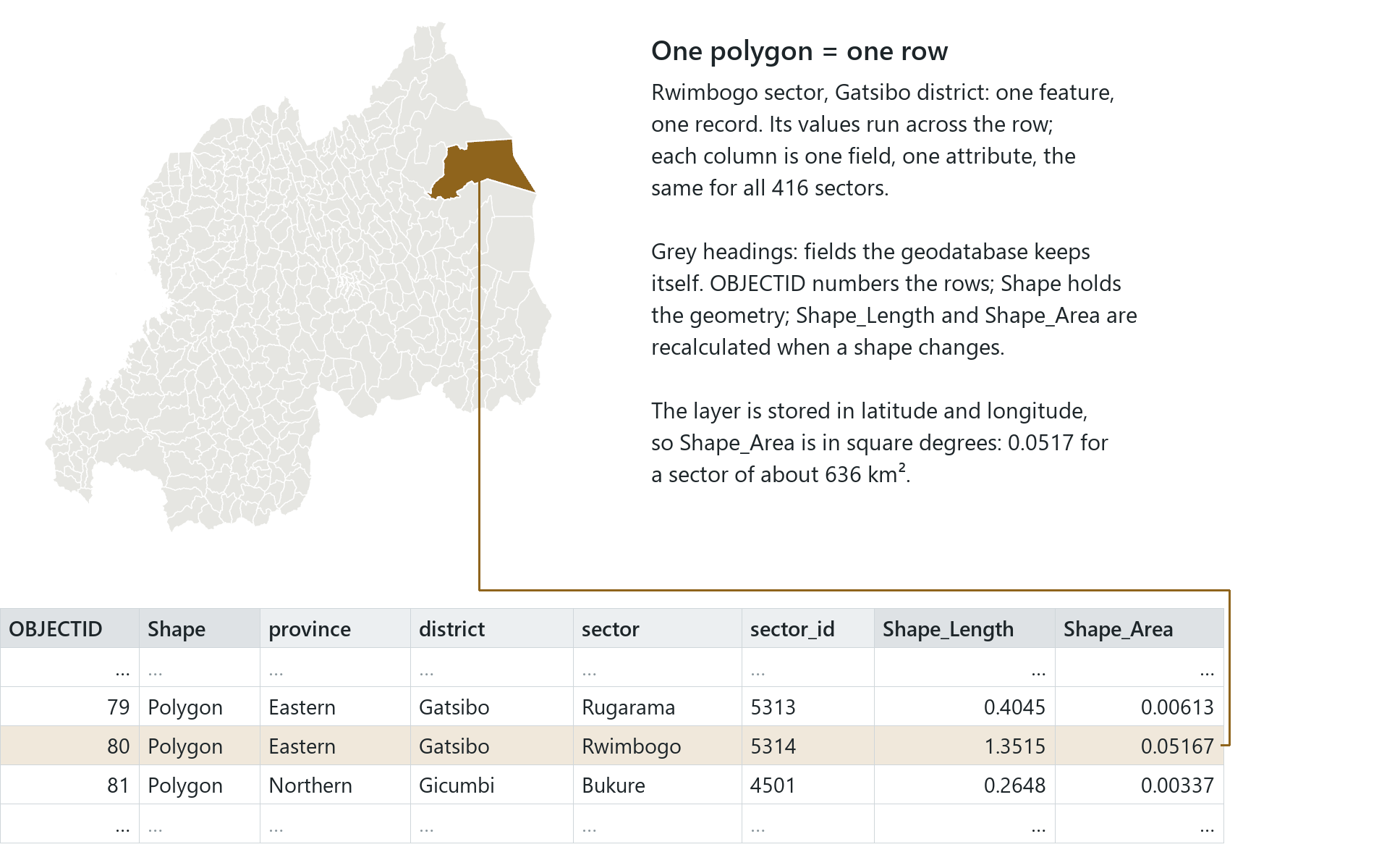
Rwanda's statistics office publishes its sectors, the country's third administrative level, as one layer: 416 polygons under 30 districts and 5 provinces. Its table has 416 records. The record count at the bottom of any table view is the first thing to check, to confirm that you are looking at the data you expect.
Some fields are filled automatically and never typed. A feature class in a geodatabase keeps an OBJECTID that numbers every row, a Shape field that holds the geometry, and Shape_Length and Shape_Area, recalculated whenever a shape changes. A shapefile keeps only a row number (FID). Those two measurements are in the units of the layer's coordinate system. The sector layer is stored in latitude and longitude (WGS 1984), so its Shape_Area is in square degrees: 0.0517 for Rwimbogo, a sector of about 636 km². A square degree is not a practical unit of area, and its size changes with latitude; this is the problem described in Chapter 3, appearing here in a table.
Three kinds of table
Not every table belongs to a layer. An attribute table is tied to a layer's features and opens from it. A standalone table has no geometry at all: a census table, a spreadsheet, a list of readings from a monitoring station. It is listed in the project beside the layers but is not drawn on the map. Standalone tables come from many sources: a geodatabase table, an Excel workbook, a comma-separated text file, a dBASE file.
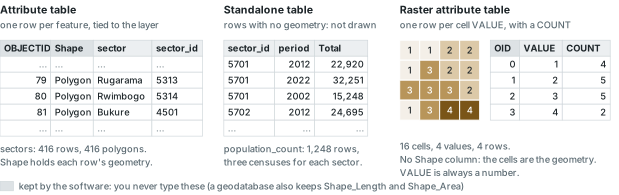
The census table used in Module 5 is a standalone table published by the same office: 1,248 rows, the 416 sectors counted three times, in 2002, 2012 and 2022.
A raster can also have a table, but it is built differently. It does not have one row per cell, which for a satellite scene would mean millions of rows. A raster attribute table has one row for each distinct cell VALUE and a COUNT of the cells that hold it. There is no Shape field, because the cells are the geometry. Only a raster of whole numbers, such as land-cover class codes, has such a table. In a raster of decimals, such as elevation, hardly any two cells have the same value, so it has statistics instead. The table may carry extra columns that describe each value, such as a class name, but the value is the data and the description is attached to it. Chapter 8 works with real raster attribute tables.
What a field can hold
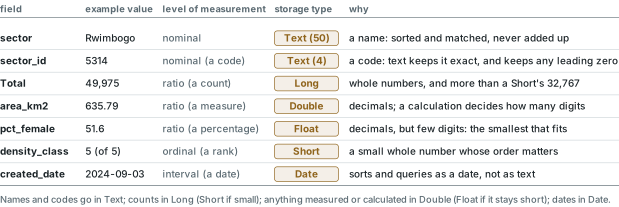
Before a field is created, two questions need to be answered about it. The first is what kind of value it holds, its level of measurement:
| Level | What the values are | Example in the sector data | Store as |
|---|---|---|---|
| Nominal | names or categories, with no order | sector name; the code 5314 | Text |
| Ordinal | categories with a meaningful order | a density class, 1 (lowest) to 5 | Text or a small whole number (Short) |
| Interval | quantities whose zero is arbitrary | a date; a year | Date, or a whole number |
| Ratio | quantities with a true zero: counts, measures, rates | population; area in km²; people per km² | Long for counts; Double for measures and rates |
Interval and ratio values are both quantities, and many texts treat them together; the difference is only whether twice the number means twice as much. Arithmetic applies only to quantities. A code that looks like a number is still a name: sector 5314 is never added to sector 5313. Stored as text, the code also keeps any leading zero that a number field would drop.
The second question is how the value is stored, the field's storage type. The types used in this course are:
- Short: whole numbers from −32,768 to 32,767.
- Long: whole numbers up to about 2.1 billion.
- Float: decimals, with six or seven significant digits.
- Double: decimals, with about fifteen significant digits.
- Text: characters, up to the field's length (4 for the sector code, 50 for the names).
- Date: dates, times, or both, so that "before 2020" works as a query.
- Blob: binary data such as an image or a document, never typed by hand.
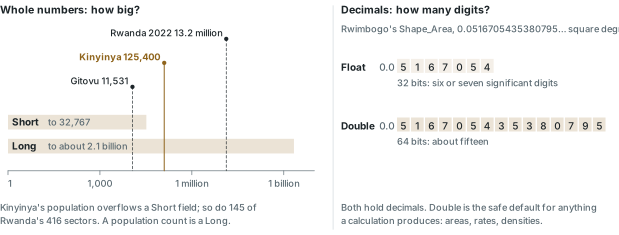
The number types come in pairs. Short and Long both hold whole numbers and differ in size: a Short holds values only up to 32,767, and in the 2022 census 145 of Rwanda's 416 sectors were larger than that, so a population count is a Long. Float and Double both hold decimals, and differ in precision. A Double is the safe choice for anything a calculation will produce, an area or a rate, because you cannot know in advance how many digits it will need.
Rule of thumb
Choose the smallest storage type that fits, and choose it once: the type of a field cannot be changed after it holds data. Names and codes go in Text, counts in Long, anything measured or calculated in Double.
In the pane
Module 5 lesson 1 adds the statistics office's 416 sectors by their web address, counts the rows, and exports a copy into the project geodatabase so the automatic fields appear, square degrees included; the web layer is then removed from the map, leaving the copy. In the Fields view, which lists the table's fields and their properties, you read the types of the code and the area fields, then answer two ungraded questions on which type a population and a percentage need. A final picture compares the vector table with a raster's.
Making and filling fields
A field has a definition as well as values: its name, its type, its length, whether it may be empty, a default. A field name follows rules the software enforces: letters, numbers and underscores only; a letter first; no spaces or punctuation; at most 64 characters in a geodatabase and 10 in a shapefile. Shorter is better, because the name is what you type in every expression and query. The readable version, with spaces and units, goes in the field's alias: area_km2, shown as "Area (km²)".
A new field starts empty. There are two ways to fill it. Calculate Field fills it from an expression over each row's other fields: a label built from two names, a rate from two numbers, a category from a threshold. Calculate Geometry fills it from each feature's shape: area, length, perimeter or the coordinates of a centroid.
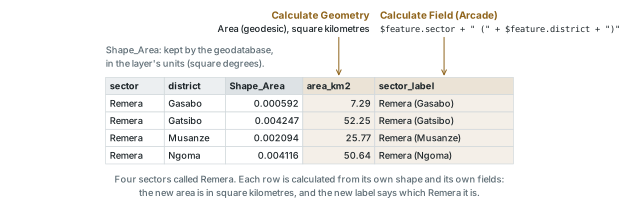
Module 5 uses both, for reasons that come from the data. Thirty sector names repeat: there are four Remeras, and three each of Kageyo, Murambi, Muganza, Karama and Ngoma. A label that combines the sector with its district, "Remera (Gatsibo)", identifies which one is meant. Because the layer is stored in latitude and longitude, an ordinary area calculation would again give square degrees. A geodesic area is measured on the ellipsoid (Chapter 3) and is accurate anywhere without first projecting the data. Added up, the 416 geodesic areas come to 24,306 km²; Rwanda's official area, 26,338 km², includes the open water of Lake Kivu, which lies in no sector.
Two cautions apply to every calculation. First, it takes effect immediately and cannot be undone unless an edit session is open. Second, when rows are selected, only the selected rows are calculated. Clicking a row in a table to read it selects it, so a quick look can leave a selection behind; clear it before the next calculation.
Rule of thumb
Calculate into a new, empty field, with nothing selected, and check the result against something you know: a sum of areas against the country's area, a density against a place you know is crowded. Check the expression before you run it.
Looking at a column
Look at a column before you map it, join it or rely on it. The count of values, the number that are empty, the smallest and largest, the mean, the median and the spread describe a field in one line, and a histogram shows its shape. Pro's Data Engineering view shows all of these for a field at once and writes nothing to the data; it is used only for inspection.
An empty cell, called a null, is different from a zero. A sector with no recorded cases, one whose cases were never reported and one whose census row failed to join look alike on a map if they fall in one class, although they mean three different things. A rate with a null or zero denominator has no value, and summaries such as a mean skip nulls, so check the number of empty values first.
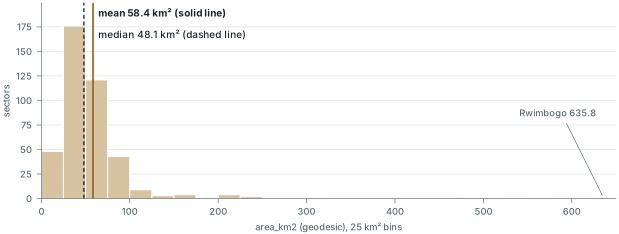
The sector areas illustrate why both averages are useful. The mean is 58.4 km² and the median 48.1 km²: half the sectors are smaller than 48.1, but a small number of large sectors on the eastern savanna raise the mean. The smallest, Rwezamenyo in Kigali, covers 1.02 km². A distribution this skewed indicates that a map of it will need a careful choice of classes (Chapter 4).
In the pane
Module 5 lesson 2 gives the naming rules, adds a Double field and fills it with geodesic area in square kilometres, checked by the national total, then finds the largest sector by sorting. A text field is filled by an Arcade expression that distinguishes the four Remeras. The lesson ends in the Data Engineering view, reading the mean area of the 416 sectors.
Joins: destination, source and key
A join attaches the columns of one table to the rows of another. The table you add to is the destination, usually a layer's attribute table; the table whose columns are added is the source, which may be another attribute table, a standalone table, or a spreadsheet. Rows are matched through a key field: a field present in both tables, holding the same kind of value, in which each value identifies one row.
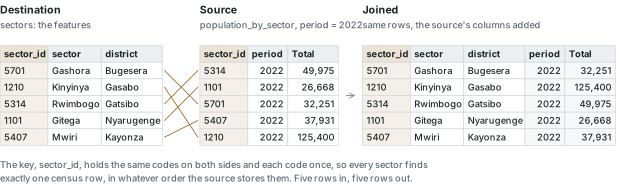
A join also has a direction. It is made from the destination, the layer you are adding to; if it is started from the source table instead, it attaches the layer's columns to the table, and the layer receives no new columns.
Codes and identifiers make good keys, but names rarely do. The census table's province column spells the east "Estern Province" in all 285 of its eastern rows, so a join on the province name would fail to match the whole east without any warning. Joined columns carry the source table's name as a prefix, such as population_by_sector.Total, so that you can tell where each came from.
A join is a property of the layer in the current project. It is lost if the layer is removed or the source table moves, and it changes nothing on disk. To keep the combined data, export the joined layer as a new feature class: the export writes every column, joined ones included, into a dataset of its own. (Like every export, it copies only the selected records when there is a selection.)
Cardinality
The central question for every join is how many rows one key value matches on each side; this is the join's cardinality.
- One-to-one (1:1): one sector, one census row. After the census table is filtered to 2022, every one of the 416 codes appears once on each side.
- Many-to-one (m:1): many sectors share one row of the source, as the sectors of a district would share a table of district facts. Each sector is matched to one row, and the source row is copied as often as needed. This is also a valid join.
- One-to-many (1:m): one sector, several census rows, one per census. A table cell cannot hold three rows, so the software has to handle the extra rows in one of two ways, and neither gives a map of 2022. One-to-many is a legitimate structure for data (one sector, three census years, when the rows wanted are sector-years), but it is the wrong structure for a join that should give each sector one row. A one-to-first join keeps whichever matching row it finds first. Joined that way, the unfiltered census gives 151 sectors their 2012 figure, 150 their 2022 figure and 115 their 2002 figure, which produces a map that mixes three censuses but looks like a map of one. A one-to-many join instead repeats each sector once per match, so 416 sectors become 1,248 rows; ArcGIS Pro makes this kind of join when both tables are in the same geodatabase. There are three ways to resolve the problem: filter the source to one row per key (a definition query of
period = 2022on the table), aggregate it first (sum or average the rows per key, then join), or relate the tables, which links them without merging, although a related table cannot be used for symbology, labels or queries. - Many-to-many (m:n): several rows on both sides share a value, as the four Remeras in the sectors match the twelve Remera rows of the census. For a join meant to give each sector one row of facts, this key is unsuitable because it does not identify a single sector.
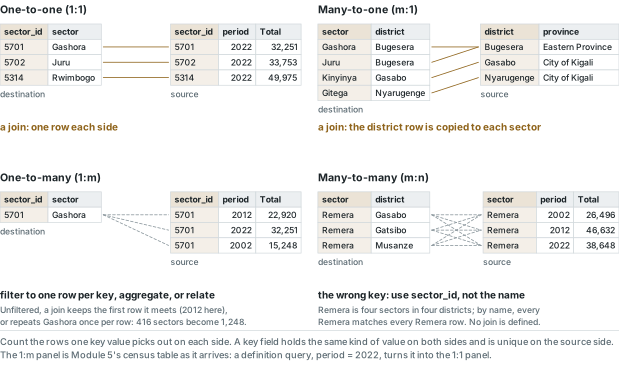
A good key therefore holds the same kind of value on both sides and is unique on the source side. The sector code passes both tests once the census is filtered; the sector name fails the second.
Rule of thumb
For a join that gives each feature one row of facts: one-to-one and many-to-one are joins; one-to-many needs a filter, an aggregate or a relate; many-to-many means the key does not identify your features. Test the key before you join: count the matches, the unmatched rows and the duplicates on each side. Export the joined layer to make the join permanent.
In the pane
Module 5 lesson 3 adds the census as a table by its web address and copies it into the project. Waldo tests two candidate keys against the data: the sector code (one-to-many, three censuses per sector) and the sector name (many-to-many, the Remeras). A definition query on the table leaves only 2022, the same test then reports a clean match, 416 for 416, and the join is made from the sectors layer, read on the Joins tab, and exported as a new feature class under a name of its own, which replaces the joined layer on the map.
Tables from outside the GIS
Many tables are first created in a spreadsheet, typed for people to read rather than for software to parse. A GIS reads the first row as field names and each column as one field, so a table needs a little preparation first: the naming rules apply to the header row, and every column must hold one kind of value.
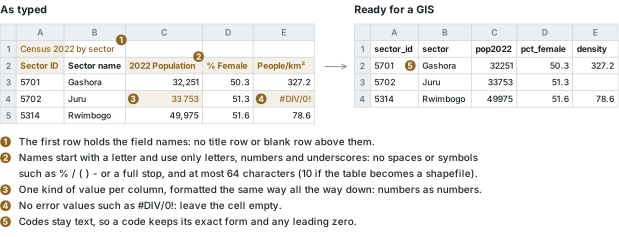
The figure above shows the full checklist: the field names in the first row, with nothing above them; names that follow the field-naming rules; one kind of value per column, formatted the same way all the way down; no error values such as #DIV/0!; and codes kept as text. A comma-separated (.csv) or other delimited text file follows the same rules: its first line is the header.
A rate from joined data
A join is most useful when it lets you compute something that neither table contained on its own. The sector layer has areas but no population figures, and the census has population figures but no areas. Once they are joined, they give population density, the 2022 total divided by the geodesic area, a new Double field filled by Calculate Field over a joined column.
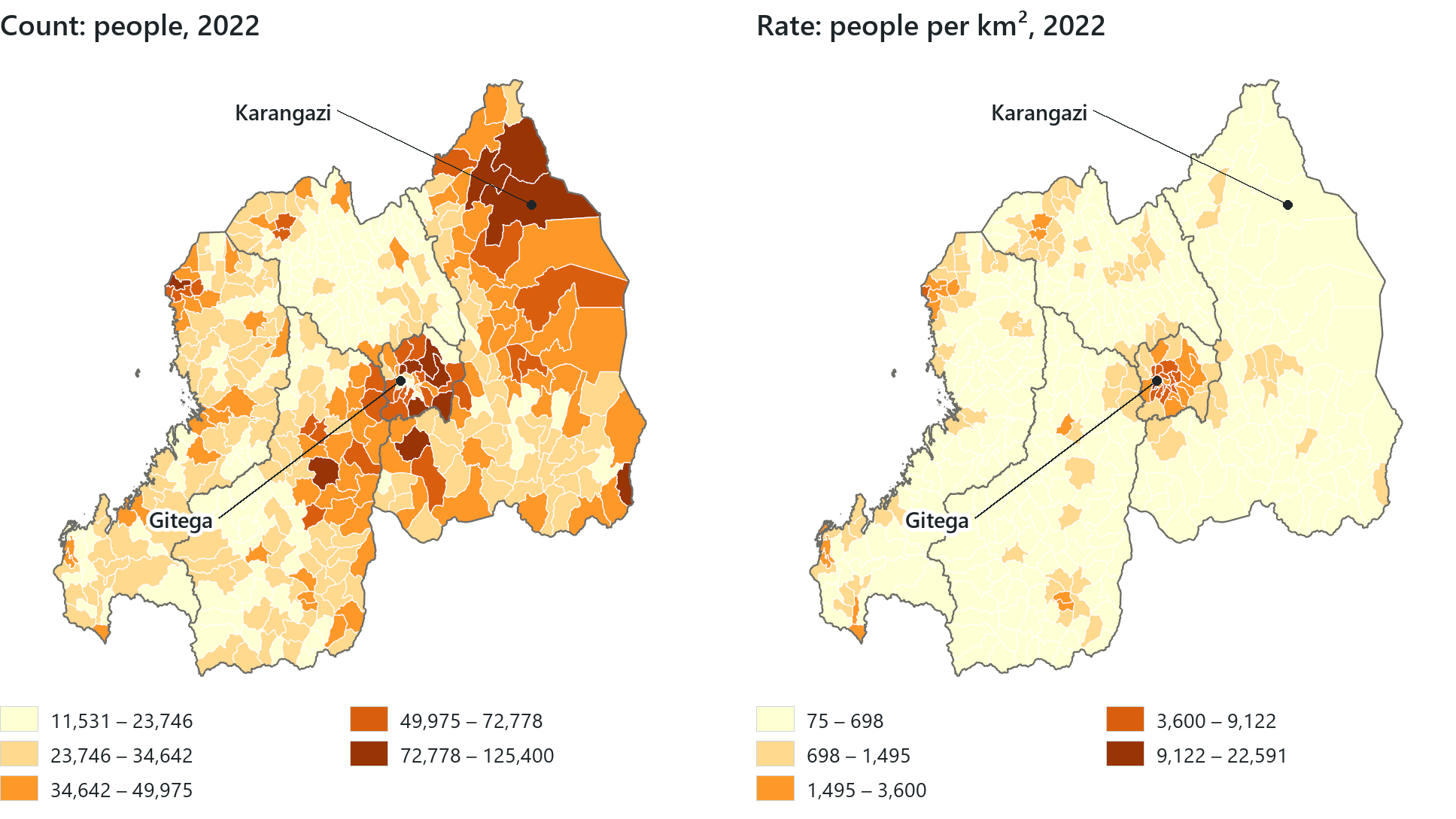
The densities run from 75 people per km² in Mwiri, on the edge of Akagera National Park (37,931 people on 507.7 km²), to 22,591 in Gitega in central Kigali (26,668 people on 1.18 km²): a three-hundred-fold range in one small country that has 545 people per km² across all its sectors together. The count map gives a different and misleading impression. Karangazi, in the north-east, is the third most populous sector in the country with 96,915 people, and one of the emptiest, 174 per km² over 556.9 km². Mapped by count, its size alone makes it look important. The map on the opening page shows the rate, with five of the sectors named in the table beside it.
Reading the result
- The question: where in Rwanda do people live most densely, sector by sector?
- The representation: the 2022 census total joined on sector_id, divided by geodesic area.
- What it shows: 75 people per km² in Mwiri to 22,591 in Gitega; by rate, Karangazi is among the palest sectors.
- What it cannot establish: how people are spread inside a sector; each rate assumes an even spread.
Rule of thumb
Map rates rather than counts on areas of different sizes (Chapter 4). A count on a choropleth mostly maps the size of the areas.
In the pane
Module 5 lesson 4 adds a density field to the exported layer, fills it by dividing the joined census total by the measured area, and checks both ends of the range, Gitega and Mwiri. The field is then mapped with graduated colours in natural-breaks classes, and briefly mapped as a count, which shows Karangazi as one of the darkest sectors.
Try it
With the Module 5 project open, ask Waldo in Ask mode: could I join population_by_sector to sectors on the sector name? Waldo tests the key against both tables and reports how many values match, repeat or go unmatched. Compare the answer with the cardinality section of this chapter.
Key terms
- record
- one row of a table; in an attribute table, one feature.
- field
- one column of a table: one attribute of every record, with a name, a type and a definition.
- attribute table
- the table tied to a layer, with one row per feature.
- standalone table
- a table with no geometry, such as a census table or an imported spreadsheet.
- raster attribute table
- an integer raster's table: one row per distinct cell VALUE, with a COUNT of the cells that hold it.
- OBJECTID
- the unique number a geodatabase keeps for every row of a table.
- level of measurement
- whether values are nominal, ordinal, interval or ratio, which determines the arithmetic that makes sense.
- nominal / ordinal
- values that are names or categories / categories with a meaningful order.
- interval / ratio
- quantities whose zero is arbitrary / quantities with a true zero, where twice the number means twice as much.
- storage type
- how a field stores its values: Short, Long, Float, Double, Text, Date or Blob.
- Short / Long
- whole-number storage types, up to 32,767 and up to about 2.1 billion.
- Float / Double
- decimal storage types keeping six or seven and about fifteen significant digits.
- field length
- the number of characters a Text field can hold.
- alias
- a readable label shown in place of a field's name.
- Calculate Field
- a tool that fills a field from an expression over each row's other fields.
- Calculate Geometry
- a tool that fills a field with each feature's area, length, perimeter or coordinates.
- null
- an empty field value, which records that nothing is known and is not the same as zero.
- join
- attaching the columns of a source table to the rows of a destination table through a key field.
- destination / source table
- in a join, the table that is added to / the table whose columns are added.
- key field
- a field in both tables whose values match a row on one side to a row on the other.
- cardinality
- how many rows one key value matches on each side of a join: one-to-one, many-to-one, one-to-many or many-to-many.
- relate
- a link between two tables that keeps them separate instead of merging their columns.
- population density
- people per unit of area; a rate, suited to a choropleth where a count is not.
Further reading
- Olaya, V. Introduction to GIS, the chapters on data and on databases (records, keys and relations). https://volaya.github.io/gis-book/en/ (src:olaya-gis-book)
- Esri. "ArcGIS field data types." ArcGIS Pro documentation. https://pro.arcgis.com/en/pro-app/latest/help/data/geodatabases/overview/arcgis-field-data-types.htm (src:esri-pro-docs)
- Esri. "Joins and relates" and the Add Join tool reference. ArcGIS Pro documentation. https://pro.arcgis.com/en/pro-app/latest/help/data/tables/joins-and-relates.htm (src:esri-pro-docs)
- National Institute of Statistics of Rwanda, geodata hub: the sector boundaries and the census tables used in this chapter. https://geodata-nisr-rwanda.opendata.arcgis.com/ (src:course-data-sources)