Chapter 1
What a GIS is, and the Pro workspace
Accompanies Module 1 · Interface and Navigation
Why this matters
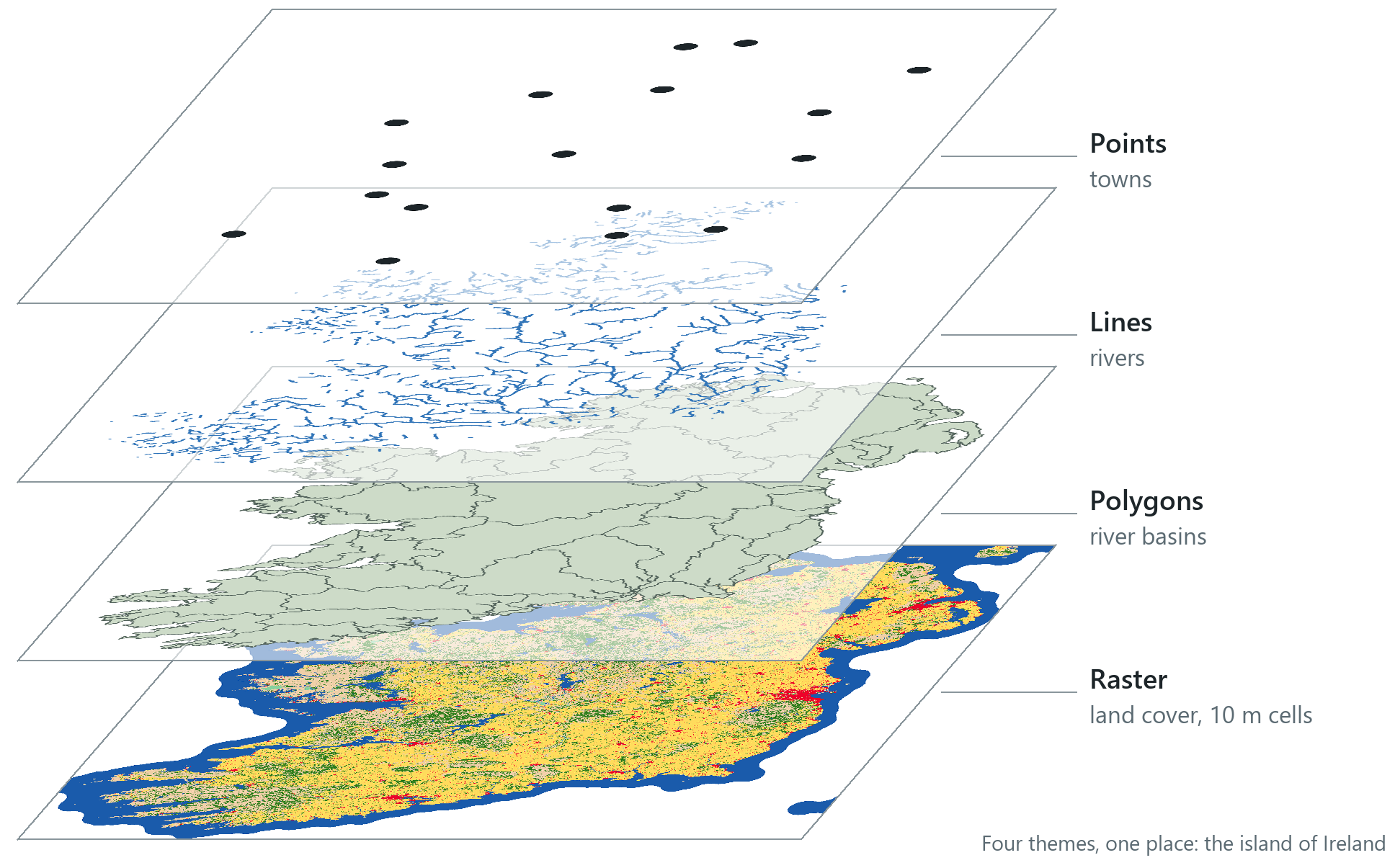
A GIS stores information about a place in layers, one theme each, and draws them together because they share the same locations. The figure above shows Ireland as four stacked layers: towns, rivers, river basins and land cover. This chapter explains the layer model, the parts of the ArcGIS Pro window and how a map view moves, and introduces an idea the rest of the course depends on: every feature on the map has a row of information in a table.
You should be able to explain
- why a layer is a set of drawing rules pointing at a dataset, and why switching it off deletes nothing
- why the order of the Contents list controls what you see, and how one filled layer can hide the rest
- why every feature on the map is also a row in a table, and what the table shows that the map does not
The layer model
A GIS links the locations of things to information about them, so that you can ask and answer questions about places. In GIS work, an analyst starts with a question, chooses data for it, carries out an analysis and interprets what the result shows and what it cannot show. The people doing the work decide on the question and judge the answer. An example of the kind of question this course asks is which river basins have few survey observations, and whether that means the rivers there are healthy or that nobody has looked. This chapter starts with how a GIS organises its information.
A GIS does not store a map as one picture. It divides the information about a place into layers, each holding a single theme for the same area: one layer of towns, one of rivers, one of river basins, one of land cover. Because every layer records where its contents are located, the layers line up and can be drawn, compared and analysed together. The figure on the opening page shows the idea as a cutaway, with each theme drawn on its own sheet.
Layers come in two basic kinds. Most hold features: points (towns), lines (rivers) or polygons (river basins), each a separate object with its own shape. Others hold a grid of cells, a raster, in which every cell holds a value. The land-cover sheet is a raster of cells 10 m across, each one coded as water, trees, crops, built area and so on. Chapter 2 explains the difference. For now, it is enough to know that both kinds are stacked in the same way.
A layer displays a dataset without containing it. The layer holds a name, a set of drawing rules (its symbology) and a reference to the dataset, which stays where it is stored. As a result, the same dataset can appear in many maps, in different colours and under different names, and turning a layer off with the checkbox beside it only stops it from being drawn. Nothing is deleted.
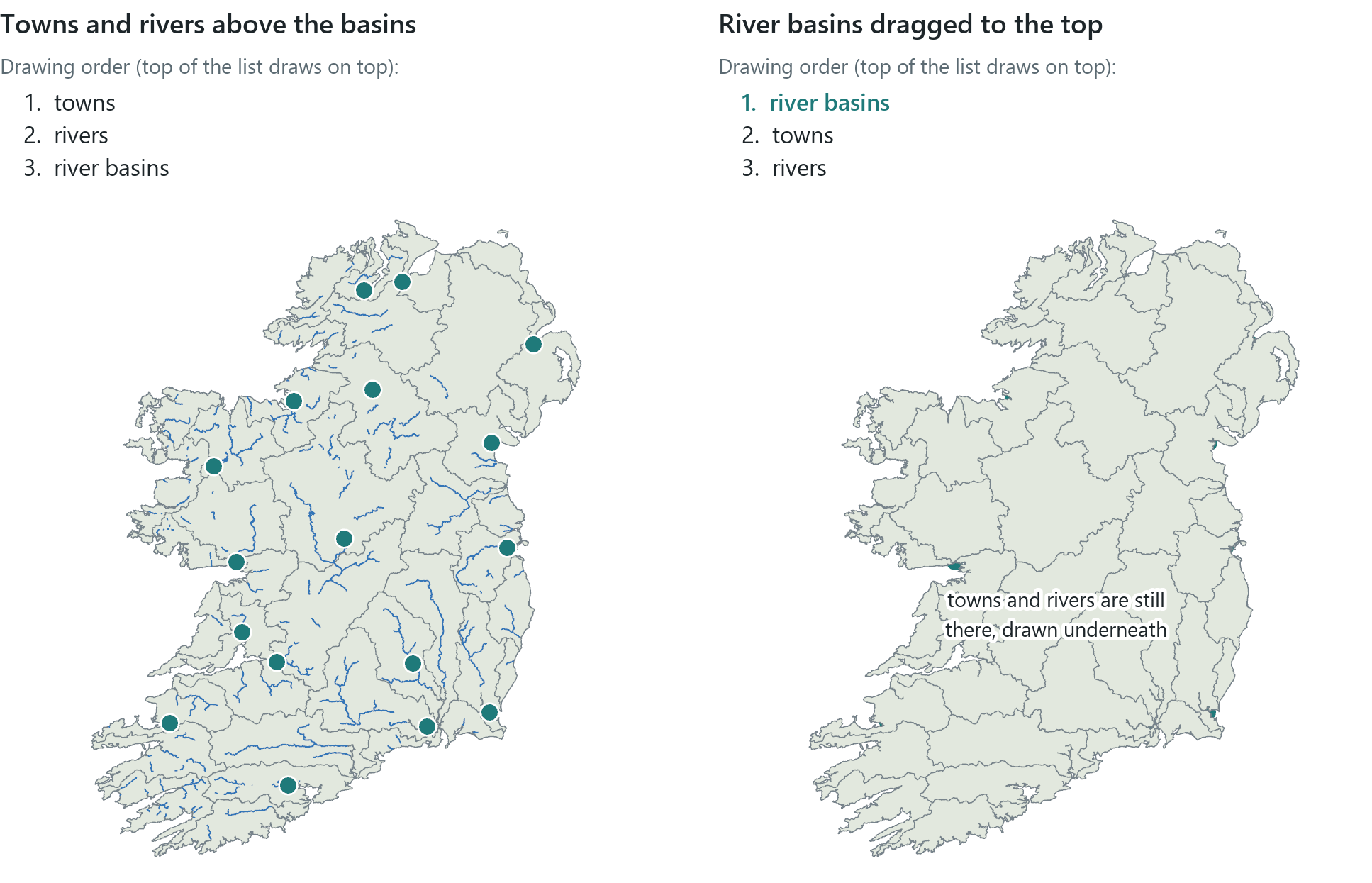
The layers of a map are listed in the Contents pane, and the order of the list is the order in which they are drawn. The layer at the top of the list is drawn on top of the others, and the layer at the bottom is drawn underneath everything. The basemap, the background reference map, is therefore placed at the bottom. The order affects the map wherever layers overlap, and only filled shapes hide the layers beneath them. A polygon layer drawn as outlines only can be at the top of the list without covering anything.
Rule of thumb
Keep points above lines, lines above polygons, and the basemap at the bottom. If a layer seems to have disappeared, check the drawing order and the checkbox first.
In the pane
Module 1 lesson 1 is a tour of the window, which includes the Contents pane and explains what a layer is and how the list sets the drawing order. In lesson 4 you drag the river basins above the river survey points and back again. The basins added from the Living Atlas are drawn as outlines only, so they hide nothing when they are on top. The outlines are drawn over the points, and every point is still visible. Waldo reads the basins' symbology and the new order from your map.
The ArcGIS Pro window
The Pro window has three kinds of component. Across the top is the ribbon. In the middle are views, where maps and layouts are drawn. At the sides are panes, dockable windows that list and manage the contents of the project. If you know which kind of component something is, you know where to look for it.
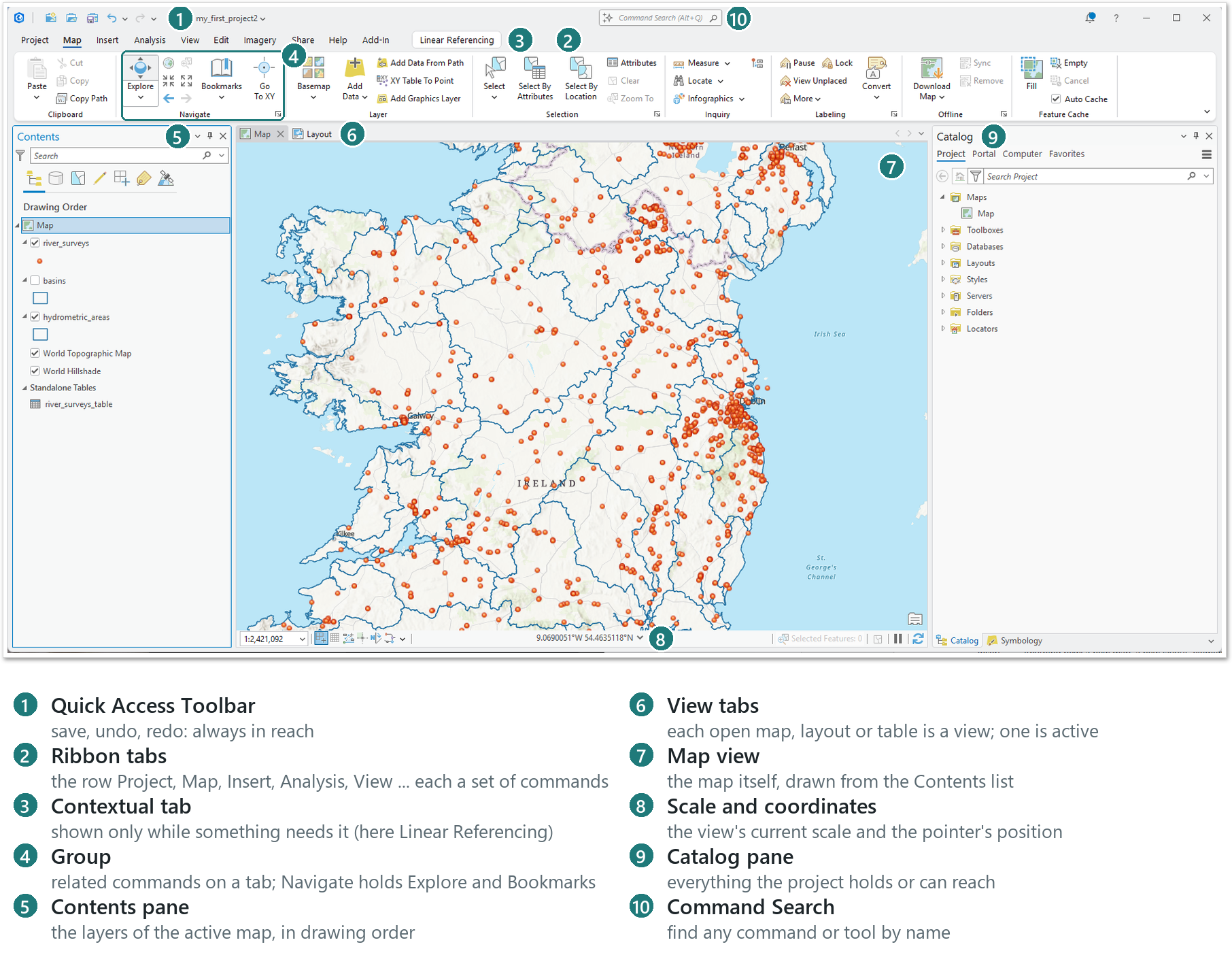
On the ribbon, commands are organised on tabs, and each tab arranges related commands in groups. The course uses four tabs most of the time:
| Tab | What it contains |
|---|---|
| Map | Moving around the map (the Explore tool), bookmarks, the basemap gallery, adding data, selecting features |
| Insert | Anything new: a new map, a new layout, elements to place on a layout |
| Analysis | The geoprocessing tools, more than a thousand of them, and the pane that runs them |
| View | Which panes are open, and the Pane Sets menu that restores a standard arrangement |
The ribbon also has the Project tab (save, options), Edit, Imagery, Share, Help and, once Waldo is installed, the Add-In tab that holds its button (Chapter 0). A contextual tab appears only while something that it applies to is selected. When you select a layer in Contents, a Feature Layer tab is added to the row, and when you select something else, the tab disappears.
In a new map, the two open panes are Contents and Catalog. Contents lists the layers in the active map, in drawing order. Catalog lists the items in the project. Its Project tab lists the maps, databases, folders and toolboxes in the project, and its Portal tab gives access to data online. A pane that has been closed is reopened from its own button on the View tab. The status row under the map shows the view's current scale and the position of the pointer, and Chapter 3 explains both of these numbers.
Rule of thumb
When Pro seems not to be working correctly, the cause is usually a pane that has been closed or moved. Choosing Mapping from the Pane Sets menu on the View tab returns every standard pane to its usual position.
In the pane
Module 1 lesson 1 goes through the ribbon one tab at a time (Map, Insert, Analysis, View) and shows the Pane Sets menu without choosing anything from it. It then moves to the Contents pane, the map view and the Catalog pane. The lesson asks you to look rather than to answer questions, and each step ends with a confirmation such as "I see it" or "My screen looks different".
Maps, layouts and scenes
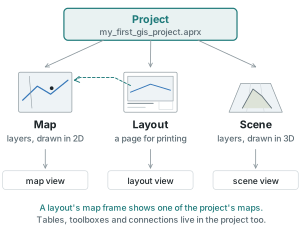
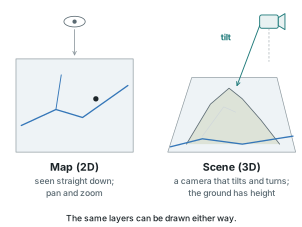
A project can hold many items, and the three that you will draw with are maps, layouts and scenes. A map is a set of layers drawn flat, in two dimensions, in one coordinate system. A layout is a page that arranges one or more maps in map frames, with a title, legend, scale bar and other elements, for printing or export. A scene draws layers in three dimensions over a ground surface that has elevation.
Each item opens in a view of its own: a map view, a layout view, a scene view, and a table view for an attribute table. Several can be open at once as tabs across the middle of the window, but only one is the active view, and the Contents pane always shows the layers of the active view. The course works in maps for most of its length. Layouts are covered in Chapter 4, and scenes in Chapter 11.
Moving around: extent and bookmarks
A map view shows one part of the map at a time. The part that it shows at any moment is its extent, the rectangle of the map in view, at a particular scale. Panning moves the view across the map without changing the scale. Zooming changes the scale, and therefore how much of the map fits in the view. In Pro you do both with the Explore tool, the hand icon at the left end of the Map tab. You drag to pan and turn the mouse wheel to zoom. In a scene the camera can also tilt and turn.
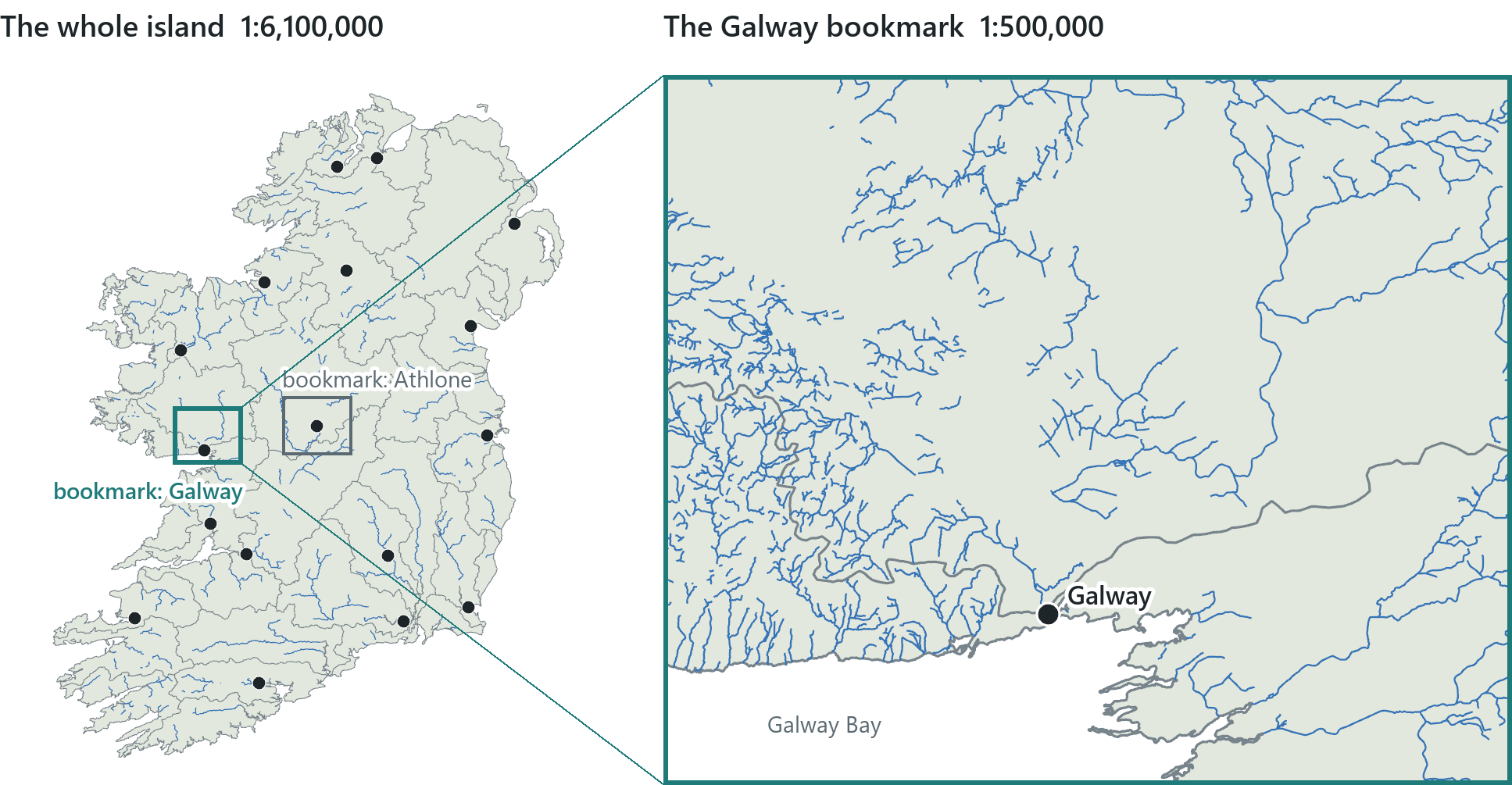
A bookmark saves an extent under a name so that the view can return to it at once. It belongs to the map in which it was made and is saved with the project. In a scene, a bookmark saves the camera position, including its tilt. The Galway bookmark in the figure stores the extent of the rectangle drawn on the left. Chapter 3 explains scale itself, and what "large" and "small" scale mean.
Rule of thumb
Name a bookmark for its place ("Galway", "Home"), never "Bookmark 1". Descriptive names make the list of bookmarks easy to use.
In the pane
In Module 1 lesson 2 you practise moving around the map. You pan and zoom to a place you know and then save a bookmark with a real name. Waldo compares the view before and after to confirm that it has changed, and checks that your bookmark is saved in the project.
A feature has a row
GIS data links location to information. Every feature on the map has a row of attributes that describe it, and there are two ways to read them. A pop-up shows one feature's attributes when you click its shape. The attribute table shows every feature at once, with one row per feature and one column per field.
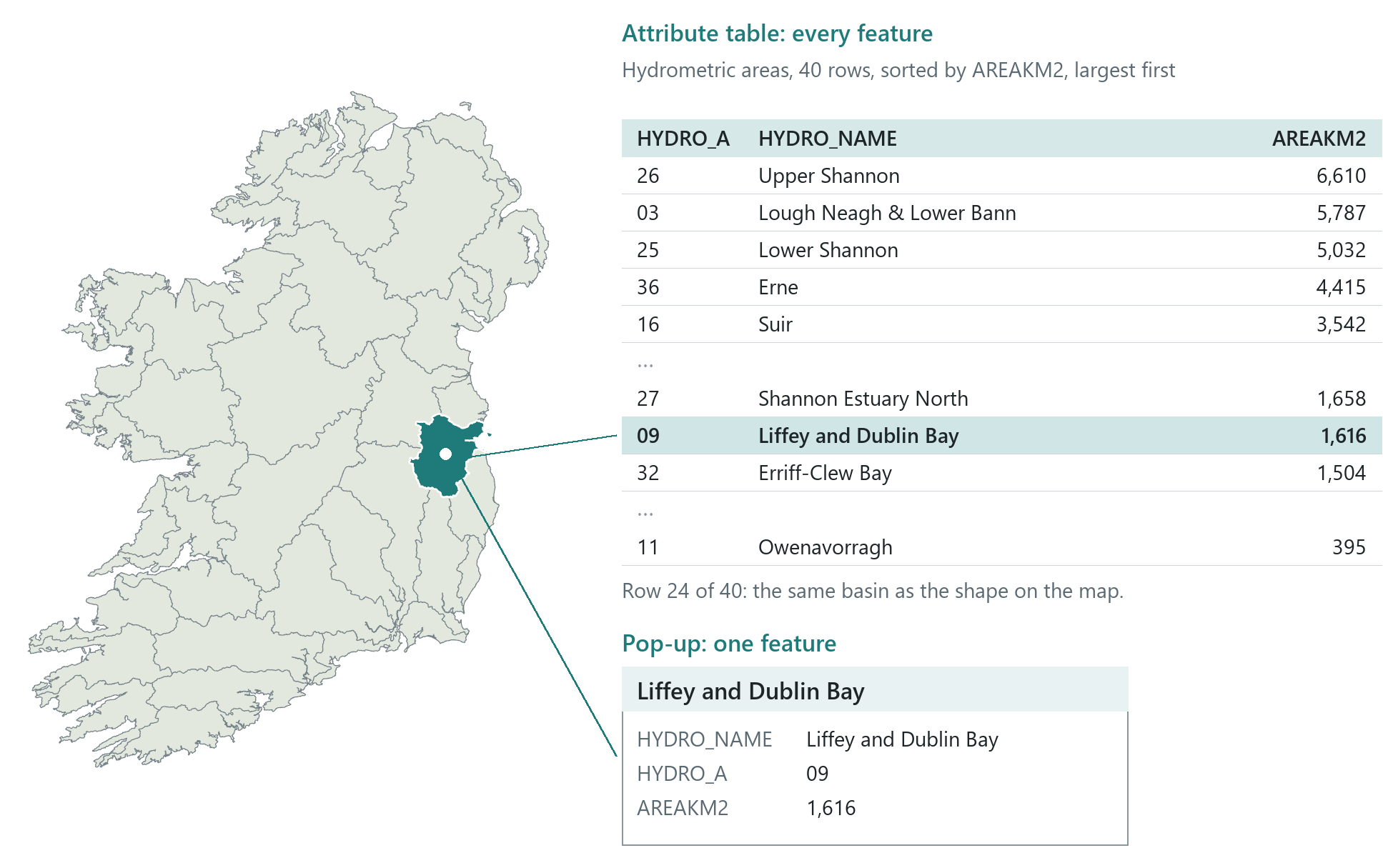
The first table in the course is Ireland's hydrometric areas. These are the river basins that the water agencies of Ireland and Northern Ireland use to organise the island's hydrology, in one layer that covers both jurisdictions. It has exactly 40 rows, one for each of the island's 40 hydrometric areas. A hydrometric area is a reporting unit and does not always correspond to the basin of one river. One area may be a single large basin and another may group several small coastal catchments, and the Shannon's basin is split between two areas. The course calls them the river basins for short. The area that covers Dublin, named Liffey and Dublin Bay, has the code 09 and an area of 1,616 km². The map and the table show the same data. When you select a row in the table, its shape is highlighted on the map.
Some questions can be answered from the table but not from the map. Counting the rows gives the number of hydrometric areas. Sorting the area column from largest to smallest puts the Upper Shannon at the top with 6,610 km², followed by Lough Neagh & Lower Bann at 5,787 km², and the Owenavorragh at the bottom with 395 km². Chapter 5 covers tables in more depth, including fields and their types, calculations and joins.
In the pane
In Module 1 lesson 3 you add the hydrometric areas to your map from the Living Atlas, click a basin you know and read its pop-up, and then open the attribute table to count the rows and sort by area. Waldo checks each answer against the layer itself before saying whether it is right.
Where data comes from: a first look
Data can be added to a map in four main ways. You search a portal such as ArcGIS Online, and the Living Atlas, Esri's curated collection of ready-to-use layers within it, from the Portal tab of the Catalog pane. A service URL, the web address of one published layer, is added directly. The project's own geodatabase holds your data and every result you make, and is empty in a new project. A folder connection points Pro at any folder of shapefiles, rasters or spreadsheets on a disk.
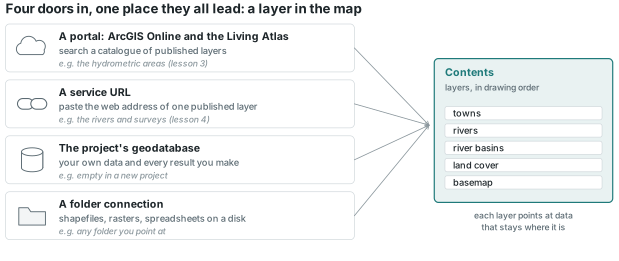
Module 1 uses two of these ways. You add the river basins from the Living Atlas by searching for them by name on the Portal tab. You add the rivers and the river surveys by URL. They are two small copies that the course keeps on ArcGIS Online so that they draw quickly and do not change from week to week. The rivers are the larger rivers of the Environmental Protection Agency's Rivers Network of Ireland, 22,856 of its 102,108 segments, with their lines simplified. The full network is in the Living Atlas, but it is slow to draw over the web at the scale of the whole island. The surveys are about 1,800 points from The Big River Watch, a layer of citizen river surveys from Ireland and Britain, limited to those inside the island's river basins. The full layer holds about 20,000 points and grows every week. Chapter 2 explains what these datasets are and where each one is stored.
In the pane
In Module 1 lesson 4 you add the rivers and the river surveys by their links (Add Data, Data From Path) and drag the basins over the survey points to see how drawing order affects an outline. You also look at the project's geodatabase in the Catalog pane, and the lesson names folder connections. Waldo confirms that each new layer is in your map rather than part of the basemap.
Try it
With the Module 1 map open, ask Waldo in Ask mode: list the layers in my map from top to bottom, and tell me which one would hide the others if it were on top. Waldo answers by reading the layers in your Contents pane.
Key terms
- layer
- one dataset drawn in a map with its own name and symbology; the data stays where it is.
- feature
- one point, line or polygon in a layer, together with its row of attributes.
- raster
- a layer made of a regular grid of cells, each holding one value.
- attribute
- a value describing a feature, stored in one field of its row.
- attribute table
- one row per feature, one column per field.
- pop-up
- the window that shows one feature's attributes when the feature is clicked.
- drawing order
- the order of layers in the Contents pane; a layer higher in the list draws on top.
- basemap
- the reference layers at the bottom of a map that give it context.
- symbology
- the drawing rules of a layer: its colours, symbols and sizes.
- ribbon
- the band of tabs across the top of Pro, each holding groups of commands.
- contextual tab
- a ribbon tab that appears only while something that needs it is selected.
- view
- a work area showing a map, layout, scene or table; one view is active.
- map
- a project item holding layers drawn in two dimensions.
- layout
- a page in a project that arranges maps and map elements for printing or export.
- scene
- a project item that draws layers in 3D, seen through a camera that tilts and turns.
- extent
- the rectangle of the map shown in a view at a given moment.
- bookmark
- a saved extent (in a scene, a saved camera) that a view can return to by name.
- Living Atlas
- Esri's curated collection of ready-to-use layers, reached from the Portal tab.
- service URL
- the web address of one published layer, which can be added to a map directly.
Further reading
- Olaya, V. Introduction to GIS, the chapter on data (the layer concept). https://volaya.github.io/gis-book/en/ (src:olaya-gis-book)
- Esri. ArcGIS Pro user interface. ArcGIS Pro documentation. https://doc.esri.com/en/arcgis-pro/latest/get-started/user-interface.html (src:esri-pro-docs)
- Esri. Bookmarks. ArcGIS Pro documentation. https://doc.esri.com/en/arcgis-pro/latest/help/mapping/navigation/bookmarks.html (src:esri-pro-docs)
- The course's data sources: every layer used, with its publisher and licence. (src:course-data-sources)