Chapter 7
Vector analysis
Accompanies Module 7 · Vector Analysis
Why this matters
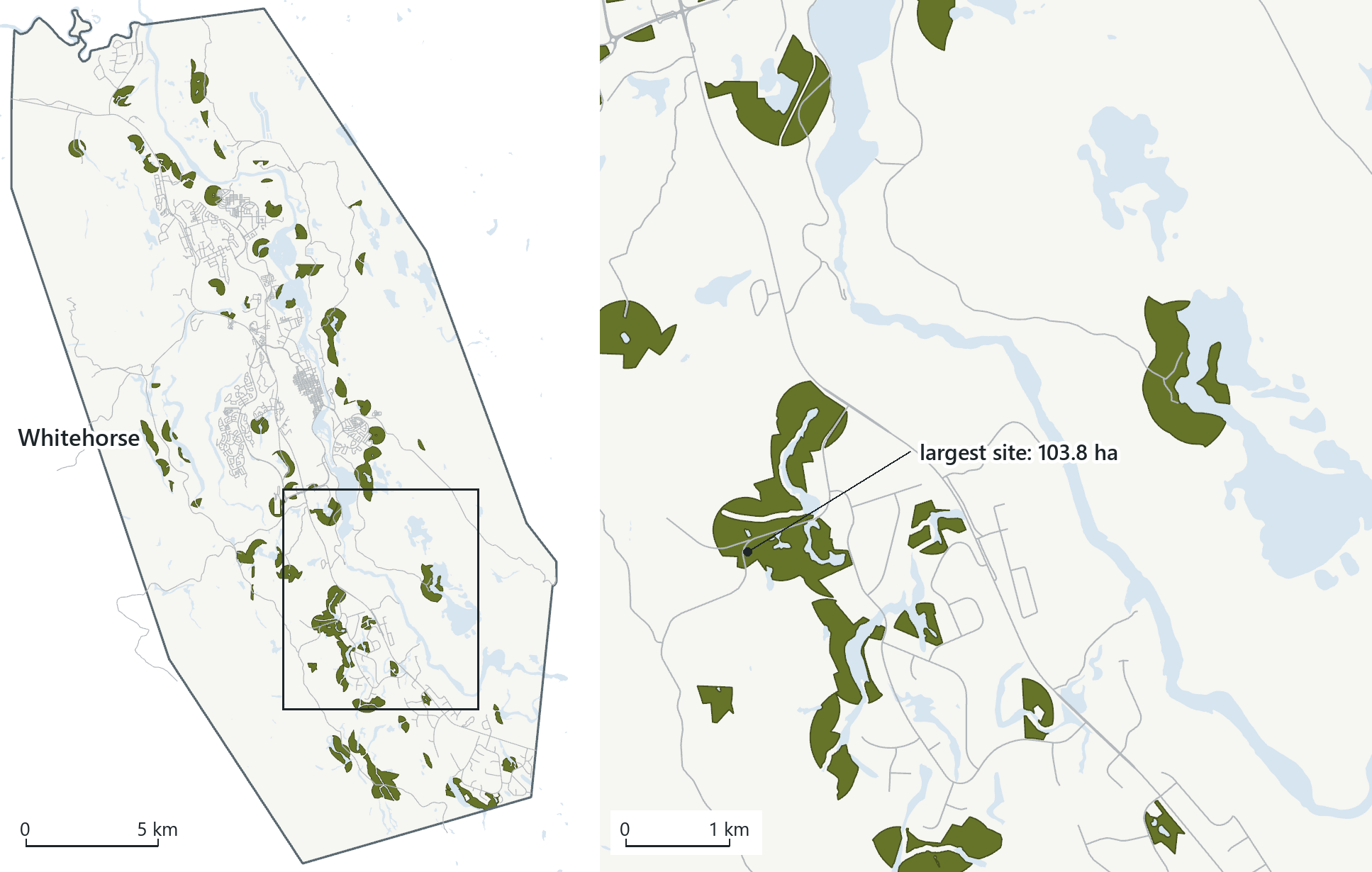
Queries find features that are already in your data, while analysis creates new data, such as the land within 30 metres of a stream, the geology inside a city or the wells on each rock unit. Each analysis tool reads layers, applies a spatial rule and writes a new feature class. When a few of these tools are run in sequence, they can answer practical questions. The map on this page shows 97 possible campground sites that a sequence of eight tools selected from a 420 km² city.
You should be able to explain
- why undissolved buffers count the ground where they overlap more than once
- why a clipped piece keeps its parent's count while its measured area is recomputed
- why a site-selection result depends on one set of chosen thresholds and gives a shortlist for further judgement rather than a decision
Analysis makes new data
The queries and selections of the last two chapters picked out rows and changed nothing on disk. The tools in this chapter are different: each one reads one or two layers, applies a rule such as "everything within 30 metres" or "everything inside this boundary", and writes a new feature class. The inputs are left as they were; of the tools in this chapter only Append, which adds features into an existing dataset, changes something that already exists. Vector analysis is therefore often described as a set of transformations, in which simple spatial rules turn existing layers into more useful products.
Because every result is a feature class, every result has a name, a place on disk and an attribute table of its own. If a run is wrong, you can delete its output and run the tool again. The software also keeps a history of every tool run with its inputs, outputs and settings, so the whole analysis can be reviewed and repeated.
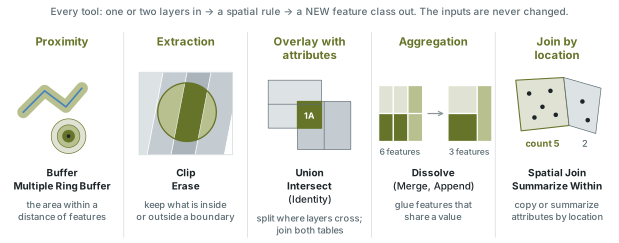
The families differ in what they do to shapes and to attributes. A buffer creates new shapes from one layer. Clip and erase cut one layer with another and leave the attributes unchanged. Union and intersect split shapes where they cross and combine both attribute tables. Dissolve combines features and keeps only the attributes you ask for. A spatial join leaves the shapes unchanged and transfers attributes between layers by location.
Two practical points apply to all of them. Distances and areas are measured in the units of the data's coordinate system, so analysis should be done in a projected system suited to measurement (Chapter 3). The Yukon layers used here are stored in NAD 1983 Yukon Albers, in metres. The location of the output is as important as its content. The same tool can write into the project geodatabase or into a folder as a shapefile, and a shapefile shortens field names to ten characters, so a field such as WELL_DEPTH_FTBGS becomes WELL_DEPTH.
Rule of thumb
Read the output path and name before running any tool. Save results in the project geodatabase, under names you will recognise later.
In the pane
Module 7 lesson 1 starts a new project for Whitehorse, Yukon, and cuts the city out of the territory's municipal boundaries as a study area. It opens the Geoprocessing pane, which gives access to about 1,600 tools, and shows the History pane that records every run.
Buffers
A buffer is a polygon covering every place within a given distance of a feature. Points, lines and polygons can all be buffered. Typical uses are setbacks in zoning, protective zones along streams and around other sensitive features, and capturing what lies around a feature, such as the customers near a store.
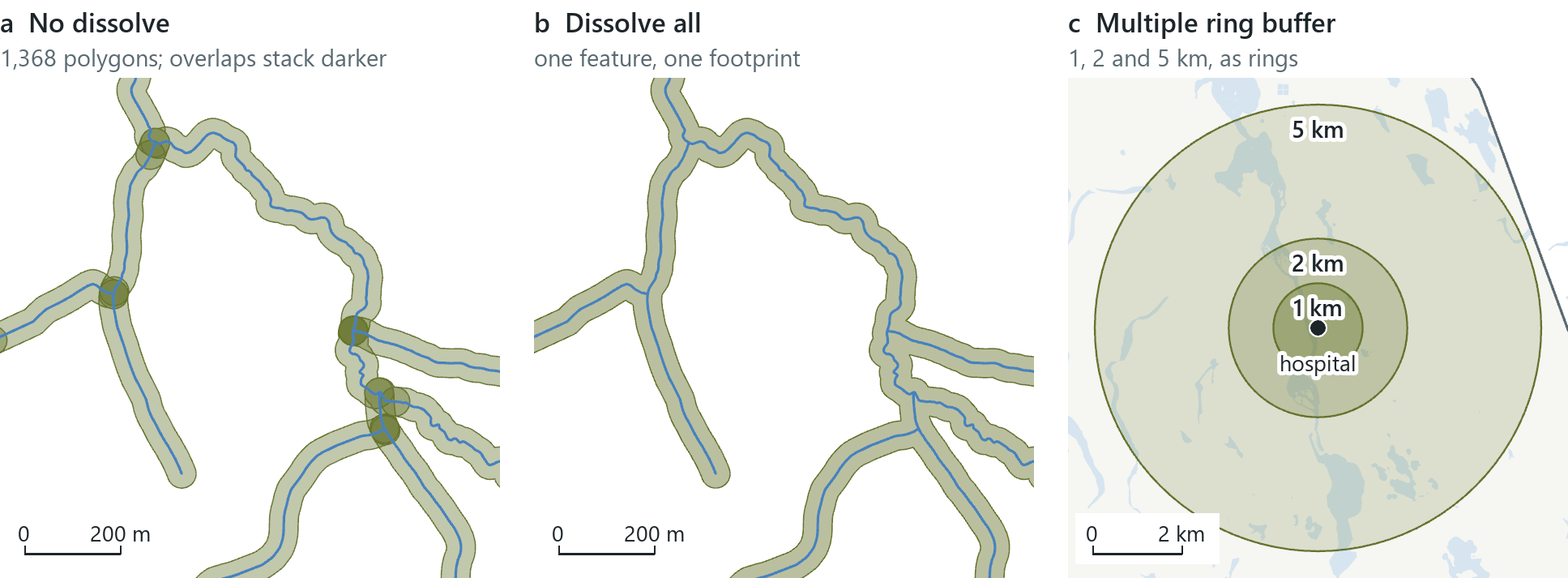
Whitehorse keeps new buildings 30 metres back from watercourses. The city's stream layer holds 1,368 stream lines, and a 30 m buffer around them marks the setback. The tool offers a choice in how the result is stored. Without dissolving, the tool writes one polygon per stream, and neighbouring polygons overlap wherever streams meet or run close. The areas of those 1,368 polygons add up to 85.0 km², about twice the true figure, because the overlaps are counted more than once. Dissolved into one feature, the setback covers 40.4 km², roughly a tenth of the city.
Reading the result
- The question: how much of Whitehorse lies inside the 30 m stream setback?
- The representation: 1,368 streams buffered by 30 m, one polygon each or dissolved into one.
- What it shows: 85.0 km² when overlaps are counted again, 40.4 km² once dissolved.
- What it cannot establish: whether a site can be built on; the setback is only one rule.
A multiple ring buffer creates buffers at several distances in one run. Around the city's hospital, rings at 1, 2 and 5 km cover 3.14, 9.42 and 65.93 km². Stored as rings, each feature is the band between two distances, the areas do not overlap, and the output's distance field can be used to map distance classes. Stored as overlapping disks, each feature is everything within its distance (3.14, 12.57 and 78.54 km²). A negative buffer, a negative distance applied to a polygon, shrinks it inward instead.
Tools honour a selection, so with only the hospital selected among the territory's 17 health facilities, the rings are drawn around the hospital alone.
In the pane
Module 7 lesson 1 buffers the streams by 30 m with the dissolve switched on, explains why the undissolved version double-counts, and reads the setback's area from its table. It then selects the hospital and runs a multiple ring buffer at 1, 2 and 5 km as rings, and names the negative buffer without running it.
Clip and erase: the cookie cutters
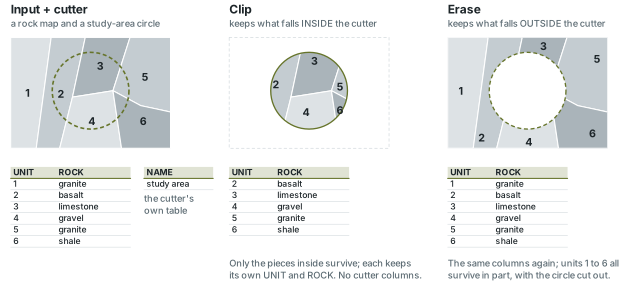
An overlay combines two feature classes into a new one. The simplest overlays are extraction tools, which are often compared to cookie cutters. Clip keeps the parts of the input features that fall inside a boundary; Erase keeps the parts that fall outside it. In both, the input's attributes are kept unchanged, and the cutting layer provides only its shape and none of its columns.
Unchanged attributes are correct for descriptions, because a rock type is still the same rock type on a smaller piece. They are wrong for counts: a district clipped in half still has its whole population in the table. A measured field such as Shape_Area is recomputed for the new shape; a stored count is not. Estimating the people in a fragment from its share of the area assumes that they were spread evenly, and the overlay has no information about where they live.
Clip is commonly used to prepare data. The Yukon's bedrock geology map has 28,565 polygons for the whole territory; clipped to Whitehorse it has 64, each still carrying its unit code, geological period and rock type. Points can be clipped too. A point is either inside or outside the boundary, so each point is either kept whole or dropped. Of the territory's 3,244 registered water wells, 1,102 lie in the city, and their table still records the purpose of each well; the most common purpose is private domestic supply, 532 wells. Selecting the wells by location would find the same ones, but a clip writes a layer that you keep, whereas a selection is temporary and remains part of the whole territory's layer.
Erase is commonly used in suitability analysis to remove land that cannot be used. Erasing the city's lakes, wetlands and river from the city boundary leaves 395.45 km² of dry land; 24.3 km² of the city is water.
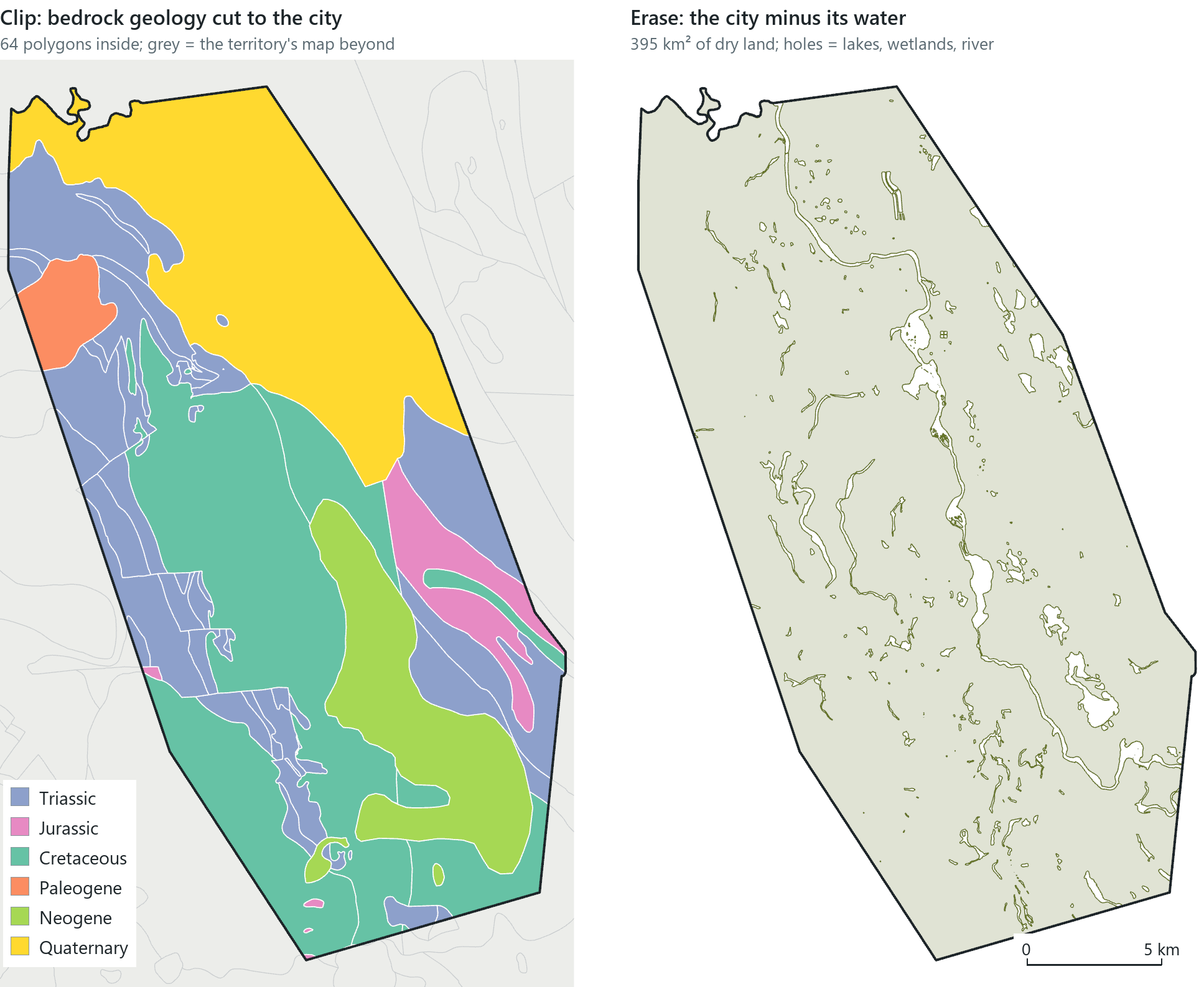
A large territory-wide layer served over the web can take a long time to clip. A geoprocessing environment, a setting applied around a tool, can limit the processing extent to the study area so that only the nearby features are read.
In the pane
Module 7 lesson 2 clips the bedrock geology and the wells to the city, sets the Extent environment for the big geology layer, and reads the most common well purpose to show that the attributes are kept. It then erases the water from the city and compares the dry-land area with the city's.
Union and intersect: overlays with attributes
The second kind of overlay joins attributes as well as shapes. Where features of the two inputs overlap, the tool splits them at the shared edges, and every resulting piece carries the attributes of both inputs. Union keeps every piece of both inputs; Intersect keeps only the pieces that lie in both. Identity keeps the first input's footprint and splits it wherever the second covers it. The order in which the inputs are listed makes no difference to a union or an intersect.
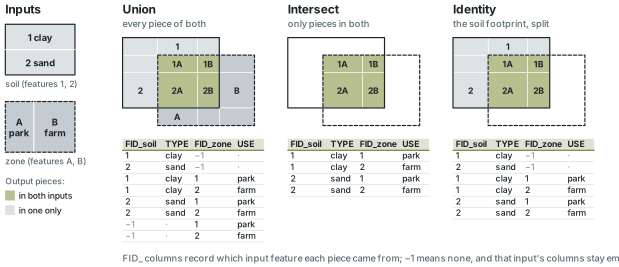
The output table records where each piece came from. The overlay adds an FID_ column for each input, named after the input dataset, holding the ID of the feature the piece came from. A value of −1 means "not in this input", and that input's other columns are empty for the piece. The attributes from the two tables appear side by side in each row.
In Whitehorse, the union of the 30 m stream setback with the city's water produces a layer of everything a building site should avoid: 1,668 pieces covering 103.66 km², more than the setback and the city's 24.3 km² of water together, because the water layer runs beyond the city limits and a union keeps everything in both inputs; clipping the result to the city would restrict it to the city. Of these, 1,055 are water that lies away from any stream (−1 in the setback's FID_ column), 612 are places where the setback crosses water, and one is the setback on dry land (one piece, because the dissolved setback was a single feature). Intersecting the city's 36 subdivisions with the clipped geology gives more than 80 pieces, each one subdivision on one rock unit, with the subdivision's name beside the rock's period and type.
In the pane
Module 7 lesson 3 unions the stream setback with the water into a no-build layer and reads the −1 in its FID_ columns. It intersects the subdivisions with the clipped geology, so that every piece carries both its subdivision and its rock unit, and names Identity without running it.
Dissolve, merge and append
Dissolve does the opposite of the overlays. Instead of splitting features, it combines the features of one layer that share a value in a chosen field and removes the boundaries between them. The output keeps the dissolve field and any summary statistics you ask for, such as the sum of the areas, and drops every other attribute.
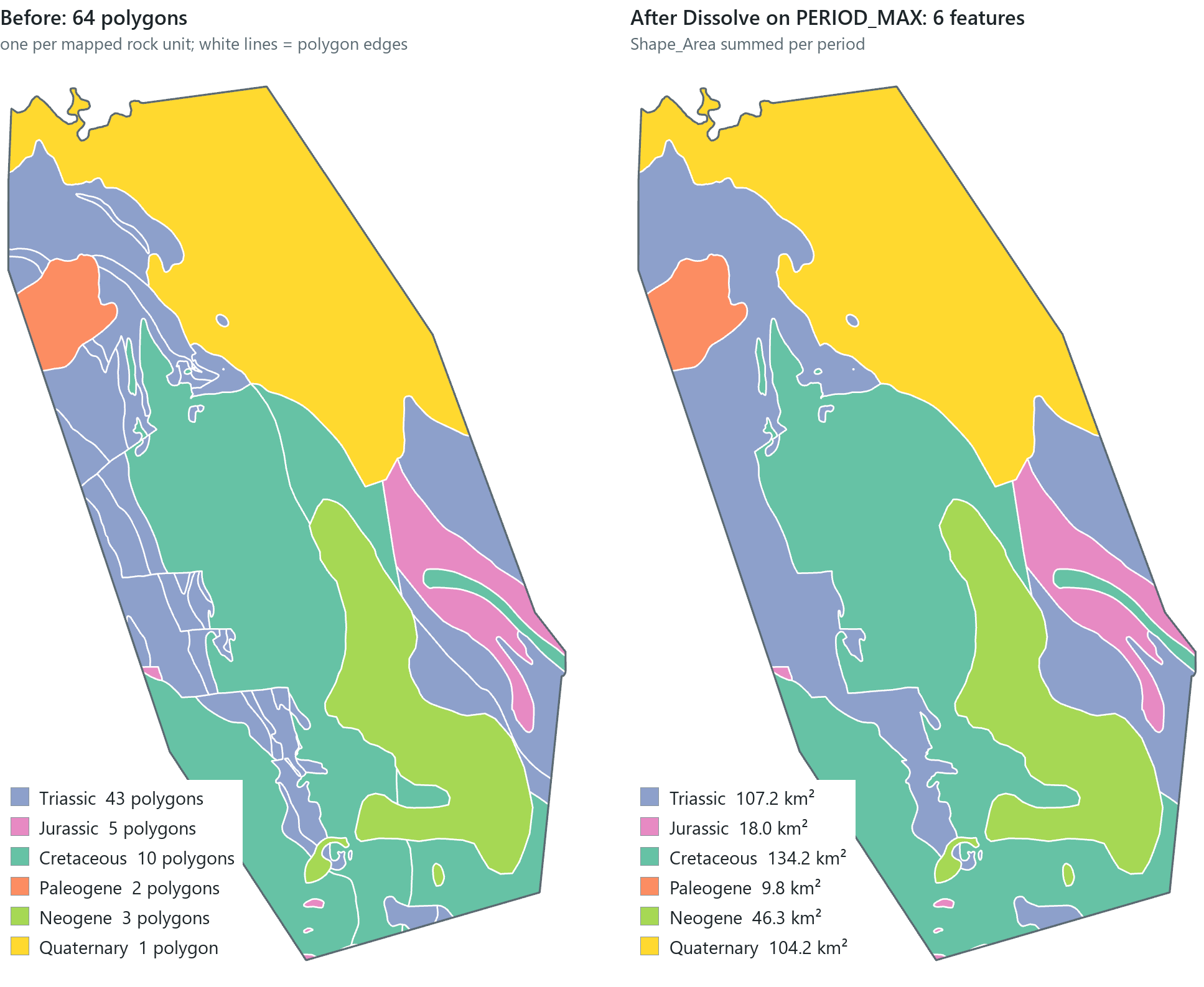
The 64 geology polygons dissolved on their period become six features. The counts and the areas give different results. Triassic rocks form 43 of the 64 polygons but cover 107.2 km², while the 10 Cretaceous polygons cover 134.2 km², the most of any period. Aggregating in this way replaces a count of pieces with a total for each period. If the output is allowed to hold only single-part features, each separate patch of a period remains a separate feature, and the output does not have one feature per period.
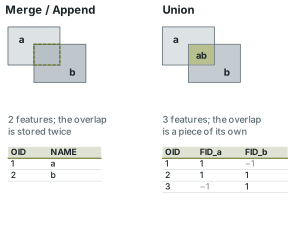
Merge and Append also combine features, but whole layers of the same geometry type: merge writes a new feature class from several inputs, append adds features into an existing one. Neither splits anything, so where the inputs overlap the result holds two stacked features and the overlapping area is counted twice. They are suited to joining adjacent map sheets or several years of the same data. They are not suited to combining layers that overlap, which is done with a union.
In the pane
Module 7 lesson 3 dissolves the clipped geology on its period with the area summed and asks which period covers the most of the city. Merge and append are discussed but not run.
A site-selection chain
These tools are most useful when they are combined. A site-selection model is used to answer the question "where could we put it?". You write down what a good site must have and must avoid, turn each rule into a spatial operation, and combine the operations until only the places that pass every rule remain.
The question here is where Whitehorse could put a new lakeside campground inside the city. The criteria are six: within 500 m of a road, within 300 m of a lake, outside the 30 m stream setback, outside the wetlands and the water, not on a surveyed parcel (a simplification: a surveyed parcel is land with registered interests, but land outside them is not necessarily free, and First Nation settlement lands, for example, are mapped separately), and at least 2 ha. The kind of rule determines which tool is used. Requirements, which a site must meet together, are buffered and intersected. Constraints, which a site must avoid, are combined and erased. A threshold on the result is a selection.
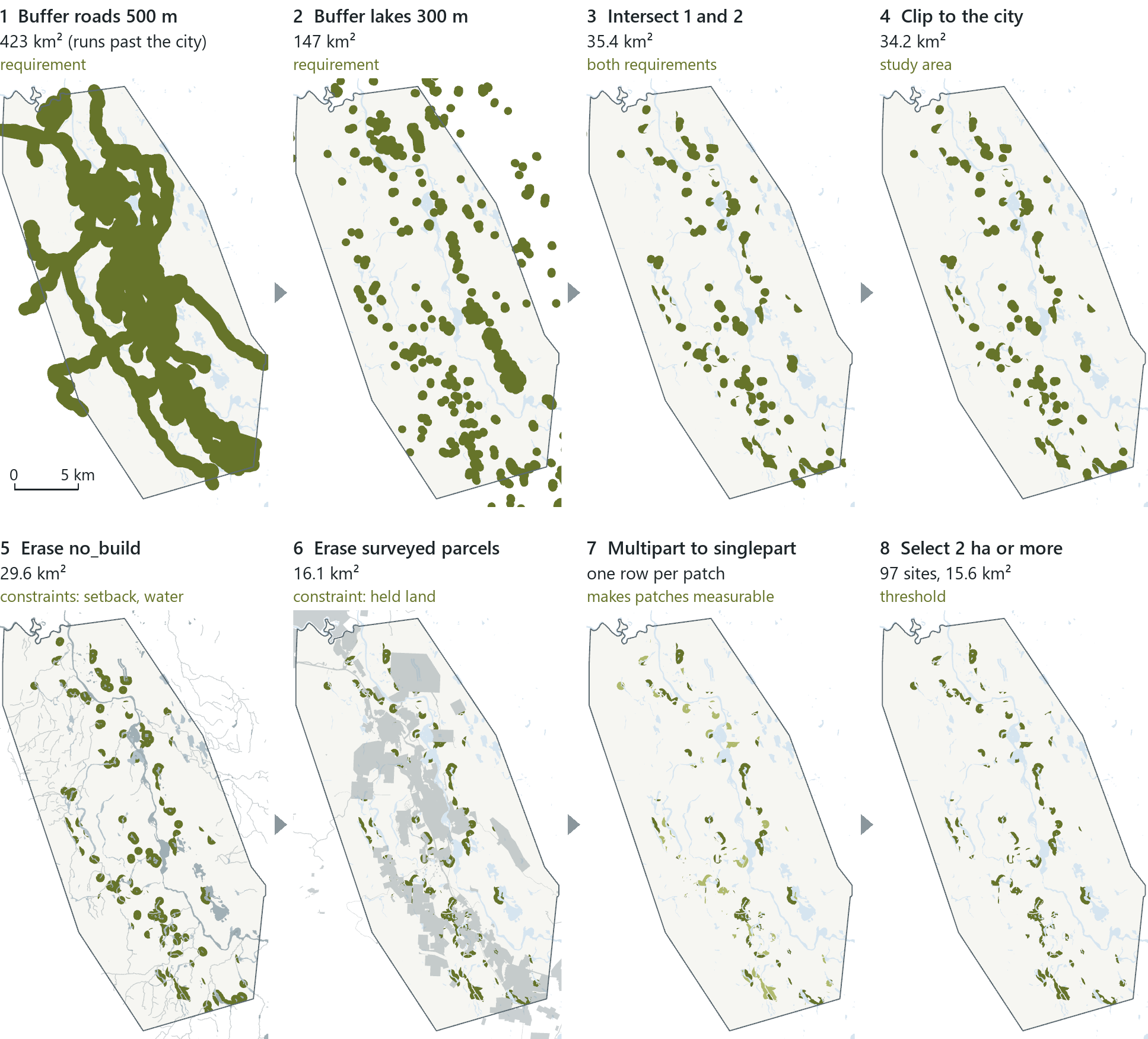
The area left after each step shows how the chain narrows the result. Everything within 500 m of a road covers 423 km², reaching well beyond the city limits; one stray road segment far to the north stretches the layer's extent, and dissolving thousands of overlapping buffers across that extent is slow, so limiting the processing extent to the city halves the area, takes seconds instead of a minute, and here changes nothing inside the city, because every road that matters lies within that rectangle. The extent is a rectangle that selects which inputs are read and does not clip them. In general it must reach a buffer distance beyond the study area, because a road just outside an extent that stops at the boundary loses its 500 m of influence inside it. This edge effect is not visible on the map. Everything within 300 m of a lake covers 147 km². Their intersection, land near both, is 35.4 km², and 34.2 km² of it lies inside the city. Erasing the no-build layer of the setback and water leaves 29.6 km², and erasing the surveyed parcels leaves 16.1 km². Because every buffer upstream was dissolved into one feature, that result is a single multipart feature, one row made of many separate shapes; splitting it into single parts gives one row per patch, which can be measured. Selecting the patches of 2 ha or more leaves 97 sites covering 15.6 km², about 4 % of the city, 44 of them 10 ha or more; the largest is 103.8 ha.
The result is a shortlist of possible sites and is not a decision. It is also the result of one particular model. Each threshold (500 m, 300 m, 2 ha) is a choice someone made, so if you change the road distance to 400 m or the minimum to 3 ha, the count changes, and a patch just inside a line is not better than one just outside it. State the criteria with the result, and say which are rules (the 30 m setback is the city's) and which are judgements. The analysis narrows 420 km² to 97 places that pass these mapped criteria and are worth a site visit, and people must then decide which of them, if any, is suitable. Every intermediate layer is a named feature class and every step is in the history, so the reasoning can be checked, changed and rerun. The finished map shows the result and its context and leaves out the intermediate layers.
Reading the result
- The question: where inside Whitehorse could a new lakeside campground go?
- The representation: six criteria made into buffers, overlays, erases and a 2 ha threshold.
- What it shows: 97 patches pass every criterion; the largest is 103.8 ha.
- What it cannot establish: which site is right; the thresholds are choices that someone made.
Rule of thumb
Write the criteria down before running any tool, and name the kind of each one: requirements are intersected, constraints are erased, thresholds are selected. After each step, look at the output before running the next.
In the pane
Module 7 lesson 4 builds this model in its own map, one criterion at a time: two buffers (the road buffer with the processing extent set to the city, the lake buffer on a selection of lakes only), an intersect, a clip, two erases, a multipart-to-singlepart split and a selection of 2 ha or more. You read the largest site's area, read the finished map against the criteria, and export a picture of it.
Spatial joins: attributes by location
A table join (Chapter 5) needs a key: a value in one table must equal a value in the other. Without a key, two tables cannot be joined in this way, but a GIS can still join two layers by the locations of their features. A spatial join attaches attributes from one layer to another based on their spatial relationship: one feature inside another, one closest to another, or one intersecting another. It always works on two layers and always writes a new, permanent layer, and the output has the geometry type of the target layer, the one that keeps its shapes and gains columns, and, when each target is matched once and unmatched targets are kept (the case in these examples), its row count too. A one-to-many join repeats a target for each match, and a join that keeps only matched targets drops the rest, so predict the row count from the cardinality (Chapter 5) before reading it. The other layer, the join features, supplies the attributes.
There are three kinds. A simple join gives each target feature the attributes of the one join feature it matches: every well takes the attributes of the rock unit it stands on. A summarized join gives each target feature a count or statistic of the many join features it contains: every subdivision gets the number of wells inside it and their mean depth. A distance join matches each target feature to the closest join feature and records how far away it is. Joins can link any combination of points, lines and polygons; the examples here stay with points and polygons.
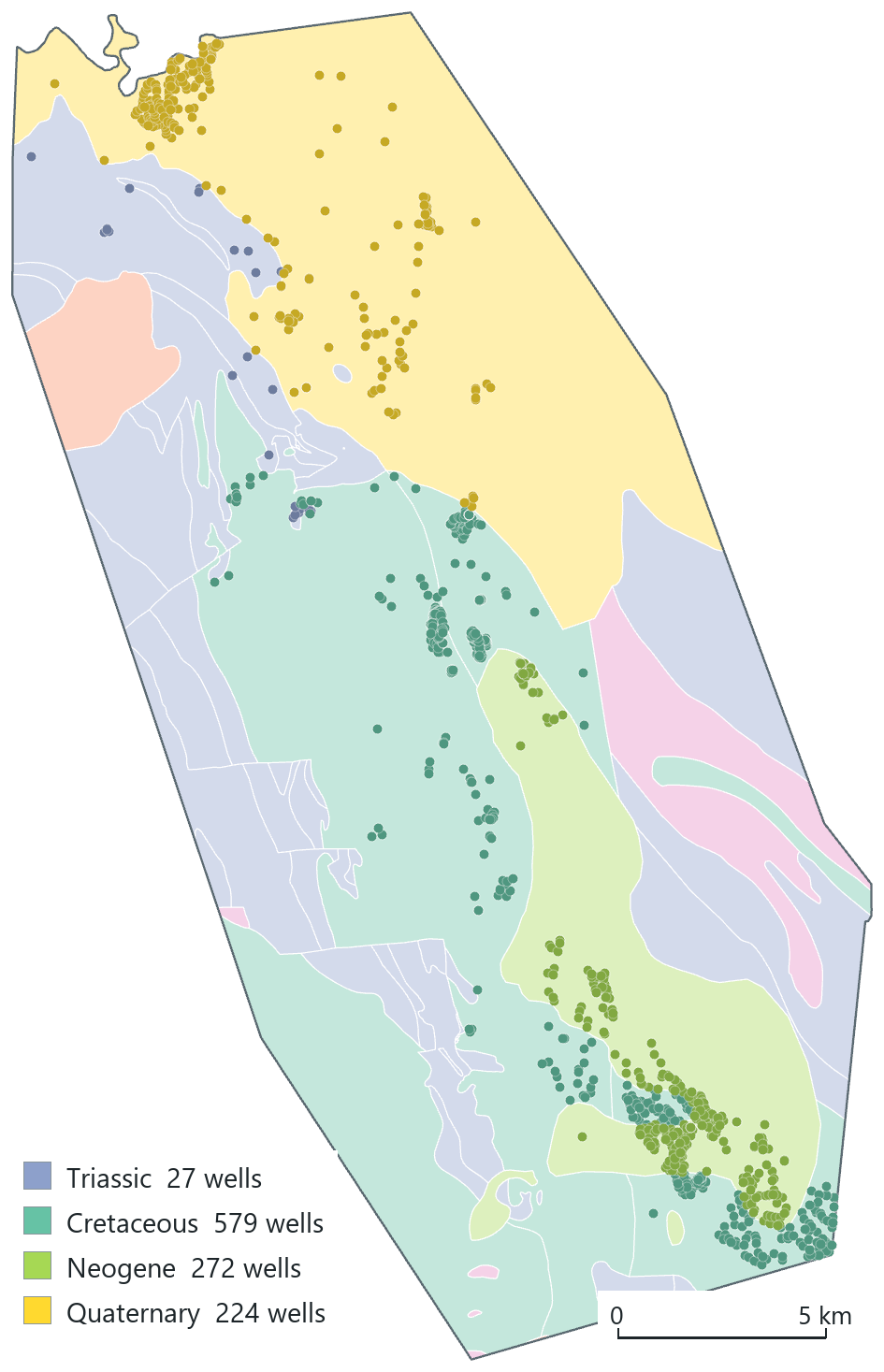
The simple join of the city's wells (the target) to the clipped geology (the join features) returns 1,102 rows, exactly the number of wells, and each row now carries the geology's columns beside the well's own. A join count field records how many join features each target matched: here 1 in every row, because every well sits on exactly one rock unit. Most of the wells, 579, stand on Cretaceous rock, followed by 272 on Neogene, 224 on Quaternary and 27 on Triassic. The join makes it possible to answer a question that neither layer could answer alone: the Cretaceous wells average 99 feet deep and the Triassic ones 180. Swapping the target and the join features gives a different result: 64 geology polygons, each with a count of wells.
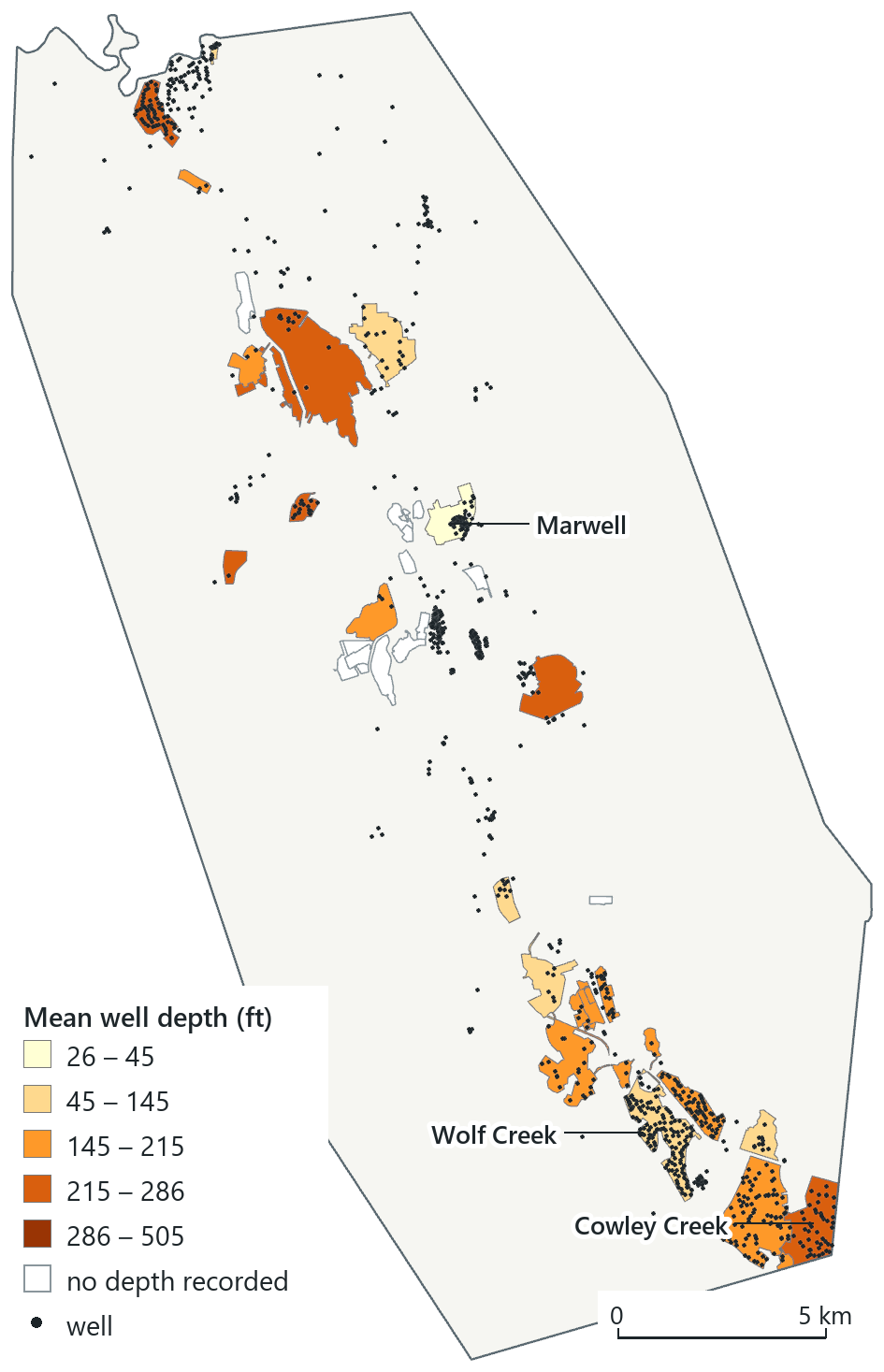
The summarized join reverses the direction, with the subdivisions as the target. Wolf Creek, a subdivision where houses have their own wells, holds the most, 126 wells, followed by Mary Lake with 87 and the industrial area of Marwell with 79. Only 588 of the 1,102 wells fall inside a named subdivision, and subdivisions with no well depths recorded have no mean. The count gives the number of registered wells of every kind in a subdivision: Marwell's 79 are mostly shallow monitoring wells, Wolf Creek's are domestic supply. The mean describes the wells on record, from 26 feet at Marwell to 273 at Cowley Creek, and differences between subdivisions mix geology with the purpose of the wells, how many were recorded and how many had a depth at all; the depth a new domestic well would need can only be judged from the domestic wells, and then by a driller. Comparing the choropleth with the points is a good way to check any summarized join.
Reading the result
- The question: how many registered wells lie in each subdivision, and how deep are they?
- The representation: wells counted per subdivision, with the mean of the depths on record.
- What it shows: Wolf Creek has the most, 126; mean depth runs from 26 to 273 feet.
- What it cannot establish: a new well's depth; the means mix geology, purpose and missing depths.
Rule of thumb
In a spatial join, choose the target first, because it determines the geometry type of the result and, with one match per target, the number of rows. Map a summary that describes the place (a rate or a mean), format the class labels as readable numbers, and then check how the rounding changed them.
In the pane
Module 7 lesson 5 joins the wells to the geology and asks which period most wells stand on, then counts the wells in each subdivision with the Summarize Within tool and draws the mean well depth as graduated colours with formatted class labels: one significant digit first, which collapses two of these classes to a single number, then whole feet. The distance join is named, not run.
Try it
With the Whitehorse project open, ask Waldo in Ask mode: which tool would you use to find the wells within 1 km of the hospital, and what would the output contain? Compare its answer with the families at the start of this chapter.
Key terms
- transformation
- an analysis operation that reads existing layers and writes a new feature class, leaving the inputs as they were (Append, which adds to an existing dataset, is the exception).
- buffer
- a polygon covering every place within a given distance of a feature.
- dissolve (buffer option)
- merging overlapping buffer polygons into one feature so that no area is counted twice.
- multiple ring buffer
- buffers at several distances around the same features, stored as non-overlapping rings or overlapping disks.
- overlay
- combining two feature classes by location into a new feature class.
- clip
- keeps the parts of the input features inside a boundary; the input's attributes are unchanged.
- erase
- keeps the parts of the input features outside a boundary; the input's attributes are unchanged.
- union
- an overlay that keeps every piece of both inputs, each piece carrying both inputs' attributes.
- intersect
- an overlay that keeps only the pieces lying in both inputs, each carrying both inputs' attributes.
- identity
- an overlay that keeps the first input's footprint, split wherever the second input covers it.
- FID_ column
- a column an overlay adds to record which feature of an input each piece came from; −1 means none.
- dissolve
- merging the features of one layer that share a field value, keeping that field and any requested statistics.
- merge / append
- combining feature classes of the same type into a new one (merge) or into an existing one (append), without splitting; overlaps become duplicate features.
- multipart feature
- one feature, one row, made of several separate shapes.
- site-selection model
- a chain of spatial operations that keeps only the places meeting every written criterion.
- spatial join
- attaching one layer's attributes to another's features by their spatial relationship.
- target / join features
- in a spatial join, the layer that keeps its shapes and rows / the layer that supplies the attributes.
- summarized join
- a spatial join that gives each target feature a count or statistic of the join features it matches.
- geoprocessing environment
- a setting applied around a tool, such as the processing extent.
Further reading
- Olaya, V. Introduction to GIS, the chapter on spatial analysis. https://volaya.github.io/gis-book/en/ (src:olaya-gis-book)
- Fang, Y., Shandas, V., & Arriaga Cordero, E. (2014). Spatial Thinking in Planning Practice: An Introduction to GIS. Portland State University Library. https://pdxscholar.library.pdx.edu/pdxopen/4/ (src:pdx-spatial-thinking)
- Gimond, M. Intro to GIS and Spatial Analysis. https://mgimond.github.io/Spatial/ (src:gimond-intro-gis)
- The course's data sources: the nine GeoYukon layers the lessons and this chapter's maps use, published by the Government of Yukon under the Open Government Licence – Yukon. (src:course-data-sources)