Chapter 8
Raster analysis
Accompanies Module 8 · Raster Analysis
Why this matters
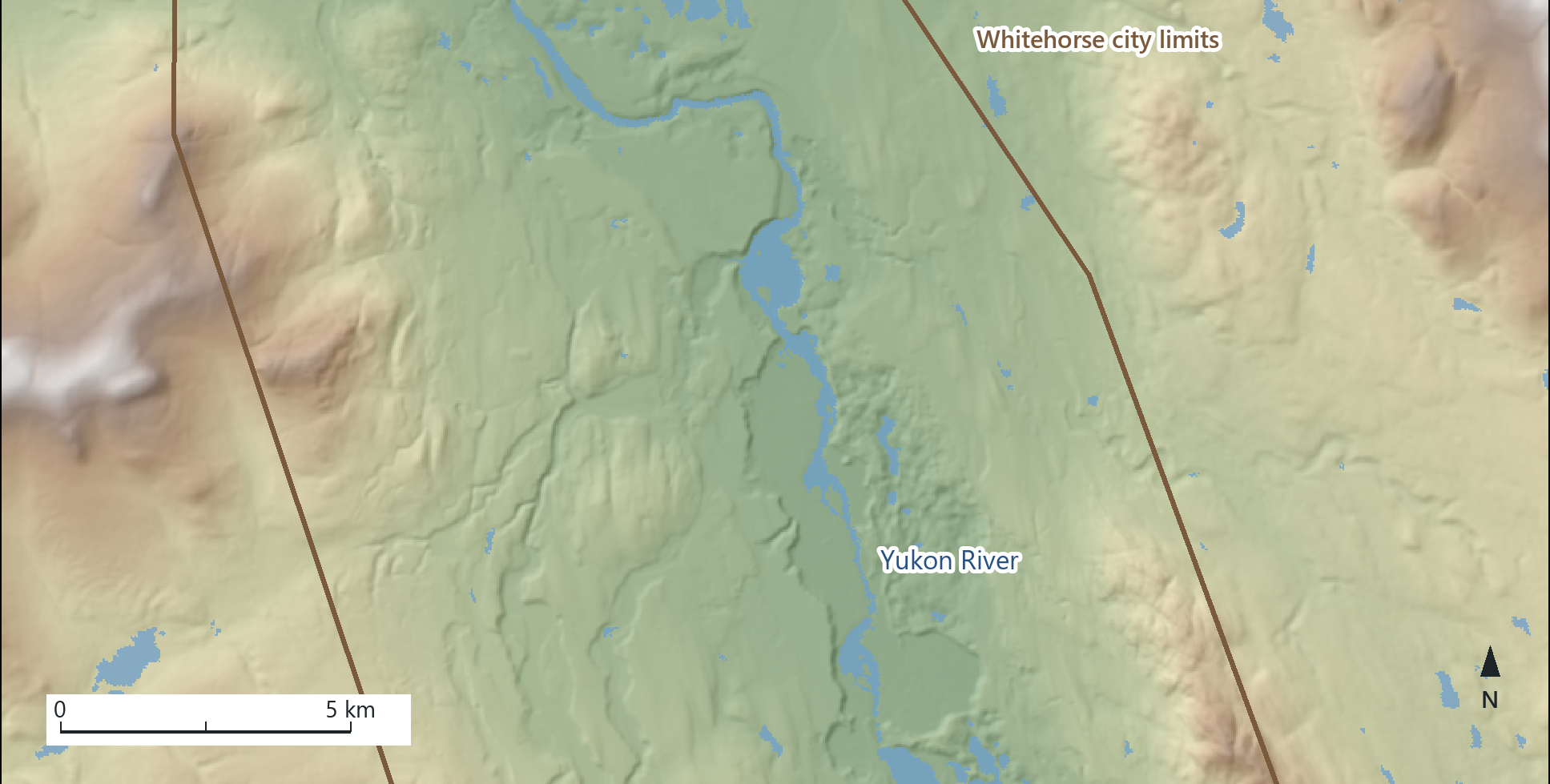
Vector data describes discrete features: wells, roads, parcels. Raster data describes the ground as a surface, one number for every square of it: a height, a land-cover class, a satellite's brightness. The map above is only numbers on a 30 m grid over Whitehorse, drawn in colour and as shading. This chapter explains the grid, how to draw it to suit its values, and how arithmetic on whole grids answers questions that cannot practically be measured in the field.
You should be able to explain
- why an integer raster has a table of counts while an elevation surface has only statistics
- why halving the cell size quadruples the data, and why resampling to smaller cells adds no detail
- why multiplying Boolean rasters finds the cells that pass every test, and what a NoData cell means
The raster data model
A raster covers an area with a grid of equal squares, the cells (in an image, pixels), arranged in rows and columns. Every cell holds exactly one value, and the value describes the ground at that cell's location: an elevation, a temperature, a rainfall total, a land-cover class, the reflected light a sensor recorded. There are no features and no rows of attributes as in a vector layer; the position of a value in the grid is its location. Rasters are therefore well suited to things that vary continuously over a surface, where every place has a value, and to all images.
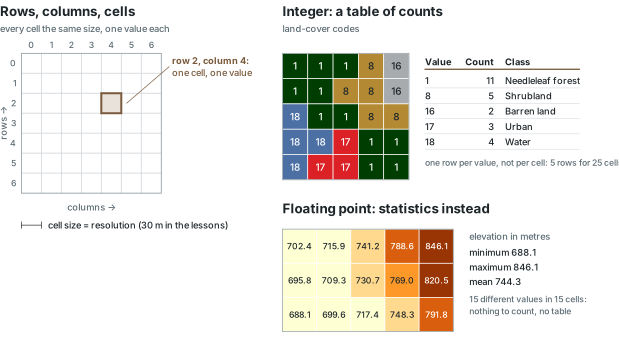
Cell values come in two kinds, and the kind determines what you can do with a raster. An integer raster holds whole numbers, usually codes: 1 for needleleaf forest, 18 for water. A floating-point raster holds decimals, usually measurements: 694.7 m in one cell, 695.2 m in the next. The land-cover layer the course uses stores each cell as an 8-bit whole number, 0 to 255, which is room for 256 codes; its elevation layers store 32-bit decimals.
Only an integer raster can have a raster attribute table. The table has one row per value, not one row per cell, and two fields that are always there: Value and Count, the number of cells holding it. Any other column, such as a class name, is an addition someone made. A floating-point raster has nothing to count by value, because hardly any two cells share a value, so it has no table; you read it through its statistics instead, such as the minimum, maximum and mean. The same distinction applies to selection: you can select Value = 18 on an integer raster, but there is no row to select on an elevation surface.
You query a raster by pointing at it. When you click a place, the software reports the value of the cell under the cursor for every raster drawn there. On the valley floor at Whitehorse the elevation cells hold values of about 640 m, and on the benches above the river about 700 m.
In the pane
Module 8 lesson 1 is a looking lesson. You add the Commission for Environmental Cooperation's land cover of North America and zoom in until the individual square cells are visible, read its cell size, pixel type and band count off the layer's Source tab, compare it with the floating-point elevation layer, see the table of counts Waldo fetches from the service, and click the ground with the Explore tool to read cell values.
Cell size is resolution
Every cell covers the same square of ground, and the length of its side is the cell size, the raster's spatial resolution. A 30 m cell represents 30 × 30 = 900 m² of ground, and the raster cannot represent anything smaller than a cell. A pond 20 m across either determines the value of the cell it falls in or is lost among the surrounding cells. A land-cover grid behaves in this way, but in an image a small bright object can make a pixel brighter without being recorded as a separate feature.
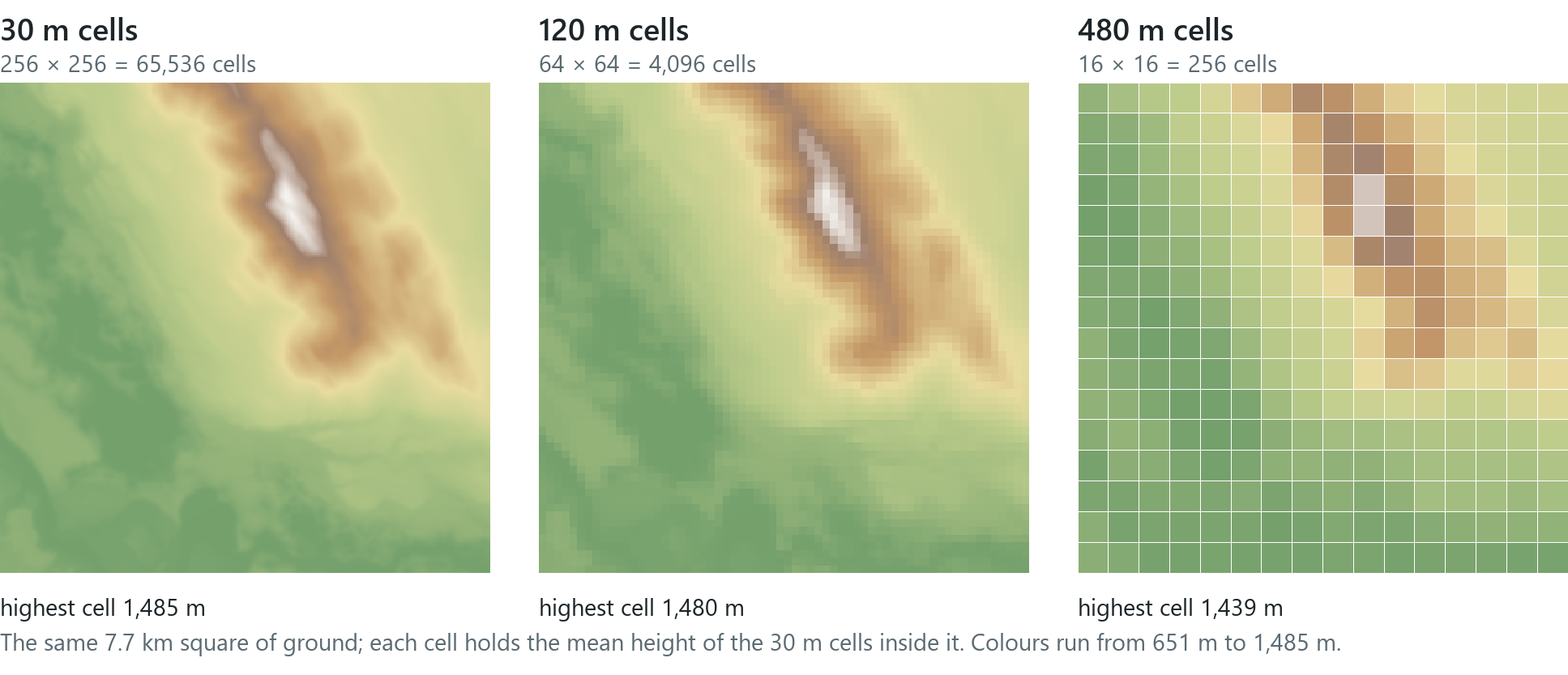
Halving the cell size quadruples the number of cells, and with it the storage and the processing time, so a finer resolution has a cost. The course's elevation model of Whitehorse, 689 columns by 1,080 rows of 30 m cells in 4-byte decimals, is about 3 MB, and at 15 m it would be about 12 MB. Coarser cells are cheaper but smooth the surface. In the hill above, the summit is almost 50 m lower at 480 m cells because the coarse cells in the figure were made by averaging the fine ones (how a real DEM's cell value relates to the ground inside it depends on how it was made), and small features disappear completely. Choose a cell size that can represent the smallest feature the analysis needs. Cell size, the detail the source supports and the accuracy of the values are separate properties. Resampling a 30 m grid to 15 m cells makes four cells where there was one and adds no detail.
Bands and images
A raster can carry one value per cell or several. The elevation model and the land cover have one band. A satellite image has many: most bands record the light reflected in one slice of the spectrum, over the same cells, and some record the heat the ground gives off. The Landsat 8 and 9 satellites record eleven bands: nine of reflected light (coastal aerosol, blue, green, red, near infrared, two shortwave infrared and a cirrus band at 30 m, and a panchromatic band at 15 m) and two thermal bands captured at 100 m and delivered resampled to 30 m. The course's Multispectral Landsat service also holds eleven numbers per cell, but not the same eleven: it leaves out the panchromatic band and adds a quality band, a code describing clouds and other problems with the observation. The eleven bands of a multiband raster are therefore not necessarily measurements of one kind at one resolution.
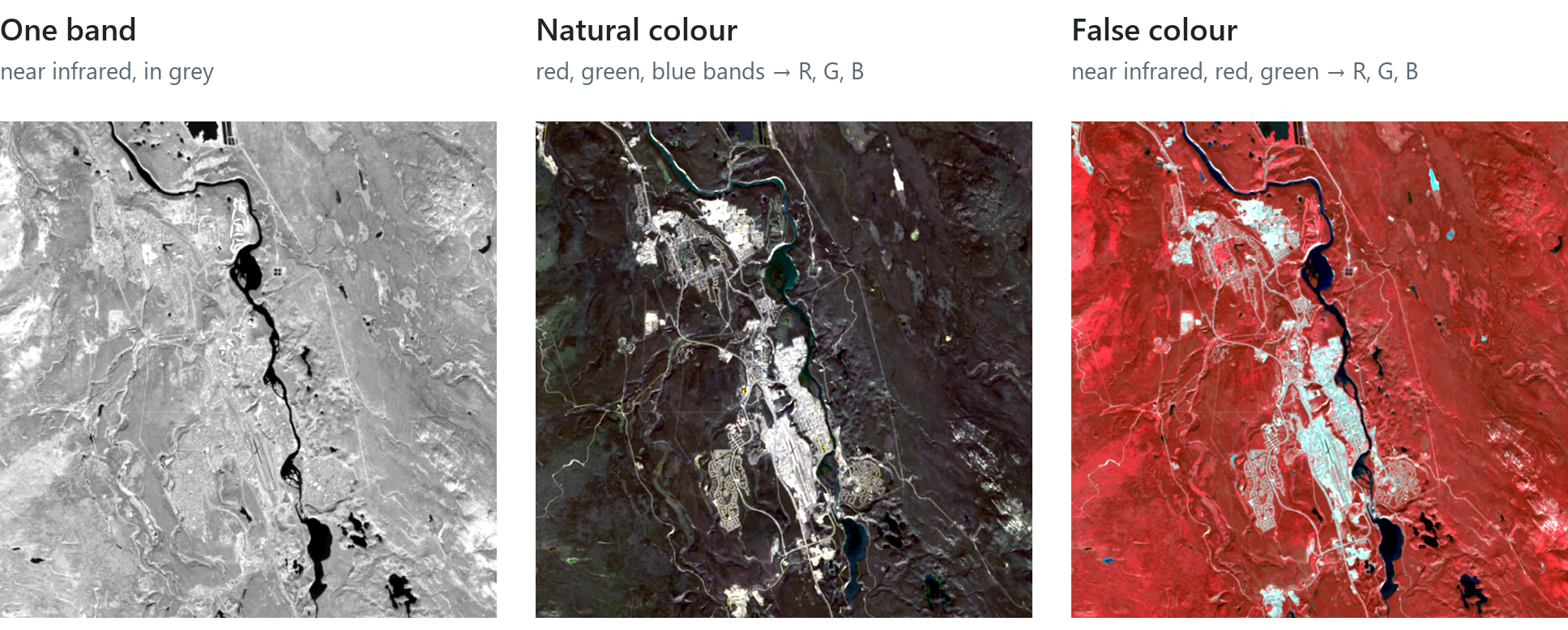
A screen shows colour by mixing red, green and blue light, so a colour image of a raster uses three of its bands, one in each of the screen's channels, and you choose which three. Red, green and blue bands sent to red, green and blue give natural colour, the picture the eye would see. Shifting each assignment one band along the spectrum, with near infrared in red, red in green and green in blue, gives the standard false-colour composite. Plants reflect near-infrared light strongly, so healthy forests and lawns appear red, while the town, the gravel and the water appear pale blue and black. Arithmetic on two bands also produces new rasters: the vegetation index NDVI is (NIR − Red) / (NIR + Red), computed cell by cell, which is map algebra (below).
Land cover is a raster made from such images. The North America Land Cover 2020 layer the course uses was classified from Landsat 8 imagery by Canadian, US and Mexican agencies into 19 classes at 30 m. Each cell holds one class code, which makes it an integer raster with a table; inside Whitehorse's city limits eight classes occur, and needleleaf forest covers 70 % of the 420 km².
Drawing a raster
A raster is drawn by a colorizer, and the right one depends on what the numbers mean. Unique values gives each code its own colour. It suits categories, where a value "between shrubland (8) and grassland (10)" has no meaning. Stretch spreads a colour ramp from the lowest value to the highest, so that every cell gets its own shade, with no classes. It suits a continuous surface that is read by eye. Classify groups the values into a few classes (natural breaks by default) with a readable legend. It suits a map from which a reader must be able to say "this area is above 1,264 m". RGB sends three bands to the screen's three colours, as in the images above.
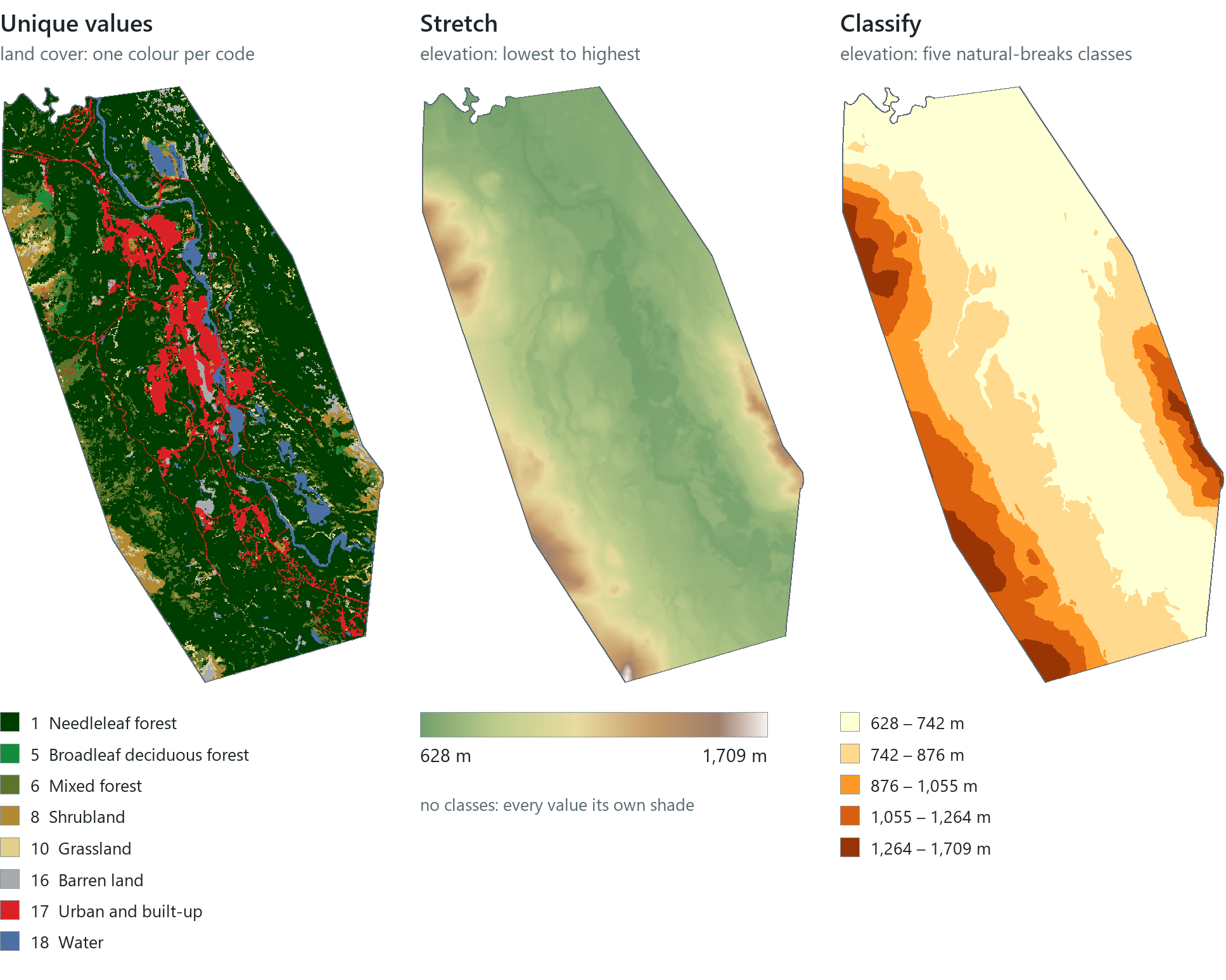
The software offers every colorizer for every raster, but only some of them represent the data correctly. A stretch on land-cover codes would draw water (18) as "more" than forest (1); unique values on an elevation surface would need thousands of colours.
Rule of thumb
Unique values for integer categories, stretch or classify for floating-point quantities, RGB for multiband images. When a map has to be read in numbers, classify it so that the legend shows the class values.
Making your own copy
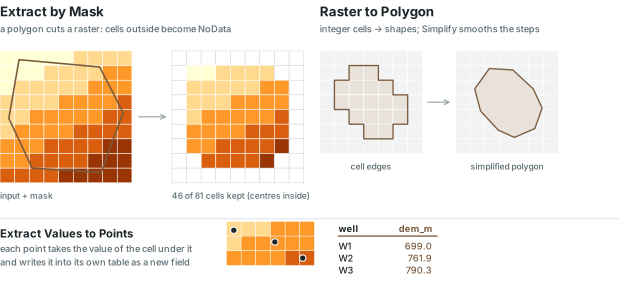
Rasters from the internet often cover a continent and are published by someone else. For analysis you need a copy of your own, cut to the study area, in the project's coordinate system, at a cell size you chose, and saved in your geodatabase. Extract by Mask is the raster equivalent of Clip. Given a raster and a polygon (or another raster), it keeps the cells inside, and the cells outside become NoData, cells that hold no value at all. Exporting a raster with a clipping geometry does the same job without the Spatial Analyst extension.
Three settings, the raster environments, determine the properties of the copy. The first is the output coordinate system. Web Mercator stretches lengths by 1/cos(latitude) (Chapter 3), so at Whitehorse's 60° N a "30 m" Web Mercator cell is only 15 m of real ground. The course projects to NAD 1983 Yukon Albers instead. It is an equal-area projection designed for the territory, so a 30 m cell covers 900 m² of ground everywhere in it and counting cells gives correct areas, although its distances are true only near its standard parallels, as in any projection (Chapter 3). The second is the cell size. An elevation service that combines the finest data it has may report cells a fraction of a metre wide, and an extraction without a cell size of your own would try to copy all of them. The third is the snap raster. Two rasters with the same cell size can still be offset by part of a cell, and snapping aligns the new grid's cells exactly with an existing raster's cells, so that when one raster is later multiplied by another, every cell has a matching cell.
When a grid is projected or re-aligned, every new cell needs a value taken from the old ones, and the method must suit the data. A category keeps the code of the nearest old cell (nearest neighbour), because the average of codes 1 and 18 is not a land-cover class. A measured surface such as elevation may be interpolated between neighbouring cells (bilinear), which smooths it a little. In either case, resampling changes the cell values.
Rule of thumb
Before extracting, set the output coordinate system and the cell size, and snap to the raster you will combine it with. Then read the result back: cell size, coordinate system, rows and columns.
In the pane
Module 8 lesson 2 makes the learner's own dem with Export Raster (Yukon Albers, 30 m cells, clipped to the city) and landcover with Extract by Mask, snapped to the DEM. It then adds Multispectral Landsat, turns off its processing template to reach all eleven bands, switches the band pickers to false colour, and compares stretch and classify on the DEM with the land cover's unique values.
Terrain: hillshade, slope and aspect
A digital elevation model (DEM) is a raster of heights. From it a family of new surfaces can be derived, each by a tool that reads the DEM and writes a new raster, cell by cell.
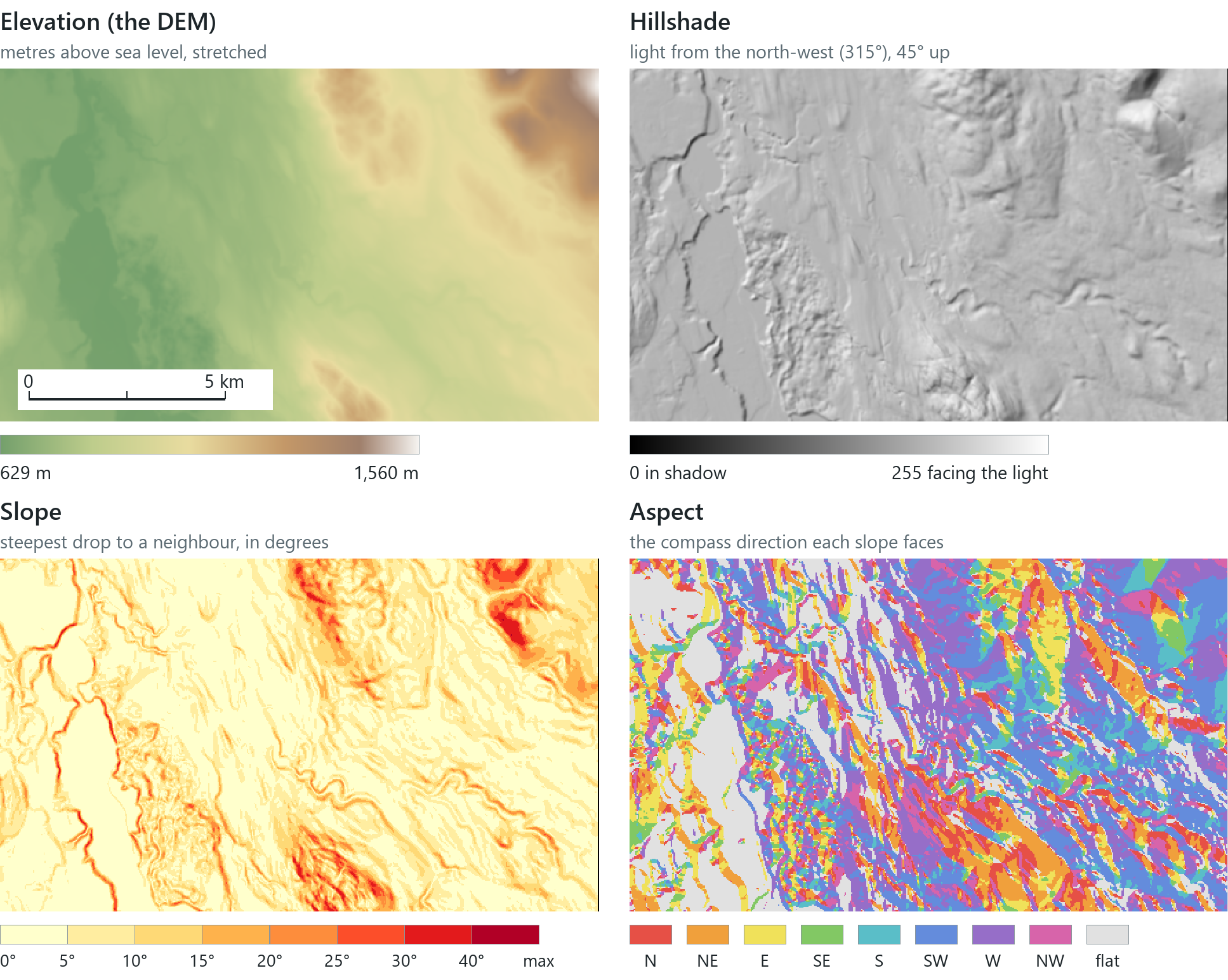
A hillshade shows the pattern of light and shadow on the terrain. The tool places a light source at a given direction and height, by convention an azimuth of 315° (the north-west) and an altitude of 45°, and records how brightly each cell's slope would be lit, from 0 in full shadow to 255 facing the light. The light comes from the north-west because a light from the south makes most readers see valleys as ridges. A hillshade contains no heights, only brightness values.
The relief map is the combination nearly every terrain map uses: the DEM, in an elevation colour scheme, drawn about 40 % transparent over its own hillshade, so that the colour shows the height and the shading shows the shape of the land. The map on the opening page of this chapter is made in this way.
A hillshade can look like a map of steepness, but it is not one, because a steep face is bright or dark depending on the direction it faces. Slope measures steepness. For each cell the tool compares the cell with its eight neighbours, finds the steepest change in height, and writes it as an angle: a rise of 25 m over a run of 60 m is a slope of about 23°, or 42 % (the same hill written as rise over run times 100). Slope in Whitehorse runs from 0 on the valley floor to 51.5° on the mountain faces, with a mean of only 7°, which reflects a flat-floored valley with mountains at its edges. Aspect gives the compass direction each slope faces, 0° to 360° clockwise from north, and flat cells, which have no direction, are marked −1. In the Yukon, the snow melts first on south-facing slopes.
In the pane
Module 8 lesson 3 runs Hillshade (315° and 45°) on the learner's DEM and builds the relief map by setting the DEM to 40 % transparency over it. It explains slope as rise over run, runs Slope in degrees and asks for the steepest cell, names Aspect as an optional run, and reclassifies the slope into three classes.
Note
The book's rasters are made with the lessons' own tools and settings but from public sources: Natural Resources Canada's 30 m elevation model instead of the lessons' elevation service, and the same USGS Landsat imagery from a public copy. The two elevation products agree on the valley floor but not to the metre on the summits, so the book's numbers differ slightly from the ones the lessons report.
Map algebra
A raster is a grid of numbers, and two rasters with the same cells align value over value. This means you can do arithmetic on them, cell by cell: multiply a whole grid by a constant, add one raster to another, subtract, or compare every cell with a threshold. This is called map algebra, and each operation writes a new raster.
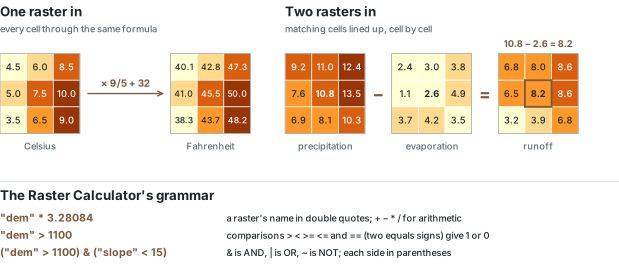
With one input raster, the operation is a conversion: degrees Celsius × 9/5 + 32 gives degrees Fahrenheit in every cell, and the course's "dem" * 3.28084 turns an elevation model in metres into one in feet (Whitehorse's 628 to 1,709 m become 2,062 to 5,608 ft). With two or more input rasters, the operation is an overlay: the figure subtracts evaporation from precipitation cell by cell, a simplified water balance. Real runoff also depends on what the soil stores, what plants take up and what flows in from upslope, so the subtraction is an example of two-raster arithmetic and is not a hydrological model.
ArcGIS Pro's calculator for this is the Raster Calculator, and its grammar is strict. A raster's name goes in double quotes ("dem"); arithmetic is + − * /; comparisons are > < >= <= and ==, two equals signs, since one equals sign is an error; AND is &, OR is |, NOT is ~, and each side of an & or | is placed in its own parentheses. The most common mistakes are a name without quotes, = in place of ==, and the word AND in place of &.
Boolean rasters
A comparison applied to every cell gives a Boolean raster: 1 where the condition is true, 0 where it is false. "dem" > 1100 marks every cell above 1,100 m, roughly the tree line on the mountains around Whitehorse; "slope" < 15 marks every cell gentler than 15°. A Boolean raster is an integer raster with a two-row table, and the Count beside the value 1 gives the size of the result: 55,538 cells, or 50.0 km², lie above 1,100 m inside the city.
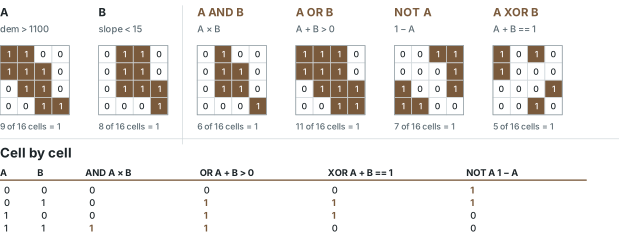
Because the values are only 0 and 1, the logical operators are ordinary arithmetic. AND is multiplication: A × B is 1 only where both are 1. OR is addition tested against zero: A + B > 0 wherever either is 1. NOT is subtraction from one: 1 − A. XOR, "one or the other but not both", is A + B == 1. As a result, ("dem" > 1100) & ("slope" < 15) and "high" * "gentle" give the same raster.
A cell that is NoData in either input stays NoData in the result, because arithmetic with an unknown value gives an unknown value rather than 0. A blank cell in a suitability map therefore means that there is no evidence for that cell, which is different from "unsuitable", and the area of NoData is worth reporting beside the area of 1s.
In the pane
Module 8 lesson 4 teaches the Raster Calculator's grammar in detail, runs one conversion ("dem" * 3.28084 into dem_ft, compared legend against legend), and then two Boolean rasters, high and gentle, whose two-row tables Waldo reads back with the count of 1s and its area.
Reclassify
Reclassify replaces one set of values with another. Given ranges, it groups a continuous surface into classes: slope from 0 to 5° becomes 1, 5 to 15° becomes 2, 15 to 90° becomes 3, which a planner can read as flat, moderate and steep. Given values, it recodes categories: every land-cover code becomes 1 or 0. The output is always an integer raster, whatever the input, so Reclassify is the usual way to turn a floating-point surface into a raster with a table that you can count, select or convert to polygons.
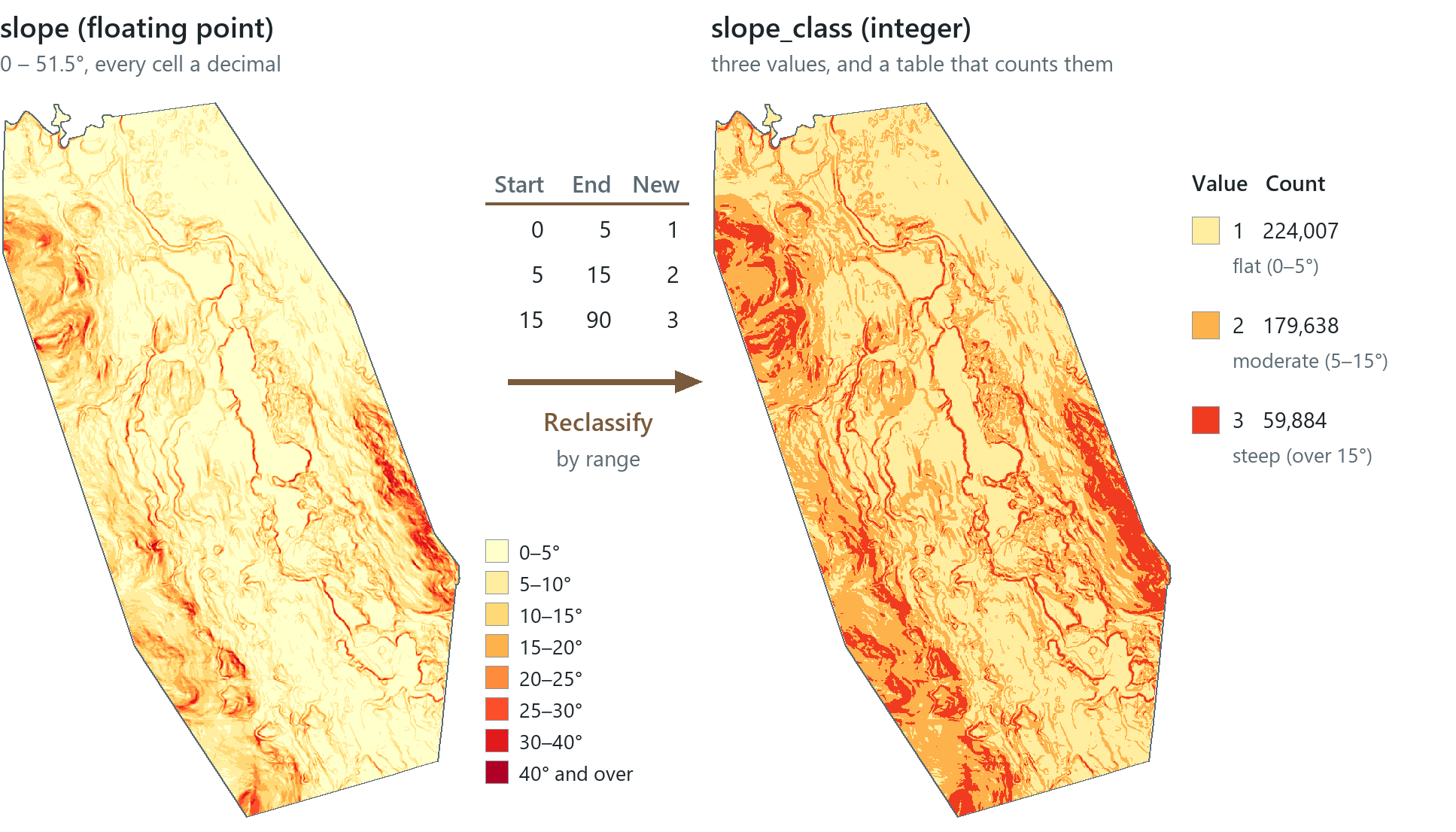
On a floating-point raster the ranges must meet: each class ends where the next begins (0–5, 5–15, 15–90). A table written as 0–5, 6–20, 21–90 leaves a slope of 5.5° or 20.4° in no class at all, and what happens to those cells depends on a setting. By default they keep their original value, which then appears among the new codes without explanation, and they are removed only if the tool's change-missing-values-to-NoData option is ticked. In either case the output's table contains values you did not ask for, so reading the table reveals the problem. A shared break belongs to one class: 5 goes to the first range, 5.001 to the second. In Whitehorse the three classes cover 201.6, 161.7 and 53.9 km².
Reading the result
- The question: how much of Whitehorse is flat, moderate or steep?
- The representation: slope in degrees on 30 m cells, split at 5° and 15° into three classes.
- What it shows: 201.6 km² flat, 161.7 km² moderate and 53.9 km² steep.
- What it cannot establish: slope within a 30 m cell, or buildability; the breaks are choices.
Rule of thumb
Reclassify ranges on a decimal surface share their break values; make sure every class in the input is given a new value. Then read the output's table, which should contain the classes you asked for and nothing else.
Suitability: the habitat chain
Boolean rasters and multiplication can be combined into a method. You write a question as criteria that each cell either passes or fails, make one Boolean raster per criterion, and multiply them. A cell has the value 1 in the result only if it passes every criterion. Site selection, habitat mapping and risk mapping are done this way with rasters, the raster counterpart of the vector overlay in Chapter 7.
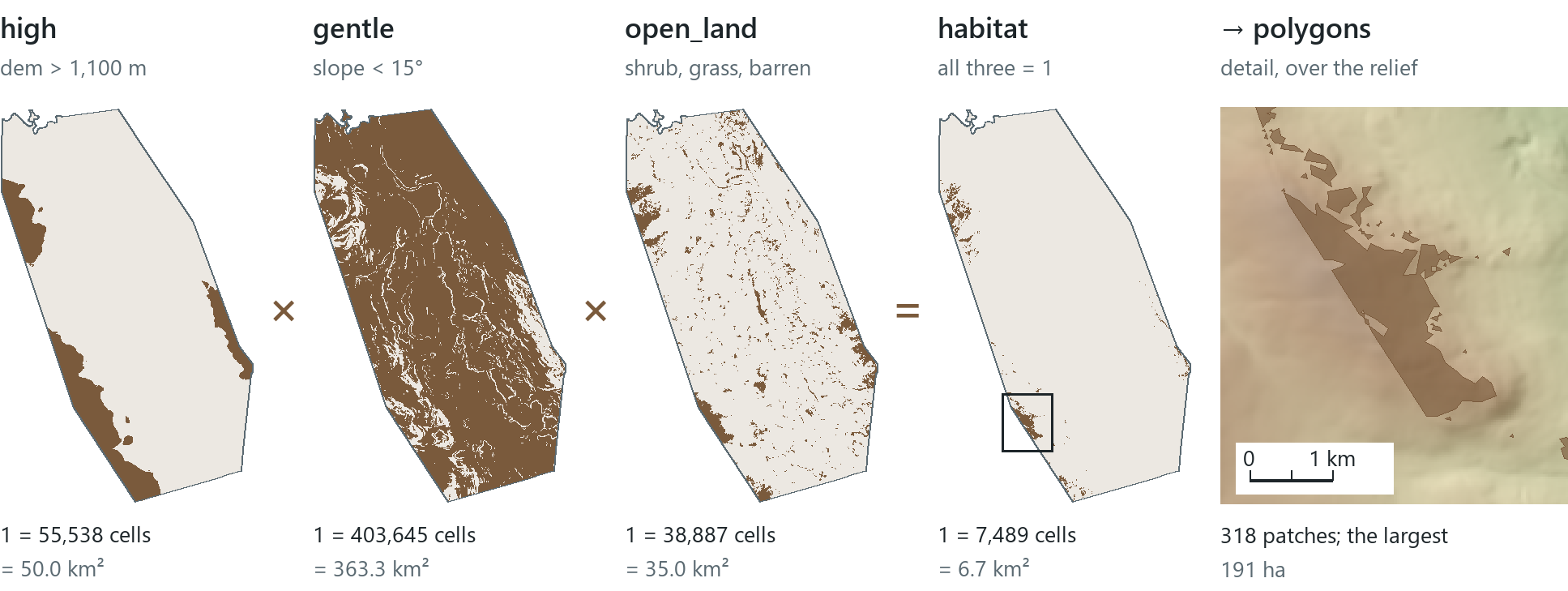
The course asks where Whitehorse's alpine habitat lies, the open ground above the trees where wild sheep graze and ptarmigan nest. There are three criteria: high enough to be alpine (the DEM above 1,100 m), gentle enough to use (slope under 15°), and open rather than forest, town or water (the land cover reclassified by value, shrubland, grassland and barren land to 1, everything else to 0). When the three rasters are multiplied, 7,489 cells, 6.7 km² of the city's 420 km², pass all three. The thresholds were chosen by the course as an illustration and were not set by a biologist. Changing one threshold changes the map: 1,000 m instead of 1,100 m brings in lower slopes, and 10° instead of 15° removes patches. The sharp edge of the habitat area is set by the thresholds and does not mark where any animal actually lives. Hard exclusions (water, town) and graded preferences (gentler is better) are different kinds of criteria, and the Boolean method treats both as yes or no. If the largest value in the result is above 1, the rasters were added instead of multiplied.
A raster result consists of cells. To buffer it, join it or give it to someone as shapes, you convert it. Raster to Polygon turns each group of touching cells with the same integer value into a polygon, one row per polygon, and needs an integer raster, since a float would first be reclassified. Converting only the cells with value 1 gives 318 habitat patches in this book's data, the largest 191 ha. The opposite direction exists too: converting features to a raster writes one of their fields into the cells at a chosen cell size, with NoData where no feature lies. Points can also take values from a raster directly. Extract Values to Points writes the value of the cell under each point into the point's table. A well and an elevation cell are related only by where they are, so only a spatial operation can transfer the value from one to the other.
Reading the result
- The question: where in Whitehorse is open ground that is both high and gentle?
- The representation: three Booleans (above 1,100 m, under 15°, open land cover) multiplied.
- What it shows: 7,489 cells, 6.7 km² of the city's 420 km², pass all three criteria.
- What it cannot establish: where animals live; the edges come from the thresholds.
In the pane
Module 8 lesson 5 explains the habitat question before any tool is run, reclassifies the learner's land cover by class name into open_land, multiplies the three Booleans into habitat in the Raster Calculator, converts the value-1 cells to polygons and asks for the largest patch. Last, Extract Multi Values to Points adds each well's ground elevation from the DEM to Module 7's city_wells as a new field (a learner who started Module 8 in a new project exports the wells into it first, because the tool writes into the layer it is given).
Try it
With the Module 8 project open, ask Waldo in Ask mode: what are the cell size, pixel type and value range of my dem, and does it have an attribute table? Waldo reads the raster and answers; check its answer against the integer and floating-point rules in this chapter.
Key terms
- raster
- a grid of equal cells in rows and columns covering an area, each cell holding one value.
- cell (pixel)
- one square of a raster, standing for one square of ground and holding one value.
- cell size (spatial resolution)
- the ground length of one cell's side; nothing smaller than a cell exists in the raster.
- integer raster
- a raster of whole numbers, usually codes such as land-cover classes; it can have an attribute table.
- floating-point raster
- a raster of decimal values, usually measurements such as elevation; it has statistics instead of a table.
- raster attribute table
- one row per cell value of an integer raster, with the fields Value and Count and any added columns.
- NoData
- a cell that holds no value, such as a cell outside the mask of an extraction.
- band
- one layer of values in a raster; a multiband image such as Landsat holds several per cell.
- false-colour composite
- an image with bands other than red, green and blue sent to the screen's colours, such as near infrared into red.
- colorizer
- the rule that draws a raster: unique values, stretch, classify or RGB.
- digital elevation model (DEM)
- a raster of ground heights.
- hillshade
- a raster of the brightness each cell would have under a lamp at a set direction and height.
- relief map
- a DEM in an elevation colour scheme drawn partly transparent over its own hillshade.
- slope
- the steepest rate of change of height from a cell to its neighbours, in degrees or percent.
- aspect
- the compass direction a slope faces, 0° to 360° from north, −1 for flat cells.
- map algebra
- arithmetic and comparisons applied to rasters cell by cell, each writing a new raster.
- Raster Calculator
- ArcGIS Pro's tool for map-algebra expressions, with quoted raster names and strict operators.
- Boolean raster
- a raster of 1 (true) and 0 (false) cells, the answer to a condition asked of every cell.
- Reclassify
- a tool that replaces values or ranges of values with new values; its output is always integer.
- Extract by Mask
- a tool that keeps a raster's cells inside a polygon or raster mask and sets the rest to NoData.
- snap raster
- an environment that aligns a new raster's cells exactly with an existing raster's cells.
- Raster to Polygon
- a tool that turns groups of equal integer cells into polygons, one row per polygon.
- Extract Values to Points
- a tool that writes the value of the cell under each point into the point's table.
- suitability analysis
- answering "where?" from criteria every cell can pass or fail; the course uses the simplest form, one Boolean raster per criterion, multiplied.
Further reading
- Olaya, V. Introduction to GIS, the chapters on the raster model and map algebra. https://volaya.github.io/gis-book/en/ (src:olaya-gis-book)
- U.S. Geological Survey. Landsat 8–9 Collection 2 Level-2 surface reflectance. https://doi.org/10.5066/P9OGBGM6 (src:usgs-landsat)
- Natural Resources Canada. Medium Resolution Digital Elevation Model (MRDEM) – CanElevation Series. https://open.canada.ca/data/en/dataset/18752265-bda3-498c-a4ba-9dfe68cb98da (src:nrcan-mrdem)
- Commission for Environmental Cooperation. North American Environmental Atlas – Land Cover 2020 30m. https://www.arcgis.com/home/item.html?id=e0ff7c071cb740409c7fe01f63f4fef8 (src:cec-nalcms-2020)
- The course's data sources: every layer the lessons and this chapter's maps use, with its publisher and licence. (src:course-data-sources)