Chapter 10
Creating and editing data
Accompanies Module 10 · Data Editing and Creation
Why this matters
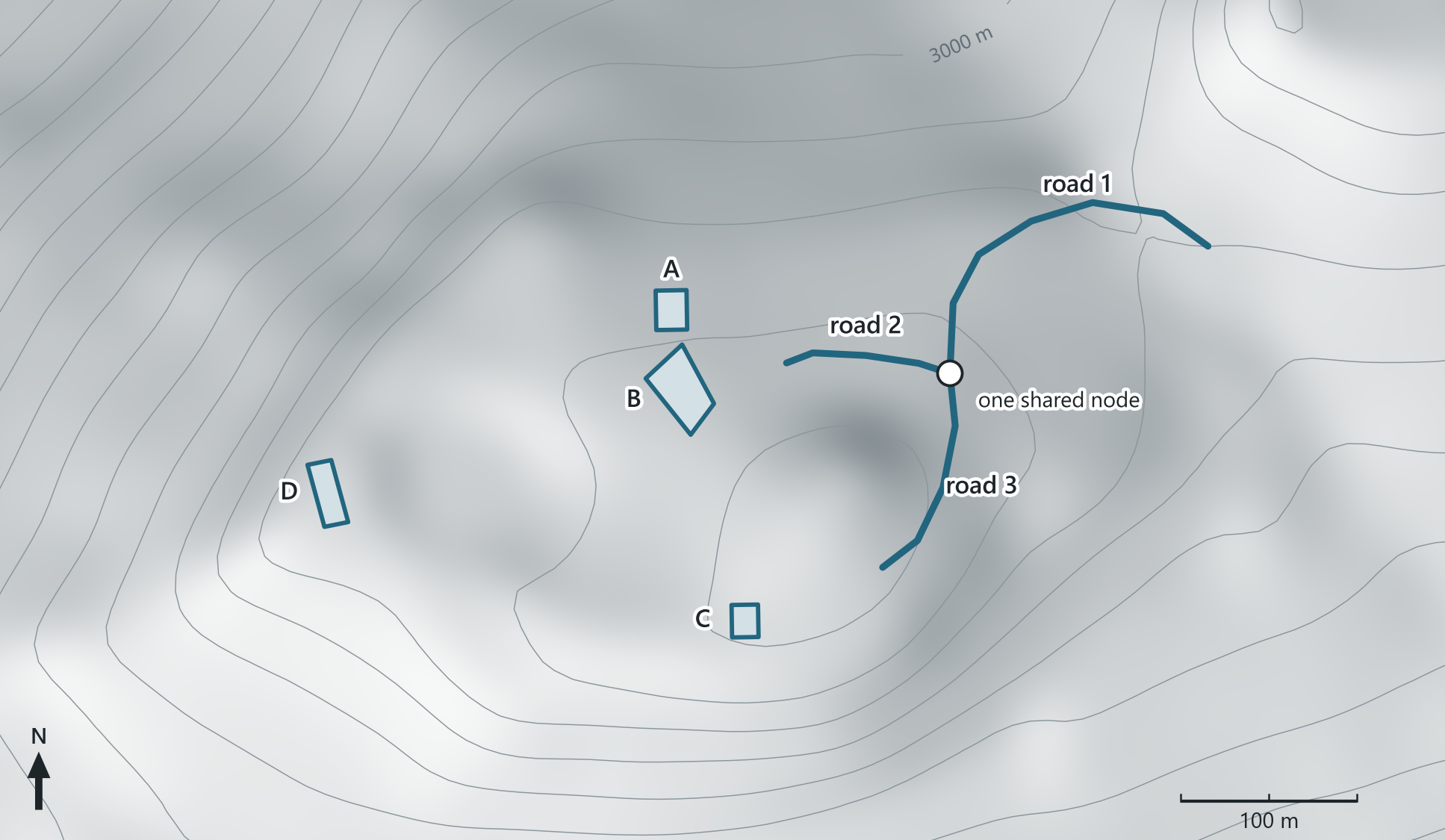
Every layer used in this course so far was made by someone else. At some point the data you need will not exist, and you will have to make it: you decide what is there, click its shape and type its attributes. The map on the opening page shows this work at the Haleakalā summit on Maui: three road lines that meet at one node and four roofs, traced by hand. This chapter covers what a digitized feature is made of, how to design the feature class before the first click, and the habits that keep hand-made data reliable.
You should be able to explain
- why lines that should meet must share one node, and how snapping prevents undershoots and overshoots
- why the geometry type, fields and coordinate system are decided before the first vertex
- why saving the project does not save your edits, and what Undo and Discard can still take back
Where new data comes from
Most GIS work starts from layers that already exist: a service added from ArcGIS Online, a feature class copied from a colleague, a table whose rows carry coordinates and can be turned into points. When nothing suitable exists, the data has to be created, by walking the ground with a GPS receiver, by survey, or by tracing a picture. Editing includes both creating new features and updating existing ones to show what has changed since they were made or to fix their errors.
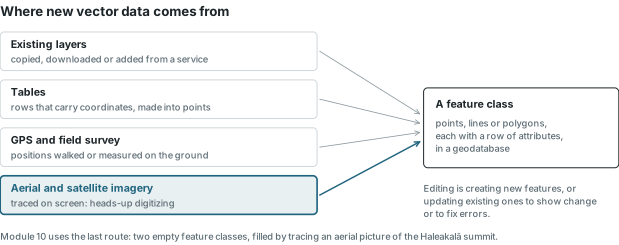
Tracing is one of the oldest ways of turning maps and pictures into GIS data, and manual tracing is still the most common way vector layers are made from them. On a digitizing tablet the operator traces the paper map itself; in heads-up digitizing the picture is on screen, the operator's eyes stay up on it, and each mouse click adds a vertex. The geometry and the attributes are separate tasks: the operator first draws the shape and then records what it represents.
The quality of the result is limited by the picture. On an aerial mosaic made to look straight down, each roof appears close to its footprint, although only a true orthophoto removes the lean of tall buildings entirely, and a roof outline differs from the ground footprint where the roof overhangs the walls. On an oblique image, tall buildings lean, their walls are visible, and the roof appears a few metres away from the ground it stands on. White roofs on pale concrete can also be hard to distinguish, so the display's brightness and contrast are adjusted until the edges are visible. These adjustments change how the image is drawn, not the data. The features traced are roofs, and the layer's description should state this.
In the pane
Module 10 lesson 1 starts a new project (or a new map in the project already open), adds the State of Hawaii's 2022 aerial mosaic by URL, goes to the summit observatories with Go To XY and darkens the picture with the layer's Enhancement settings until the roof edges are visible. The lesson ends by showing the features to trace: three road lines and four roofs, A to D. Heads-up digitizing is the only task in the course that Waldo cannot do for you; instead, Waldo reads what you have drawn.
Vertices, segments and nodes
A vector feature is a list of coordinates, its vertices. A point is one coordinate pair. A line is two or more vertices joined by straight segments; it has a direction, running from a start node to an end node, with any number of vertices between. A polygon is a line that closes on itself: its last vertex is its first, so it encloses an area and needs at least three distinct vertices.
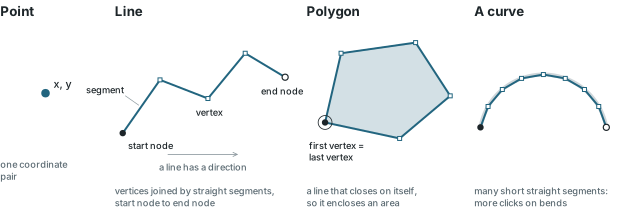
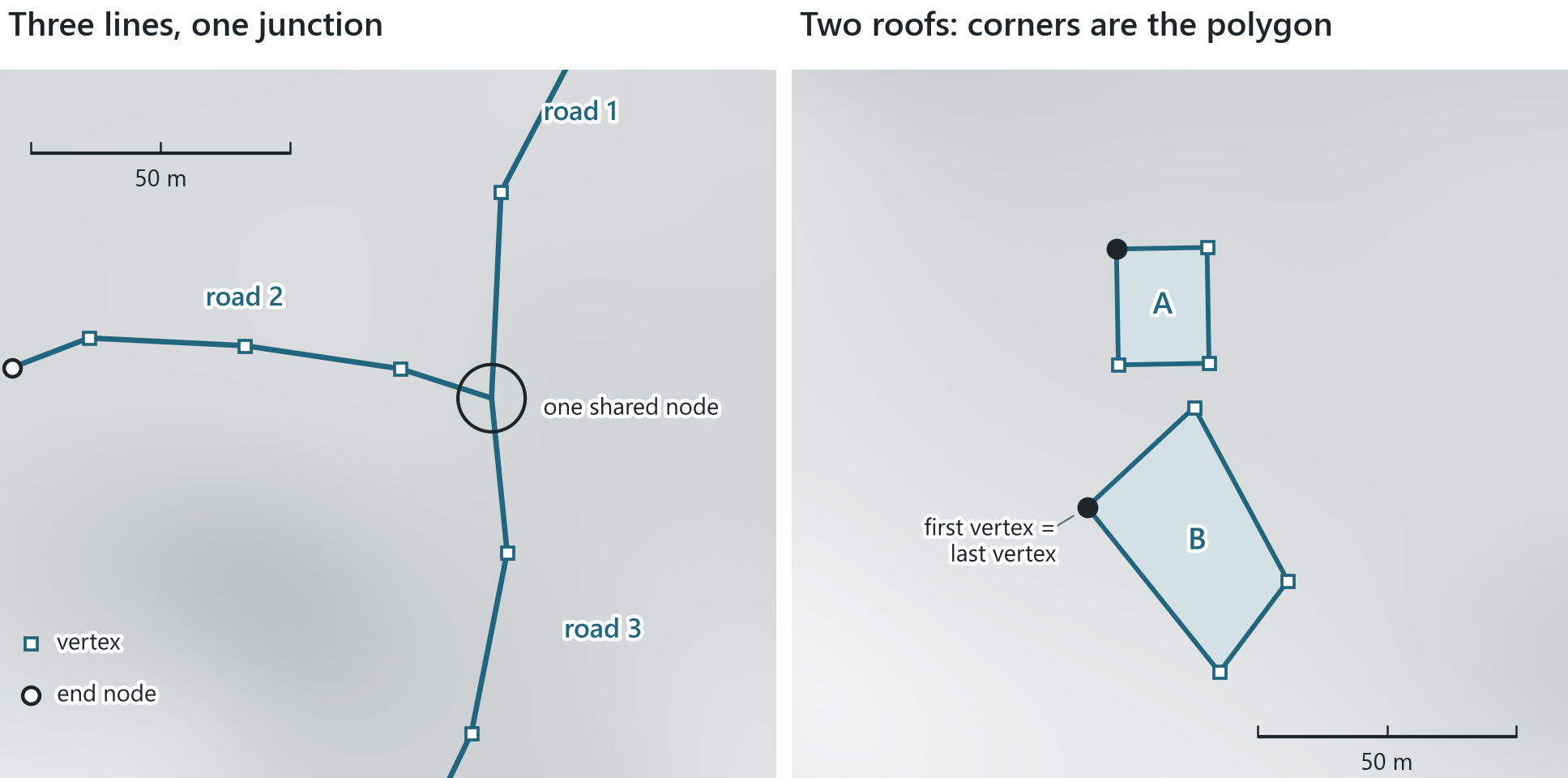
Digitizing consists of choosing those vertices. When you trace a road, each click adds one vertex. A bend needs many short segments and a straight section needs few, because this feature class stores no true curves, only more vertices (a geodatabase can store arcs, as the Arc construction tool below shows, but a traced road does not need them). When you trace a roof, the corners you click form the polygon. The module's four roofs are stored as five points each: four corners and a closing vertex that repeats the first. Its longest road line, 215 m of the access road, is seven points: a start node, five vertices on the bends, and an end node.
Where lines meet, they should share one node. On the summit, the access road is drawn as three lines: road 1 comes in from the north-east and ends at a junction, and roads 2 and 3 both start at that same point. Because the three roads share one node, the data itself records that they connect.
Design before drawing
New features have to be drawn into a feature class, and a feature class is a set of decisions made before the first vertex: what kind of shapes it holds, what it records about each one, and where on Earth its coordinates are measured. In Pro those decisions are the pages of the Create Feature Class wizard, and the empty class is usually stored in a new file geodatabase set as the project's default, so that new data created in the project is saved there.
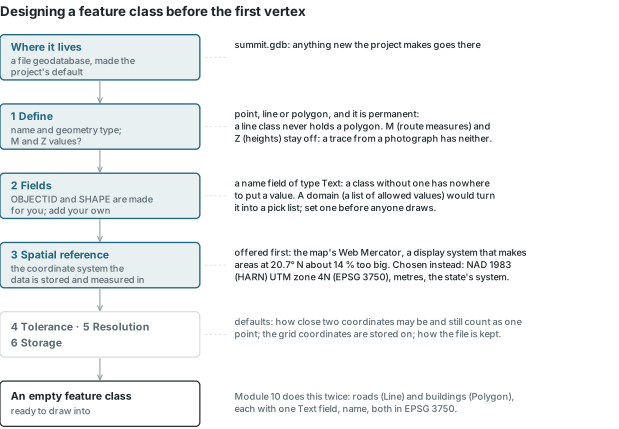
The geometry type (point, line or polygon) is permanent: a line class never holds a polygon, so the road and the roofs need a class each. Two other options are set with it. M values store a measure with each vertex, used for routes; Z values store a height. A trace from a photograph has neither, so both are left off.
The fields also have to be defined before any features are drawn. Pro creates OBJECTID and the shape field itself; any other field, such as a Text field for a name, must exist before you can type a value into it. A domain, a list of allowed values, would turn that field into a pick list and prevent typing errors such as "Obsevatory"; in real editing projects, domains are set up before anyone draws.
The coordinate system should be chosen deliberately rather than accepted as offered. The wizard offers the map's own system first, and a map built on web imagery is in Web Mercator, a display system that at the summit's latitude, 20.7° N, makes every area about 14 % too big (the stretch is 1/cos² of the latitude, 1.143 there). The module stores both classes in NAD 1983 (HARN) UTM zone 4N (EPSG 3750), which is Maui's UTM zone, measured in metres, and the system in which the State of Hawaii publishes its data. The map itself can stay in Web Mercator to match the imagery; Pro projects the new layers on the fly for drawing, as Chapter 3 describes, while storing and measuring them in UTM.
The last three pages, tolerance, resolution and storage, are kept at their defaults. The tolerance is how close two coordinates may be before they count as one point, the resolution is the fine grid on which coordinates are stored, and the storage settings control how the file is kept.
Rule of thumb
Design before you draw. Decide the geometry type, the fields and the coordinate system the data will be measured in before the first vertex; the map's display system is rarely the right one to store in.
In the pane
Module 10 lesson 2 makes a file geodatabase, summit.gdb, sets it as the project default and runs the wizard twice: roads (lines) and buildings (polygons), each with one Text field, name, and both in EPSG 3750. The lesson mentions domains but does not create one. Waldo checks the geometry type, the field and the coordinate system of each class.
Templates, tools and attributes
Pro gathers everything for editing on the Edit tab: saving and discarding edits, snapping, creating features, selecting them, and a gallery of tools for changing features that already exist. New features start from a feature template, one for each layer you can draw into. A template stores the settings for a new feature: the layer the feature goes to, the symbol it is drawn with, the construction tools available and any attribute values to fill in automatically. Templates are made from a layer's symbology or set up by hand, and they differ for points, lines and polygons.
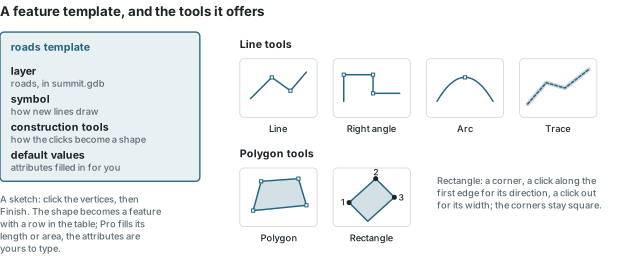
The shape being drawn is a sketch: click the vertices, then finish it, and the sketch becomes a feature. A construction tool determines how the clicks are turned into geometry. For lines there are straight segments, right angles, arcs and tracing along an existing edge; for polygons a free polygon, where each click is a corner, and a rectangle, where three clicks (a corner, a direction along the first edge, a width) give four square corners in any orientation. The Rectangle tool is suited to the summit's rectangular roofs, and the free polygon to other shapes.
A feature consists of its shape and its attributes. Every new feature gets a row in the table, and Pro fills in the values it can compute, such as the length of a line or the area of a polygon. The editor types the other values, such as the name, usually in the Attributes pane with the new features selected. Immediately after digitizing, a table of three new roads has three lengths and three empty names.
In the pane
Module 10 lesson 3 tours the Edit tab, picks the roads template and draws the three road lines; its last step opens the table, where the lengths are filled and the names are not. Lesson 4 uses the buildings template, with the Polygon and Rectangle tools, for the four roofs, and names them A to D in the Attributes pane. Waldo reads the counts, lengths, areas and blank names with its check_edits tool.
Snapping
Features that are meant to touch must meet exactly. A sewer connection has to fall on the house's edge, neighbouring parcels have to share their corners, a stream gauge has to lie on its stream, and two stream segments have to connect. Clicking a mouse by hand is not that precise, and near-misses are among the most common errors in digitized data.
Snapping places vertices precisely. Within a small distance of a target, the snap tolerance (a few pixels on screen, or a distance in map units), the cursor jumps exactly onto it. What counts as a target is set by snap type: end snapping onto the end of a line, vertex snapping onto any vertex, edge snapping onto any point along a segment. Pro starts with point, end, vertex and edge snapping on; the lesson turns point and edge off so that a new road can snap only to another road's end or to a vertex.
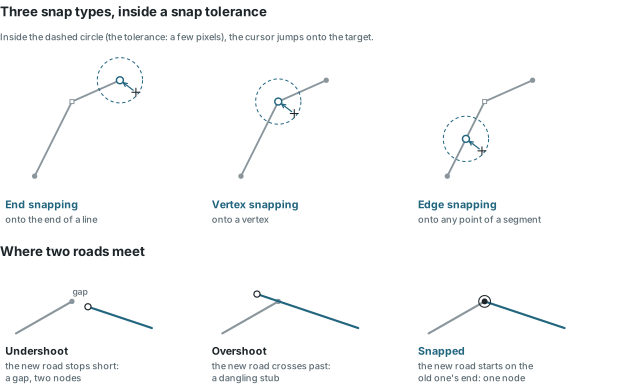
Without snapping, the second road at the summit junction would miss the first by a very small distance. The result would be an undershoot, which stops short and leaves a gap too small to see, or an overshoot, which crosses past and leaves a stub. Both errors look correct on screen but are wrong in the data, because the lines do not share a node. With snapping on, roads 2 and 3 each start exactly on road 1's end.
Rule of thumb
Turn snapping on before drawing features that must meet, and limit it to the types the job needs (ends and vertices for a road network), so the cursor never jumps somewhere unintended.
Changing what you drew
Digitizing also includes correcting features. The tools gallery on the Edit tab changes features that already exist, and each change is an edit like any other.
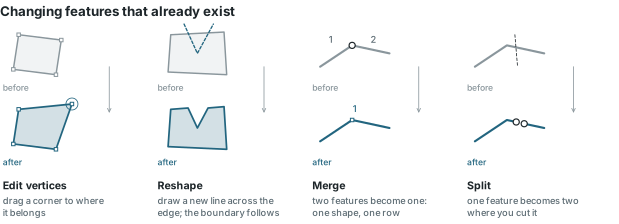
Edit Vertices shows a feature's vertices as small squares; dragging one moves that corner to where it belongs. Reshape redraws part of an edge: draw a new line across the feature and its boundary follows it. Merge makes one feature of several: two road lines selected together become one line with one row in the table. Split does the opposite and cuts one feature into two. Moving a vertex changes the geometry's measurements, so a roof whose corner has been corrected has a new area. A check by numbers can therefore detect that something changed without looking at the map. It cannot confirm that the right corner moved to the right place; only a comparison with the picture can do that.
In the pane
Module 10 lesson 4 moves one roof corner with Edit Vertices and names Reshape, Merge and Split without using them. Waldo compares the roofs' total area before and after to check whether the corner moved.
Saving edits
Edits are saved separately from the project. Features are stored in the geodatabase; the map, its layers, symbology and layouts are stored in the project file (the .aprx). The Save in the Edit tab's Manage Edits group writes the edits into the geodatabase. Saving the project writes the project file and, unless Pro has been set to save edits along with the project, leaves the edits unsaved. Pro warns about unsaved edits when a project closes, but the safe habit is to save edits as you go.
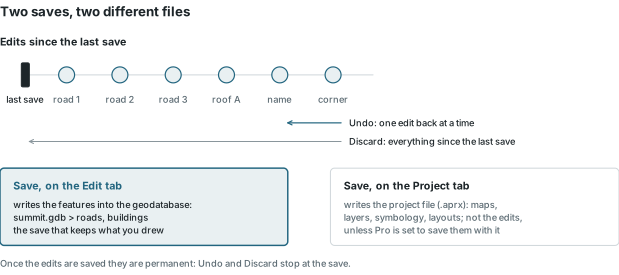
Until you save, every edit can be reversed. Undo steps back one edit at a time, as far as the last save. Discard removes every edit since the last save in one step. After the save the edits are permanent, which is the purpose of saving and the reason a backup is important.
Rule of thumb
Saving the project does not save your edits. After drawing or changing features, save the edits from the Edit tab, and confirm that nothing is left unsaved before closing.
In the pane
Module 10 lesson 3 stops after the three roads are drawn and has Waldo count how many of them are on the map but not yet in the geodatabase. The save step is then always taught, even when a read suggests it is already done, and Waldo reads again to confirm that no lines are left unsaved and that Pro's unsaved-edits flag is off. Lesson 4 saves once the roofs are drawn and named, and again after the moved corner. Because a read showing no unsaved edits does not prove that you saved, Waldo asks whether you did.
Editing hygiene
A saved edit changes the data permanently, so editing requires careful habits. The list below gathers common editing tips and the practice of Module 10.
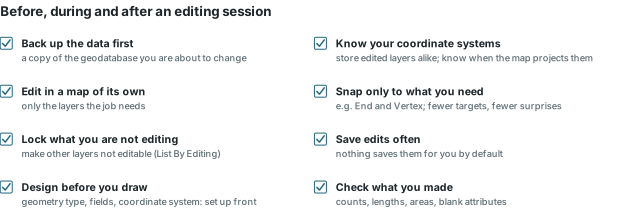
Protect the data first: keep a backup copy of the geodatabase you are about to change, edit in a map of its own with only the layers the job needs, and make every other layer not editable (the List By Editing view of the Contents pane shows which are). Set up to be precise: design the feature class before drawing, and keep the layers being edited in one stored coordinate system. The module draws UTM classes into a Web Mercator map to match the imagery, so in practice the rule is to know when the map is projecting a layer on the fly. Turn snapping on, limited to what the job needs.
Save edits deliberately, because Pro does not save them for you by default. Then check the result the way Waldo does in this module, by numbers as well as by eye: how many features, how long, how large, which attributes are still blank, and then, against the picture, whether the shapes sit where they should and the lines that should meet do meet. On the summit, the three traced roads come to about 435 m and the four roofs to about 2,120 m², the range a careful trace of these features gives. A total within this range is a rough check and does not prove that the trace is good.
Try it
With the Module 10 project or map open, ask Waldo in Ask mode: how many roads and buildings have I drawn, how long and how big are they, and are my edits saved? Waldo runs its edit check and answers with counts, geodesic lengths and areas, blank names, and what is still unsaved (Pro's unsaved-edits flag, and how many features are on the map but not yet on disk), and never claims to have looked at the map.
Key terms
- heads-up digitizing
- tracing features on screen by clicking their vertices over an image.
- vertex
- one x, y coordinate of a line or polygon; the shape is the list of its vertices.
- segment
- the straight piece of a line or polygon boundary between two consecutive vertices.
- node
- the first (start) or last (end) vertex of a line; lines that meet should share one.
- feature class
- a set of features of one geometry type, with the same fields and coordinate system, stored in a geodatabase.
- geometry type
- point, line or polygon; fixed when the feature class is created.
- M value / Z value
- an optional measure (for routes) or height stored with each vertex.
- domain
- a list or range of allowed values for a field, offered as a pick list when editing.
- XY tolerance
- how close two coordinates may be before they are treated as the same point.
- XY resolution
- the fine grid on which a feature class stores its coordinates.
- feature template
- a recipe for new features: the target layer, its symbol, its construction tools and default attribute values.
- construction tool
- the tool that turns clicks into a shape, such as Line, Arc, Polygon or Rectangle.
- sketch
- the shape being drawn, before finishing turns it into a feature.
- snapping
- moving a vertex exactly onto an end, vertex or edge of another feature when the pointer comes within a tolerance.
- snap tolerance
- the distance, in pixels or map units, within which snapping pulls the pointer onto a target.
- undershoot / overshoot
- a line that stops short of the line it should meet, or crosses past it.
- save edits
- writing the edits made since the last save into the geodatabase; separate from saving the project.
- undo / discard
- taking back the last edit, or every edit since the last save.
- reshape / merge / split
- redrawing part of a feature's edge; making one feature of several; cutting one feature into two.
Further reading
- Olaya, V. Introduction to GIS, the chapter on data sources (digitization and its errors). https://volaya.github.io/gis-book/en/Data_sources.html (src:olaya-gis-book)
- Esri. ArcGIS Pro documentation: editing, feature templates, snapping and editing options. https://pro.arcgis.com/en/pro-app/latest/help/editing/ (src:esri-pro-docs)
- U.S. Geological Survey. The 10 m digital elevation models behind this chapter's relief (public domain), served for Hawaii by the Hawaii Statewide GIS Program. (src:usgs-figures)
- The course's data sources: every layer the lessons use, with its publisher and licence, including the Module 10 imagery and its terms. (src:course-data-sources)