Chapter 6
Exploring spatial data
Accompanies Module 6 · Spatial Data Exploration
Why this matters
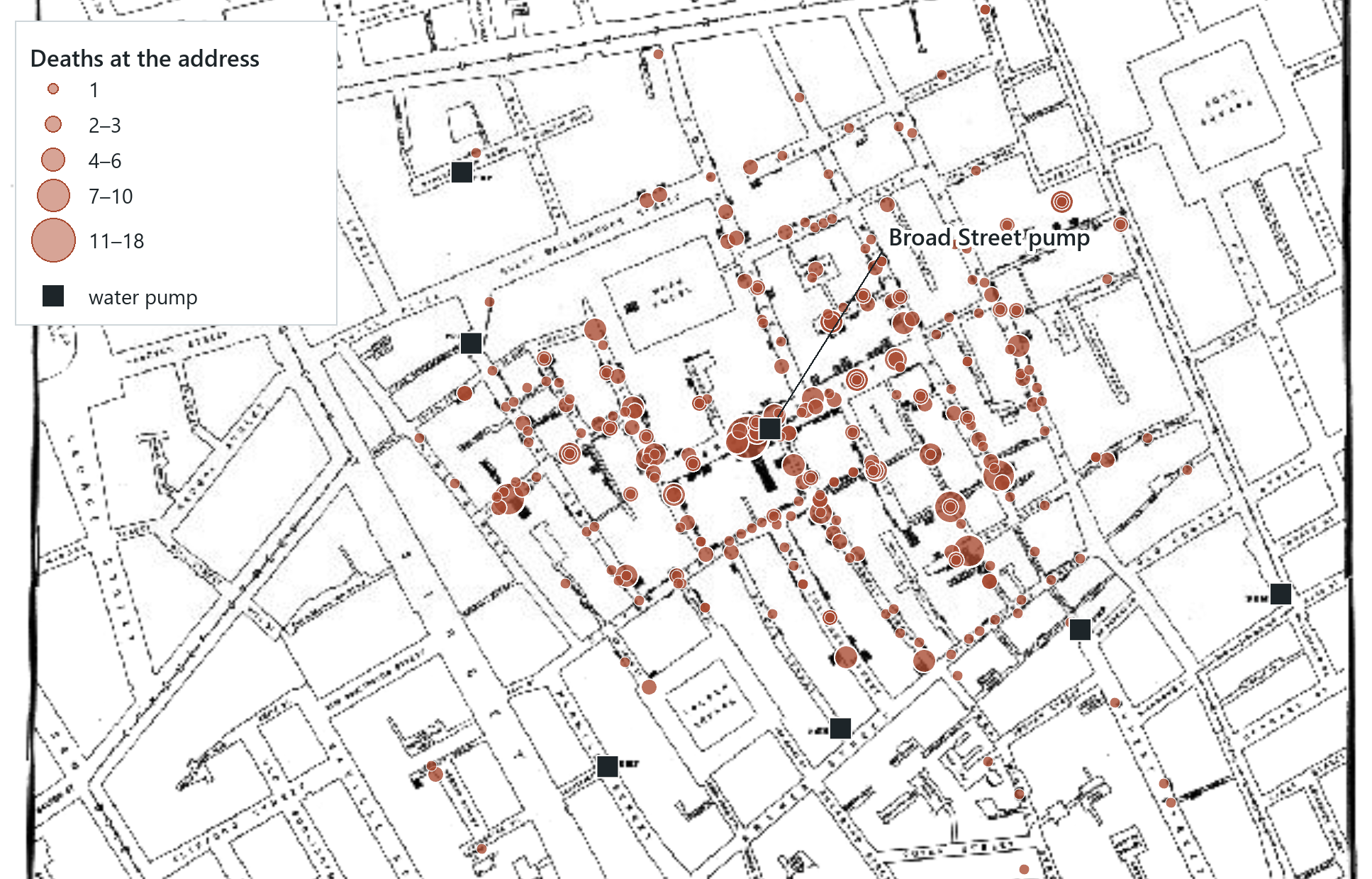
A GIS is most useful when it answers questions: which places pass a test on their values, which lie near, inside or beside something else, how many or how much there is, and whether two things vary together. In 1854 John Snow asked questions of these kinds about a few streets in Soho with a pen, and the map above is his answer redrawn in a GIS. This chapter introduces a tool for each kind of question: attribute queries, spatial queries, summaries and charts.
You should be able to explain
- why a selection highlights rows while a definition query hides them, and what each does to a tool
- how the selection type makes two queries combine as AND, OR or NOT
- why a passed 5 km test or a high R² is a reason to look further and does not establish access or cause
Asking questions of data
Exploring data means asking it a question and looking at the answer, usually in more than one view. The map shows where the answer is, the table shows the rows and their values, and a chart shows how the values are spread or whether two of them go together. The views are linked. When you select features on the map, the same rows are highlighted in the table and the same dots in any chart made from the layer, and a selection made in a chart is shown on the map.
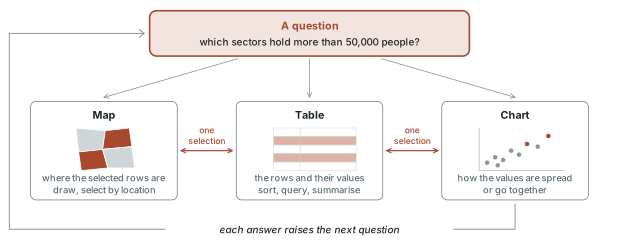
Exploration is iterative, because the first answer is rarely the last. A map of the most populous places raises the question of whether they are also the largest, a chart can answer that question and reveal an outlier, and you then return to the map to look at the outlier. This way of working is called spatial data exploration, or exploratory spatial data analysis (ESDA). It comes before any formal analysis, and the main finding of a study is often made at this stage.
John Snow's map, 1854
On the night of 31 August 1854 cholera broke out around Broad Street, near Golden Square in Soho, London. Snow counted more than five hundred fatal attacks within 250 yards of one spot in ten days, and in under a week more than three-quarters of the people in the worst streets had fled. The accepted explanation was miasma, bad air rising from filth. Snow, a physician, believed that cholera travelled in water.
He listed the registered deaths, went to the houses, and drew each death on a street map as a short black bar stacked at the address, with the public water pumps marked. The bars were concentrated around the pump in Broad Street. The exceptions supported the same conclusion. The workhouse in Poland Street, almost surrounded by deaths, lost 5 of its 535 inmates, and it had its own well; the Broad Street brewery's seventy-odd workmen escaped, drinking the beer they were allowed and water from the brewery's own deep well. Snow put his case to the parish board on 7 September, and the pump's handle was removed the next day. By then the outbreak was already fading (his own table shows new attacks falling from 143 on 1 September to 12 on the 8th), and it was decades before the water theory was generally accepted. The map was published in 1855.
Esri's digitisation of that map holds 322 addresses and 578 deaths; Snow's table counts 616, because his map could only show deaths whose house was known. The worst address, 45 Broadwick Street (Broad Street was renamed in 1936), had 18.
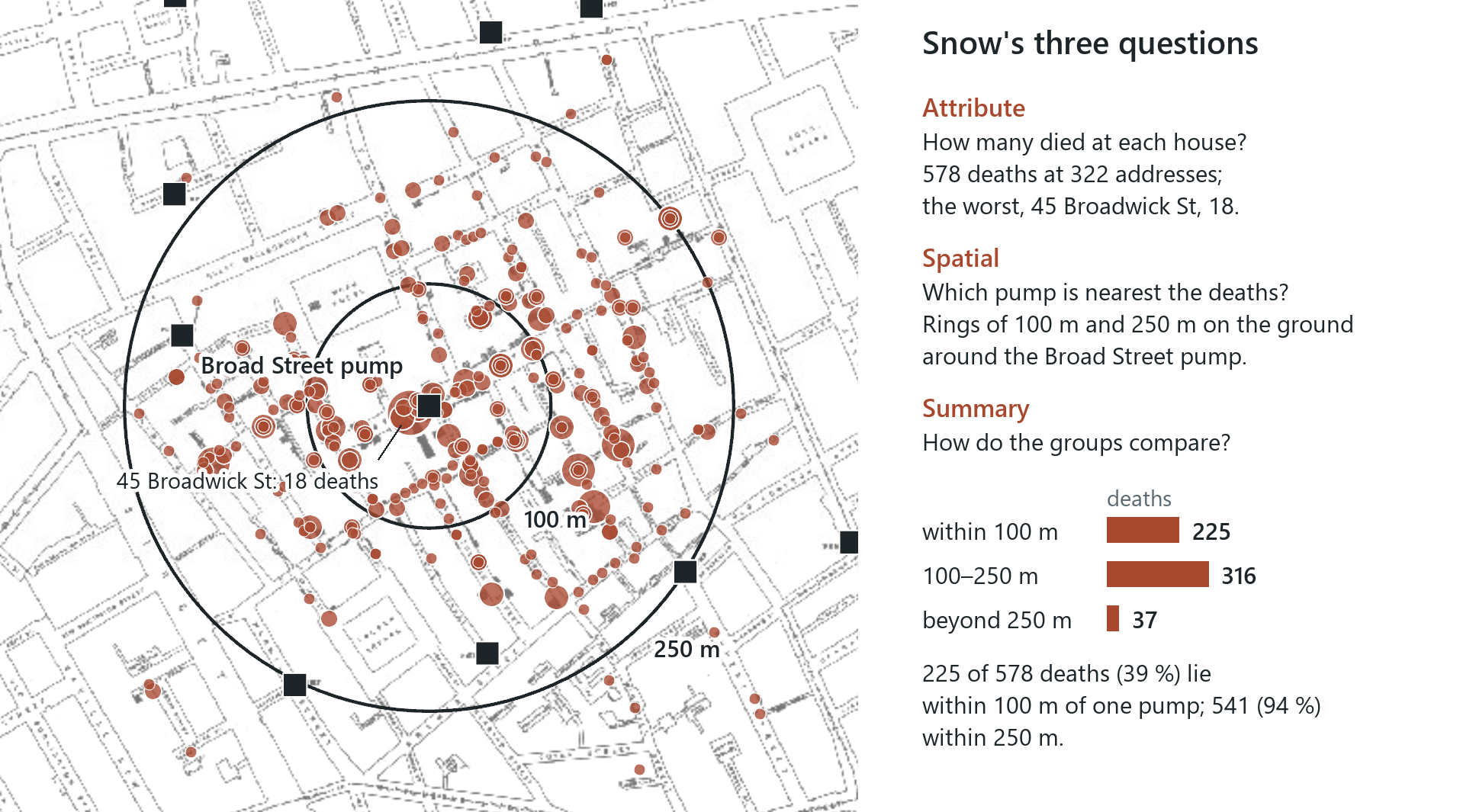
The steps Snow took follow the same outline as this chapter. He asked an attribute question of every house: how many died here? He asked a spatial question: which pump is nearest these deaths? He also summarised, comparing the count for the houses around one pump with the count for the rest. When the digitised deaths are sized by the number of deaths, as on the opening page, the cluster around one pump is clearly visible.
In the pane
Module 6 lesson 1 adds Snow's deaths, pumps and the scanned 1855 map to your own map by URL, and switches the map to Web Mercator so that the scan is drawn in the correct position. You read the sum of the Deaths column (578), sort it to find the worst address, select that row to see the pump beside it, and size the deaths with Graduated Symbols so that the cluster is visible. The London layers are removed at the end.
Attribute queries and SQL
An attribute query selects the records whose values pass a test: which of Rwanda's 416 sectors have more than 50,000 people? The language behind it is SQL (Structured Query Language), the query language of relational databases. Its syntax is strict, and every query tool writes an SQL statement, however simple its dialog looks.
The full statement is SELECT * FROM sectors_census WHERE Total > 50000: select every field (the *) from this table where the test is true. A query builder fills in the first two parts itself and writes only the WHERE clause. The clause has three pieces: a field name (the name, not its alias), a comparison (=, <>, >, <, >=, <=) and a value. Numbers are written without quotes, and text goes in single quotes, as in province = 'City of Kigali'. On the 2022 census, Total > 50000 selects 42 sectors.
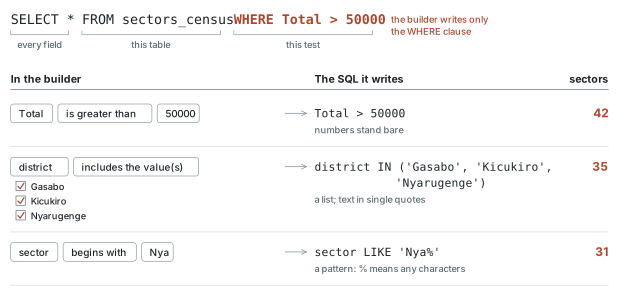
Two operators are worth learning by their SQL names, because query builders show them under other labels. IN tests a field against a list: district IN ('Gasabo', 'Kicukiro', 'Nyarugenge') selects the 35 sectors of the City of Kigali's three districts. A builder shows it as a set of tick boxes ("includes the value(s)"); in SQL it is one line, shorthand for three equal tests joined by OR. LIKE matches text against a pattern in which % stands for any run of characters: sector LIKE 'Nya%' finds the 31 sectors whose names begin with Nya, '%ru%' would find names containing "ru", and '%mata' names ending in "mata". In a file geodatabase LIKE is case-sensitive, so 'nya%' finds nothing.
Rule of thumb
Build the query in the dialog, then read the SQL it wrote. The builder only helps you type the query. The SQL is the query itself, and it is the text you can check, copy and reuse.
AND, OR, NOT and the selection types
Tests are combined with three operators. AND keeps rows that pass both tests, OR rows that pass either or both, and NOT reverses a test. They can join clauses inside one query: Total > 50000 OR district = 'Nyagatare' selects 52 sectors, the 42 big ones plus the ten of Nyagatare's fourteen that were not already among them.
The same logic works between queries. ArcGIS Pro's selection type determines how a new query combines with what is already selected: a new selection replaces it, add to the current selection is OR, remove from the current selection is NOT, and select subset from the current selection is AND. Two more entries switch the selection (everything selected becomes unselected, and the reverse) and clear it.
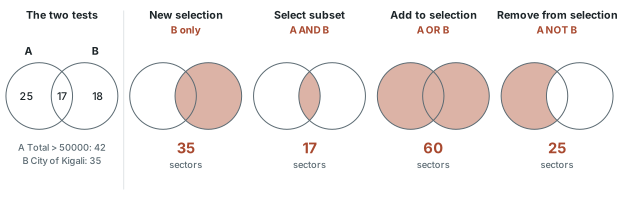
With the 42 big sectors selected, a second query for the City of Kigali gives four different answers depending on the selection type: 35 as a new selection, 17 as a subset (big and in Kigali), 60 added (big or in Kigali) and 25 removed (big but not in Kigali).
Keeping, viewing and clearing a selection
A selection is temporary, and the next new query replaces it. The number of selected features is shown in the Contents pane's List By Selection view and at the foot of the map. A query that reports zero has selected nothing, whatever the dialog showed. This is a real, empty selection, which is different from having no selection, and a tool run on the layer now processes zero rows. In the List By Selection view the box beside each layer controls whether the layer can be selected; it does not control whether the layer is drawn. To switch a layer off, go back to the List By Drawing Order view first.
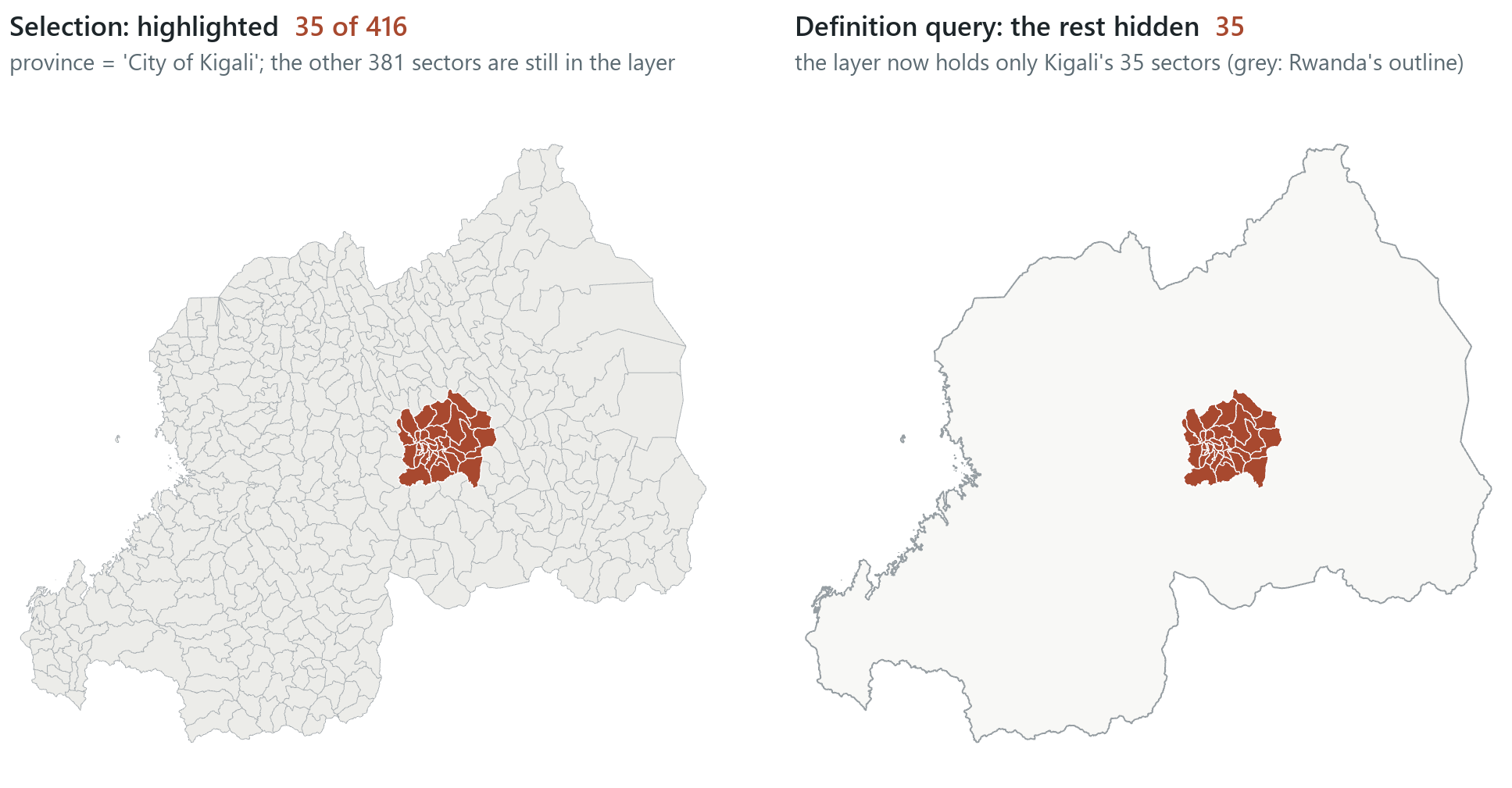
There are three ways to keep a selection. Make a layer from the selection: a new layer that holds only those rows, in this map only, with nothing written to disk. Export it: exporting a layer while a selection is active copies only the selected rows into a new, permanent feature class. Turn it into a definition query: a filter on the layer that hides every row that fails the test.
A selection highlights rows and does not remove the others. The other rows stay in the layer, but while the selection is active, tools that honour selections (most of them) use only the selected rows. Clear the selection to use all rows. A layer is therefore in one of three states: no selection, some rows selected, or zero rows selected after a test nothing passed. A definition query filters: the layer behaves in the map, in its table and in every tool as though the other rows did not exist, until the query is removed. Neither changes the data on disk.
In the pane
Module 6 lesson 2 runs every query on sectors_census with Select By Attributes and has you open the SQL Editor view after each one: Total > 50000 (42), a subset with the City of Kigali (17), one OR clause (52), an IN list (35) and a LIKE pattern (31). Waldo checks each count. You then find the selection in List By Selection, switch back to List By Drawing Order, and keep the 31 as a map-only layer.
Spatial relationships
A spatial query selects features by where they are relative to other features, not by their values: sectors that contain a hospital, hospitals inside Kigali, sectors within 5 km of a hospital. The simplest is the cursor: drawing a box, a lasso or a polygon on the map selects whatever it touches. A tick box for each layer controls which layers the cursor can select, so a box drawn around a city can pick sectors without also picking the hospitals inside them.
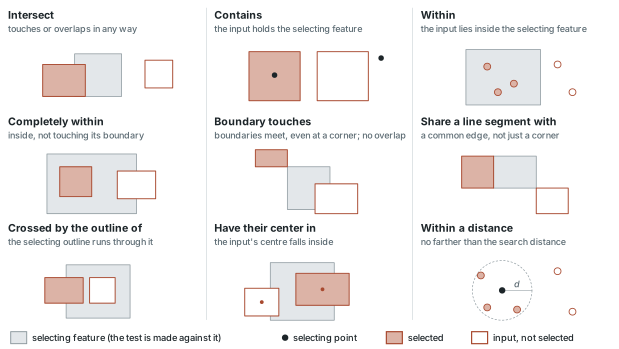
Select By Location applies a spatial test between two layers. The input features are the layer whose rows are selected, the selecting features are the layer the test is made against, and the relationship is the test itself. The tool also takes a search distance and the same selection types as attribute queries, and an invert option selects the features that fail the test instead.
Intersect is the broadest relationship: any contact or overlap. Containment has two directions, an input that contains the selecting feature or one that lies within it, and a stricter completely within that may not touch the boundary. Proximity covers distance (within a distance) and adjacency, where features meet without overlapping (boundary touches, even at a corner, and share a line segment, which needs a common edge). Two more are useful with polygons: crossed by the outline of selects what a boundary runs through, and have their center in selects features whose centre falls inside.
Select By Location in Rwanda
Asked of Rwanda's 416 sectors and the 55 hospitals mapped in the 2022 census, these tests give the following counts: 50 sectors intersect a hospital, meaning that a hospital lies inside them. Within 5 km of a hospital lie 248 sectors; inverting the test leaves the 168 that have no hospital within 5 km.
These counts need careful interpretation. A sector passes when any part of it lies within 5 km of a hospital point, so a long sector passes if its far corner is within 5 km, even when most of its people live well beyond that distance. The test measures how close polygons lie to the mapped hospitals; whether people can reach care depends on where in the sector they live, on roads and travel time, on the hospital's capacity and on clinics the layer does not hold.
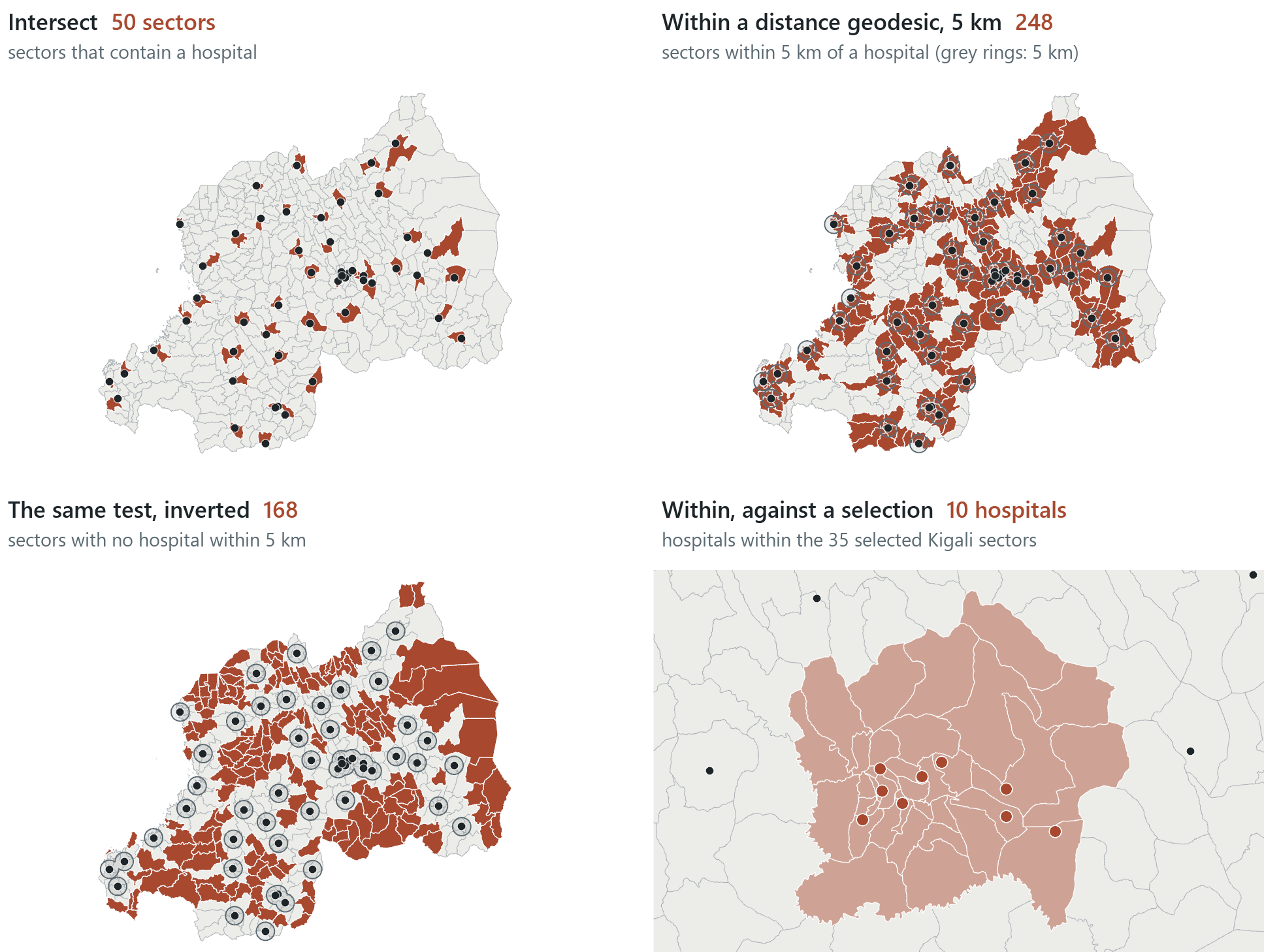
These layers are stored in latitude and longitude, so the search distance box starts in decimal degrees, and a value of "5" left in degrees is about 550 km, a distance that every sector passes. Set the unit to kilometres, and on data stored in degrees use the geodesic form of the test, which measures on the ellipsoid (Chapter 3); here the plain planar test gives 247 instead of 248.
The selecting layer can itself have a selection. With the 35 Kigali sectors selected, a query for hospitals within the sectors tests the hospitals against those 35 only and finds Kigali's 10 hospitals. This is useful, but it can also cause mistakes, because a selection left on the selecting layer narrows every later spatial test without any warning.
Rule of thumb
Before a spatial query, check the units of the search distance and clear any selection you do not mean to use. After it, read the count before you rely on what the map shows.
Attribute and spatial together
Many real questions have an attribute condition and a spatial one. The classic example is funding for earthquake preparedness: cities within 50 miles of a past earthquake and with more than 250,000 people. The two queries run one after the other, and the order does not matter, as long as the second combines with the first instead of replacing it.
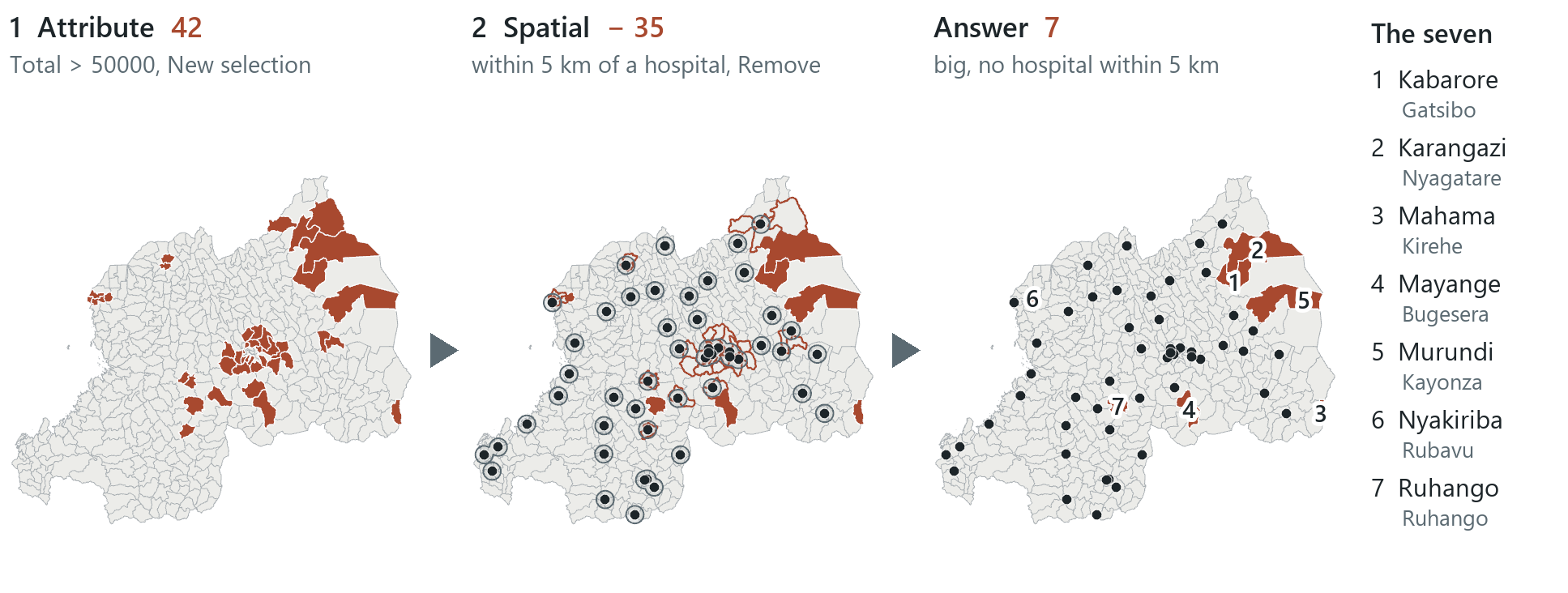
In Rwanda the health-planning version is: which big sectors have no hospital within reach? Select the 42 sectors of more than 50,000 people, then run Select By Location for sectors within 5 km of a hospital with the selection type remove from the current selection. Seven sectors remain: Kabarore, Karangazi, Mahama, Mayange, Murundi, Nyakiriba and Ruhango. They are a shortlist produced by a proximity test, and the test alone does not show that their access to care is poor. Using select subset instead would keep the 35 big sectors that do have a hospital nearby, which answers the opposite question, and a new selection would discard the first result. Running the spatial test first (168) and the attribute test second, as a subset, gives the same seven. Exporting the selection saves the result as a feature class.
Reading the result
- The question: which big sectors have no hospital within 5 km?
- The representation: hospital points and a 5 km geodesic distance from any part of a sector.
- What it shows: 248 sectors pass, 168 fail, and seven sectors of over 50,000 people fail.
- What it cannot establish: access to care, which depends on homes, roads, capacity and clinics.
In the pane
Module 6 lesson 3 adds the hospitals by URL, selects with the cursor, then runs Select By Location four ways: intersect (50), within a distance geodesic of 5 km (248), inverted (168) and hospitals within the selected Kigali sectors (10). With Invert unticked again, it ends with the combined question and exports the seven sectors as big_sectors_no_hospital, and you read the output path before clicking OK, because Pro reuses the last Output Location it used, which can be another project's geodatabase.
Summary statistics
A summary reduces many rows to a few numbers. Summary statistics computes statistics of a field (sum, mean, minimum, maximum and others) for groups of records defined by a case field, one output row per value of that field. If a selection is active, only the selected rows are used. The result is always a table, because a summary has no geometry of its own. Besides the statistics it carries a FREQUENCY column, the number of rows in each group, and it names each statistic after its field, such as SUM_Total and MEAN_Total.
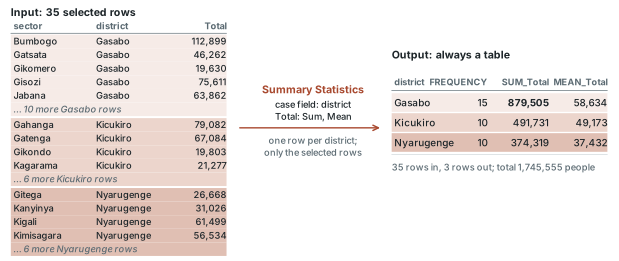
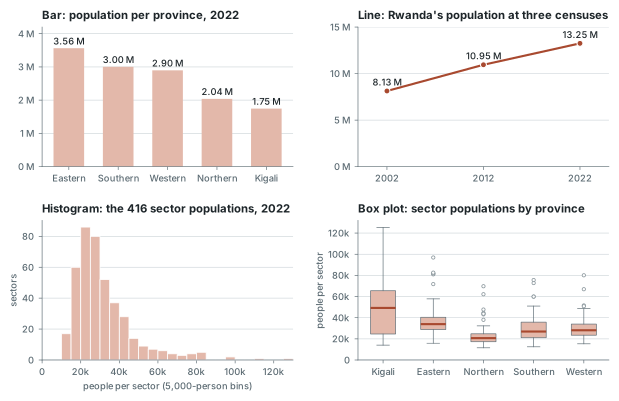
Summarised by district, the 35 Kigali sectors become three rows: Gasabo's 15 sectors hold 879,505 people, about half the city's 1,745,555. Run again on all 416 sectors with province as the case field and no selection, the same tool gives five rows, and the Eastern Province, with 3,563,145 people, is the most populous, more than twice the City of Kigali, whose sectors are the densest. A summary table can be joined back to its polygons by the case field to be mapped, as in Chapter 5.
Charts: which one answers what
A chart is a drawing of the values in a table, and each kind of chart suits a different question. A bar chart shows an amount per category. A line chart shows change over time. A histogram shows how the values of one numeric field are spread, as counts in bins. A box plot shows the same spread as a median, quartiles and range, and is suited to comparing groups side by side. A bar chart and a histogram look alike, but a bar chart compares categories and a histogram describes a distribution.
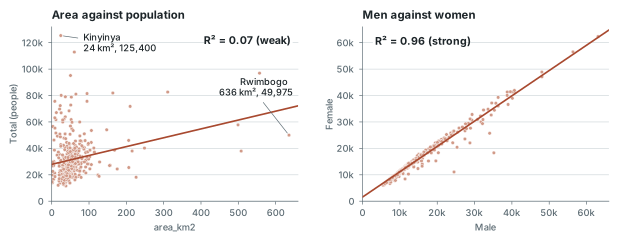
A scatter plot draws one dot per feature by two numeric fields, to show whether and how they go together. A fitted trend line helps to show this, and its R² gives the share of the variation that the line accounts for: near 1 the dots lie close to the line, near 0 the line explains little (the two may still be related in a way no straight line fits). Sector area against population is weak, with R² about 0.07: Rwimbogo, the largest sector at 636 km², holds under 50,000 people, while Kinyinya, the most populous with 125,400, covers about 24 km². Men against women in the same sectors is strong, with R² about 0.96. A strong relationship is not necessarily a meaningful one. Both counts rise with a sector's population, so they move together, and a relationship between areas tells you nothing about cause or about individuals (Chapter 4). The outliers are often the most interesting dots. In ArcGIS Pro a chart and its map share one selection, so clicking an outlier in the chart selects that feature on the map at once.
Reading the result
- The question: does population go with area, and men with women, across the sectors?
- The representation: one dot per sector for two fields, with a straight trend line and its R².
- What it shows: weak for area (R² about 0.07), strong for men and women (R² about 0.96).
- What it cannot establish: cause or anything about individuals; both counts track population.
Rule of thumb
Choose the chart by the question: a bar for amounts per category, a line for change over time, a histogram or box plot for a distribution, a scatter plot for whether two fields go together. Then look for the dots that lie far from the general pattern.
In the pane
Module 6 lesson 4 runs Summary Statistics from a column heading twice, on the Kigali selection by district (Gasabo 879,505) and on everything by province (the Eastern Province), each time reading the Output Table path before OK, then makes a scatter plot of area against population with a trend line, names the far-right dot and selects in the chart to show the selection on the map. A second scatter plot, men against women, shows a strong relationship for comparison.
Try it
With the Module 6 project open, ask Waldo in Ask mode: which three districts have the most people, and how many sectors does each have? Waldo summarises the layer for you. Then ask it to write the SQL for the sectors in those districts, and read the clause before you run it yourself.
Key terms
- spatial data exploration (ESDA)
- interactive, iterative questioning of data through linked maps, tables and charts.
- attribute query
- a query that selects records by their attribute values, written as an SQL WHERE clause.
- SQL
- Structured Query Language, the language of relational databases: SELECT fields FROM a table WHERE a test is true.
- WHERE clause
- the test part of an SQL query: a field, a comparison and a value, joined to others by AND, OR and NOT.
- IN
- an SQL operator that tests a field against a list of values.
- LIKE
- an SQL operator that matches text against a pattern, with % standing for any run of characters.
- selection
- the features currently highlighted, shown on the map, in the table and in the count; replaced by the next new query.
- selection type
- how a new query combines with the current selection: new, add (OR), remove (NOT), subset (AND), switch or clear.
- definition query
- a layer filter that hides the features failing a test, without changing the stored data.
- spatial query
- a query that selects features by their spatial relationship to other features.
- spatial relationship
- the geometric test in a spatial query, such as intersect, within, contains, touches or within a distance.
- adjacency
- features meeting along a boundary without overlapping.
- summary statistics
- statistics of a field computed per group of records; the output is always a table.
- case field
- the field whose values define the groups, one output row per value, in a summary.
- histogram
- a chart of one numeric field's distribution, as counts in value bins.
- box plot
- a chart of a distribution's median, quartiles and range, suited to comparing groups.
- scatter plot
- a chart of two numeric fields, one point per feature, for reading their relationship.
- R²
- the share of the variation in the vertical-axis variable that the fitted line accounts for, from 0 (none) to 1 (all).
Further reading
- Snow, J. (1855). On the Mode of Communication of Cholera (2nd ed.). London: John Churchill. Public domain; Wellcome Collection https://wellcomecollection.org/works/uqa27qrt and Project Gutenberg https://www.gutenberg.org/ebooks/72894 (src:snow-1855)
- Olaya, V. Introduction to GIS, the chapters on databases (queries and logical operators) and analysis (spatial queries). https://volaya.github.io/gis-book/en/ (src:olaya-gis-book)
- Esri. ArcGIS Pro documentation: Select features by attributes and Select features by location, with the full list of spatial relationships. https://pro.arcgis.com/en/pro-app/latest/help/mapping/navigation/select-features-by-location.htm (src:esri-pro-docs)
- The course's data sources: the Rwanda sectors, census table and hospitals, and John Snow's data, with their publishers and licences. (src:course-data-sources)